 Sign In











Email is the most effective channel to reach your target audience.
That’s why bloggers experiment with so many tools and strategies to capture the email address of their website visitors.
But even without having the emails of your target audience, you can get a backdoor entry into their inboxes.
I am not talking about buying an email list. That’s bad for your business.
Have you heard of Gmail Ads?
In September 2015, Google integrated native Gmail Ads with your Google Ads toolbox and made it available to all advertisers.
So, guess what?
You can use Google’s smart targeting options to reach 1.2 billion monthly active Gmail users (as of 2018) who routinely check their emails several times in a day.
You get to measure reach, open rate, click through rate (CTR), saves, forwards, and more – all at the price of your standard AdWords cost per click.
Your targeted consumers will see a teaser of your ad in their inbox. And, by clicking on the teaser, they will see an expanded form of your ad (customizable for advertisers with many Google ad templates).
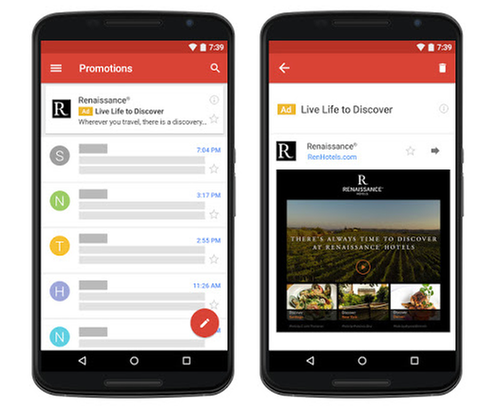
It’s a custom HTML code format, allowing you to create a richer ad experience by including videos, phone numbers, forms, and multiple links.
Every ad also has a “Save to Inbox” link, which allows the user to treat it like a regular email service with forwarding options.
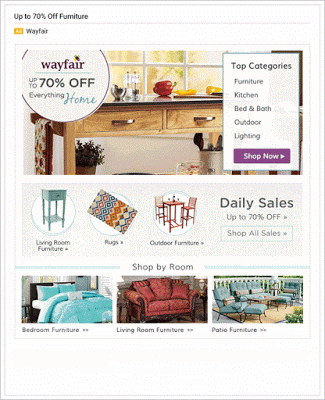
If you set targeting properly, you can expect good engagement from users. This happens when these ads don’t take the user out of their inbox.
World First experimented with Gmails Ads. They saw a 181% higher registration conversion rate as well as a much higher level of engagement compared to all of their sessions data.
Are you interested in launching your first Gmail Ads campaign and achieving such stellar business results?
Then here are 4 essential steps that you need to follow.
Step #1 – The logistics: Name your campaign and set your budget/bidding in the usual way
First off, you’ll need a Google Ads account. You can sign up for free with your Google account.
If you’ve launched a Google Ads campaign before, then this first step is the same.
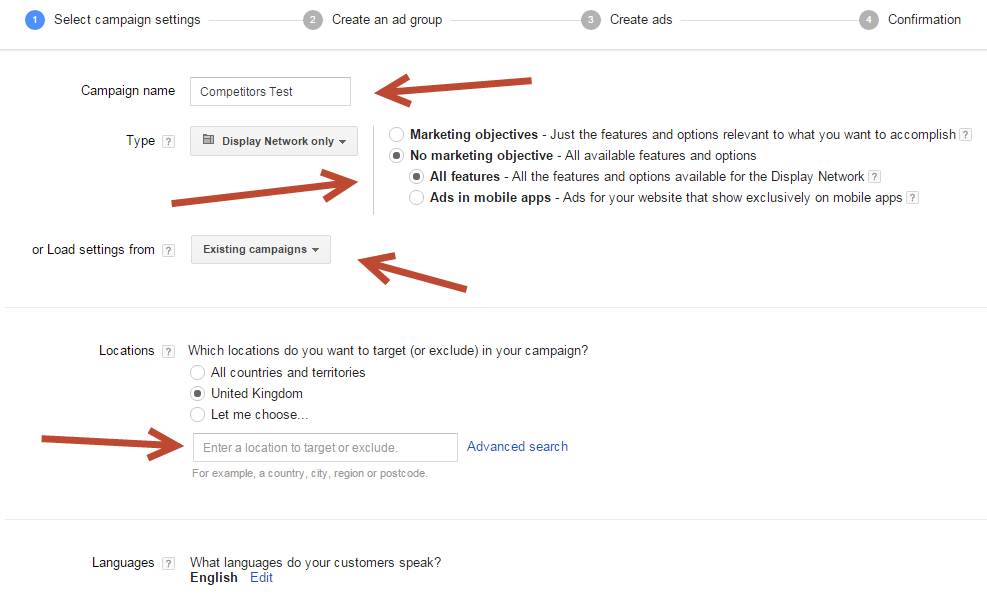
Next, head over to Campaigns >> Display Network Only.
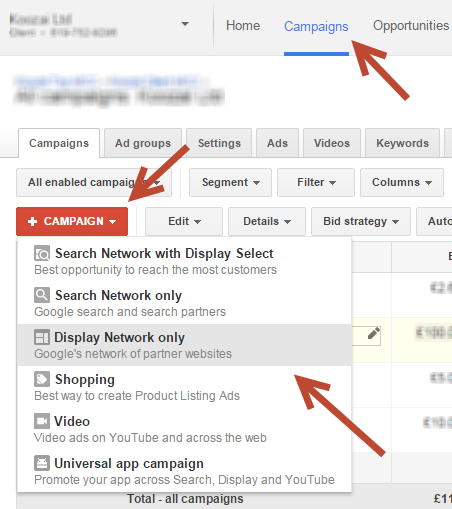
You’ll see the screen below that asks you to name your campaign, upload your settings, and enter the locations/languages that you want to target or exclude.
Unless you’ve got a well-planned strategy to target users only on the Gmail app, choose “All features” in the ‘Type’ field.
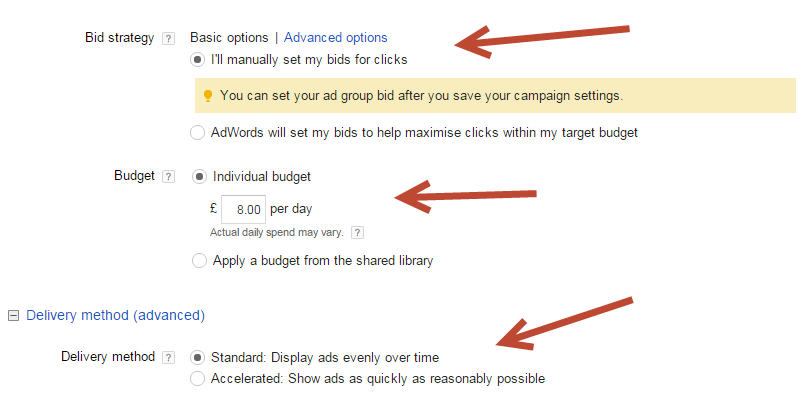
Now, you’ll need to set up your bidding strategy.
As I’ve written before, automatic bidding is quite useful for saving your time. Rakuten Ichiba reduced campaign costs by 12%, increased his conversions by 12%, and increased the value of sales by 14%.
But, if you want higher ad viewability and lower CPA, it’s advisable to switch to manual bidding. It will become more work-intensive but you’ll have greater control over your bids.
For the budget and delivery, I would recommend that you start small. Choose ‘Individual budget’ and bid under $10 a day. Choose standard delivery to conserve your budget.
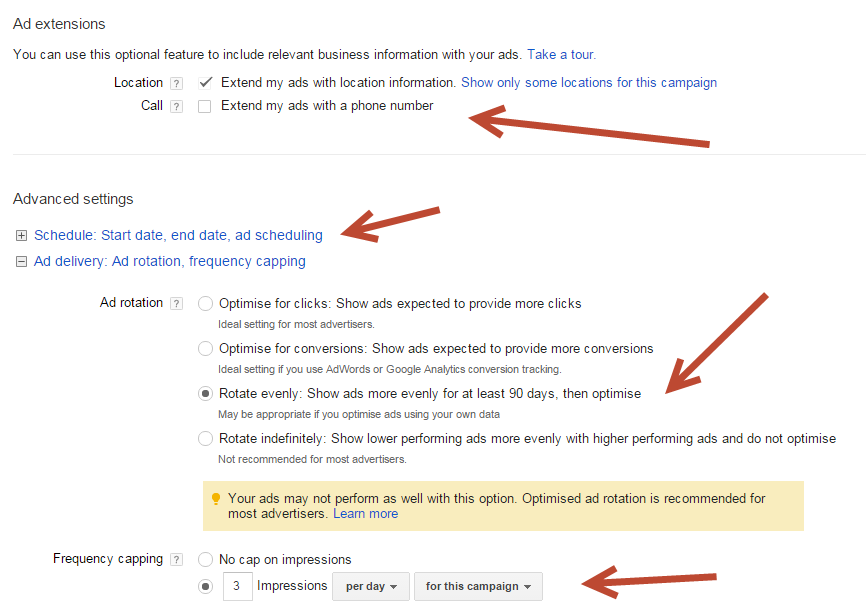
Next, you should go the extra mile and use ad extensions.
It’s not a guarantee that your location or phone number will appear, but, if they get picked up, you’ll improve your ad CTR.
Under Advanced settings, you need to schedule the start date and end date of the ad. And, as you’ll want to split test your ads, set the ad delivery to ‘Rotate evenly’.
You can also choose to set the ad delivery to ‘Rotate indefinitely.’ By choosing this option, Google will keep rotating your ads (irrespective of their performance) so that they get the same number of impressions. As you get sufficient data, you can stop the low performing ad(s).
Next up is Frequency capping. It’s the number of times that you want to limit your users seeing an ad.
I’ve told you how testing a higher frequency isn’t a problem until you deliver value and keep rotating your ads. But, if you’re afraid of creeping out your customer, limit the number of impressions to 3 per day.
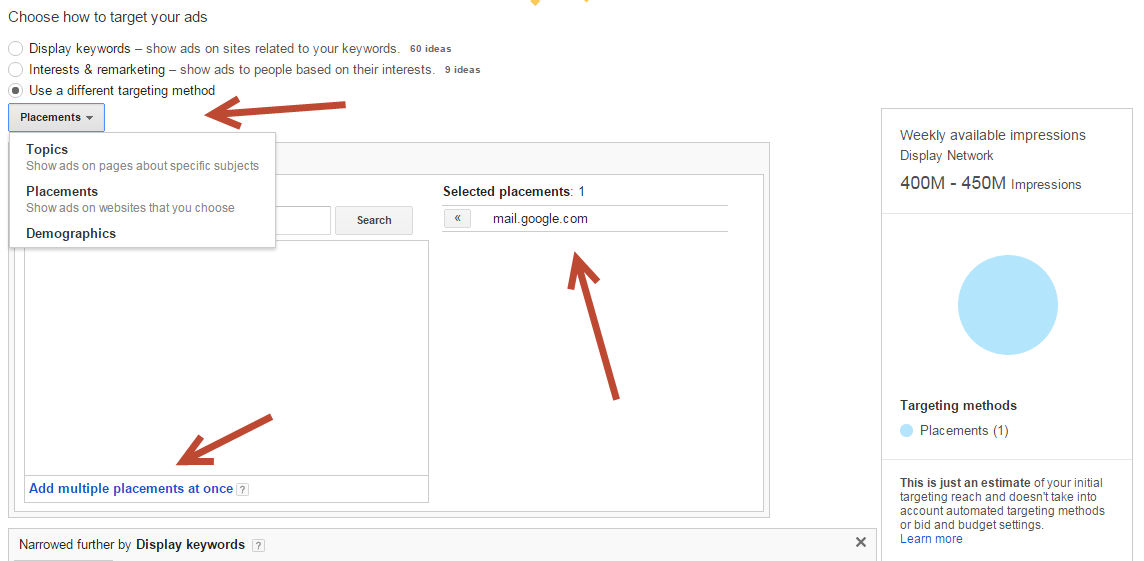
Finally, it’s time to choose the targeting of your ad. The “Gmail placement,” is found by clicking on “Use a different targeting method.”
As you search for Gmail, you’ll get a list. Add “mail.google.com” from the list that populates.
Once you confirm the campaign, you’ll need to jump to the ad gallery to design your ad. Let’s get cracking with the creatives in the next step.
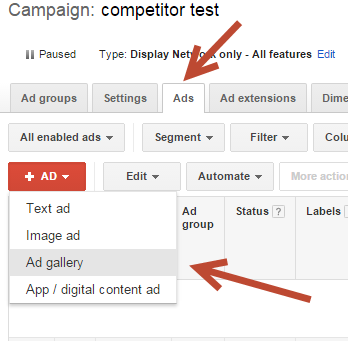
Step #2 – Design your ad’s creative units: both collapsed and expanded versions
Inside Ad Gallery, navigate to Gmail Ads.
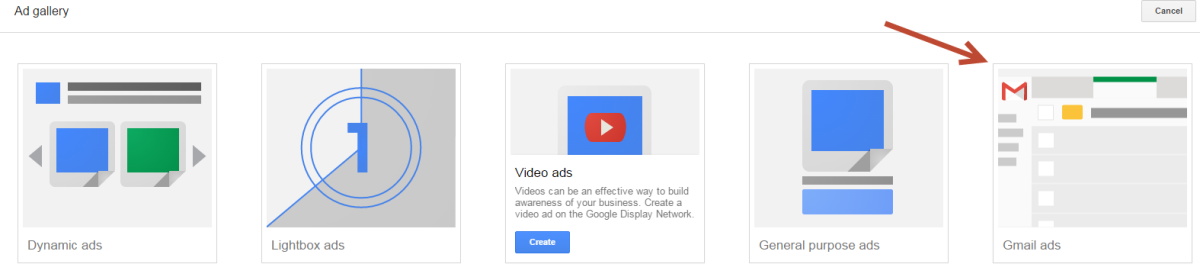
You’ll get the following four template options.
- Gmail Image – This unit is essentially a big banner ad linking out to a landing page. It’s great for branding purposes.
- Single Product – Includes an image and a CTA button to a landing page.
- Gmail Multiple Products – This ad unit is meant for advanced users. It allows you to display more than one product, much like an eCommerce category page. You link out each product to a more detailed landing page.
- Custom HTML code Upload – This allows you to embed YouTube videos, add a click to call or an HTML form. You’ll need to upload the ad in a zip file.
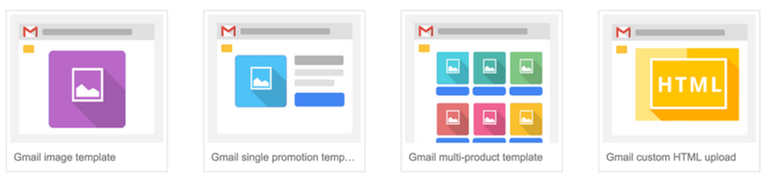
For the sake of simplicity, I recommend that you to start with either of the first two options – Gmail image or single product.
Once you get comfortable, you can mix up these 4 ad formats, because different types of offers will fit better with different Gmail Ads.
Here’s the screen you’ll see, if you choose the Gmail image template.
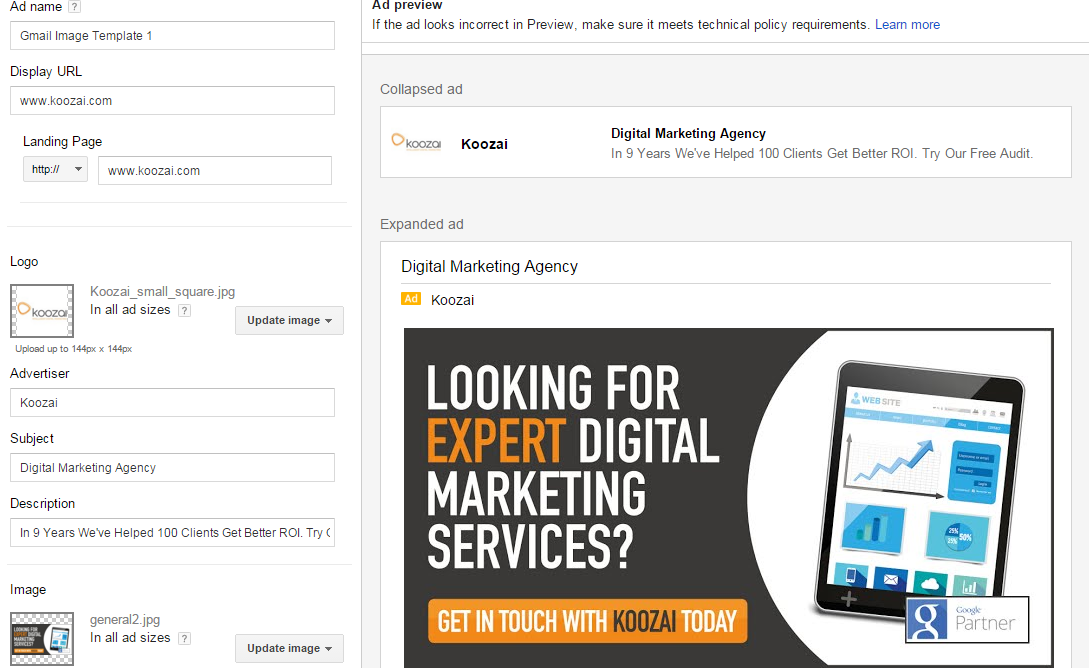
You’ll need to fill in the details in the left sidebar including your ad name, display URL, landing page URL, advertiser name, your email subject line, and a description of your offer. Also, upload your company’s logo and the main image with a compelling CTA.
Google wants the landing page URL and display URL to match the name in your advertiser field. Here are the other specific requirements (character limits and message contexts) of the different fields in your ad. Your ad also needs to comply with all of the Google Ads policies mentioned here.
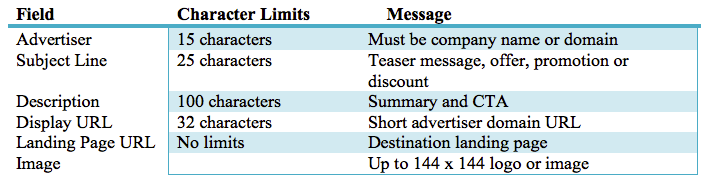
The collapsed ad needs to entice the prospect to read your full email ad. Pull out your existing email marketing campaign reports to figure out what works well for your audience.
It’s incredibly important that you treat your email subject line with utmost care. It needs to be succinct and should grab the attention of your prospect. Try offering discounts inside this teaser message.

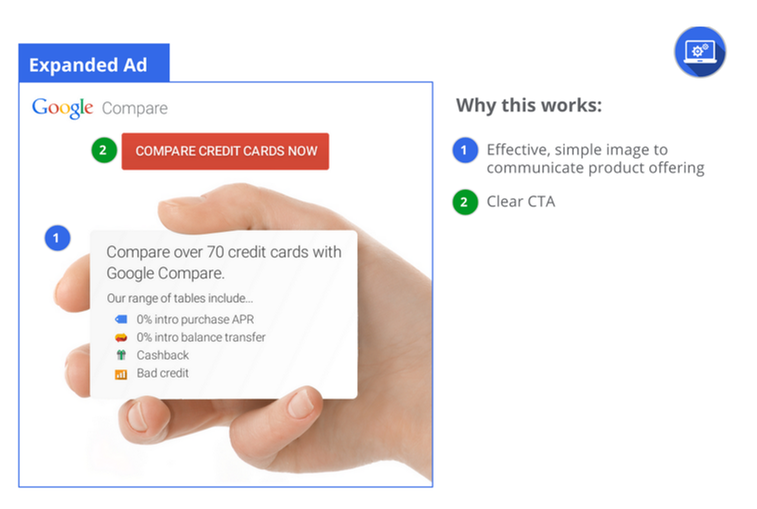
For the expanded ad, I suggest that you have one prominent and persuasive CTA.
High-quality media with balanced color schemes will get interest from your prospects. Also, keep refreshing your ad creatives, to ensure that your ad does not grow stale.
Remember to confirm that your ad is formatted for the smaller screen and loads quickly, because a vast majority of Gmail users access their accounts from their mobile device or Gmail app.
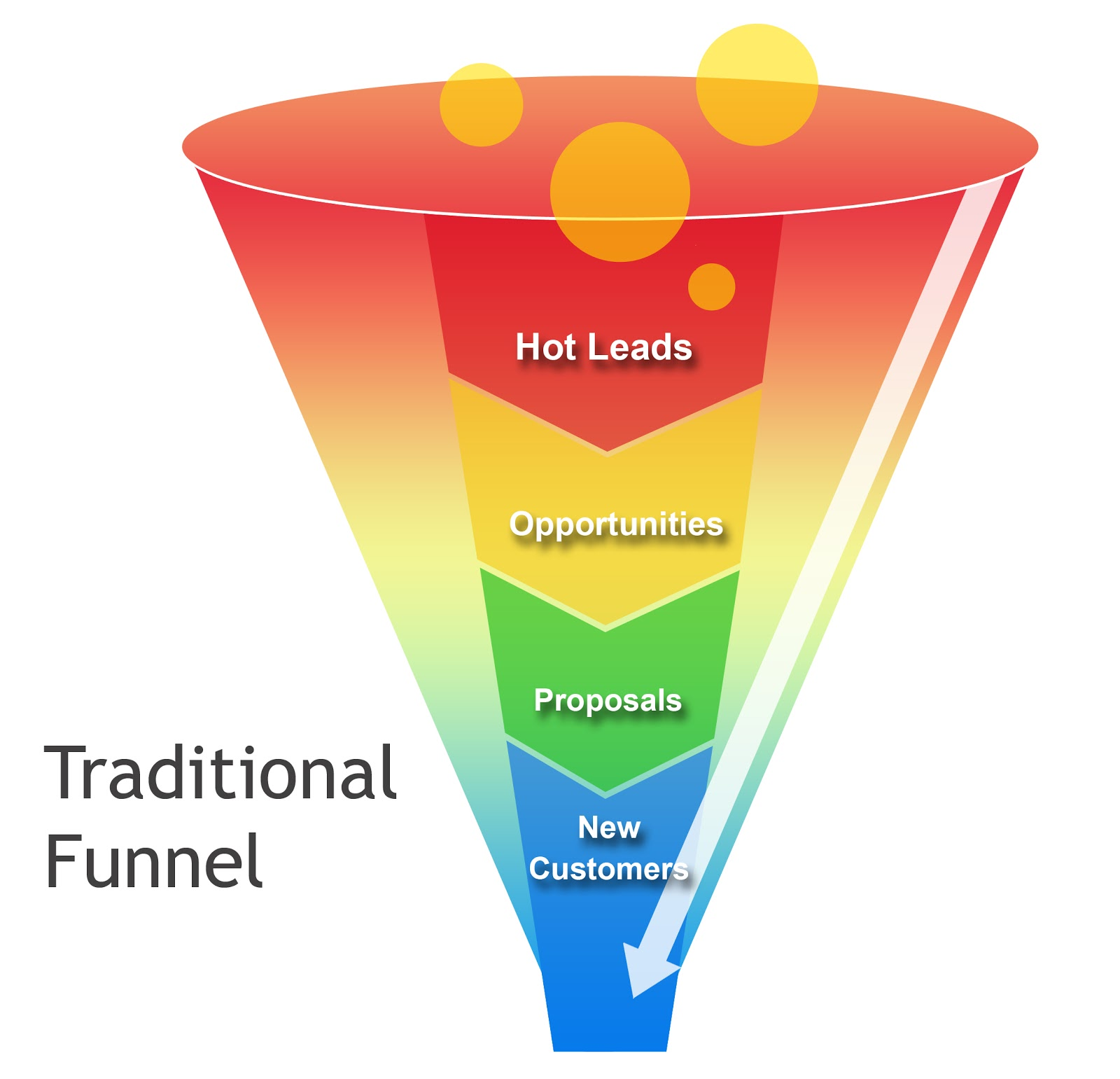
Don’t be satisfied with creating just one ad. You’ll need multiple ads with messages that are tailored for your audience at different stages of your conversion funnel, a user who is aware of your brand offerings vs. one that has never heard about you or your products.
If you’re using custom HTML and teasers, then you can use the creative validation tool to validate your creatives.
Once you’re comfortable with your ads, you can add them to a relevant ad group from the ‘Select an ad group’ button at the top.
Step #3 – Careful targeting will help you reach the right users. Here are some points to help you come up with ideas…
Are you a seasoned Google Ads marketer?
Even then, don’t skip this section.
The targeting inside Gmail Ads works a bit differently than regular display network targeting. Let’s explore some possible Gmail Ads targeting options.
To start with, you target a user by their demographics, topics, and interests (not by the current email that the user is reading).
You can also use Google Ads Customer Match to upload a Gmail address list (at least 1,000 subscribers) of Gmail users and let your ad pop up in their inboxes.
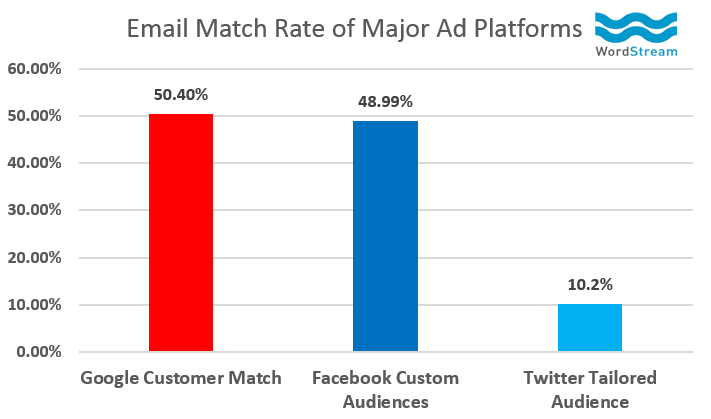
Wordstream found Google Customer Match to have a higher percentage of email match rate from their customer list over Facebook Custom Audiences and Twitter Tailored Audience.
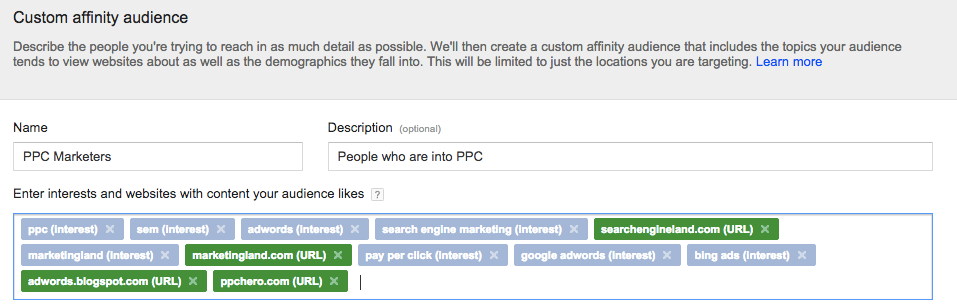
You can also create a list of Gmail address users that visit specific websites and possess long-term interests through custom affinity audience. You can even target your current customers by keying in your own domain.
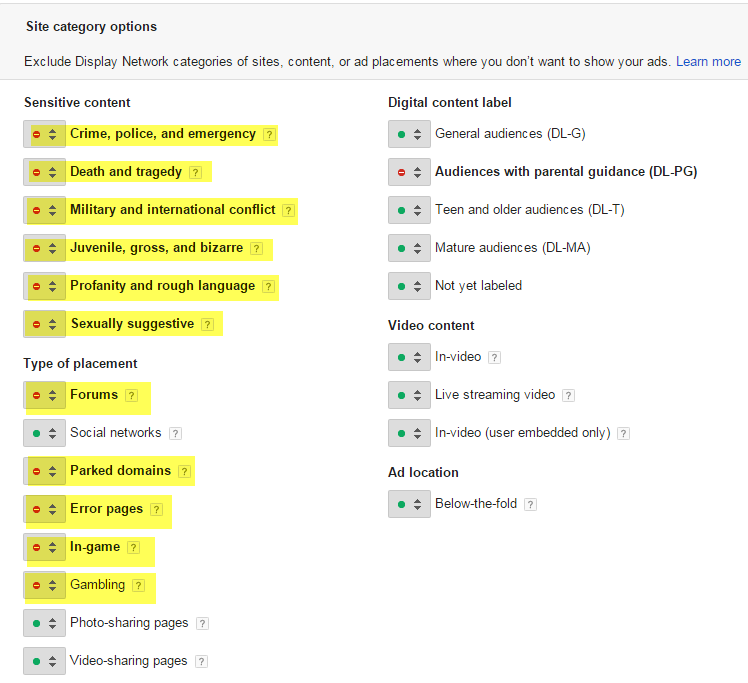
You can also exclude certain keywords, site categories, and topics based on your campaign.
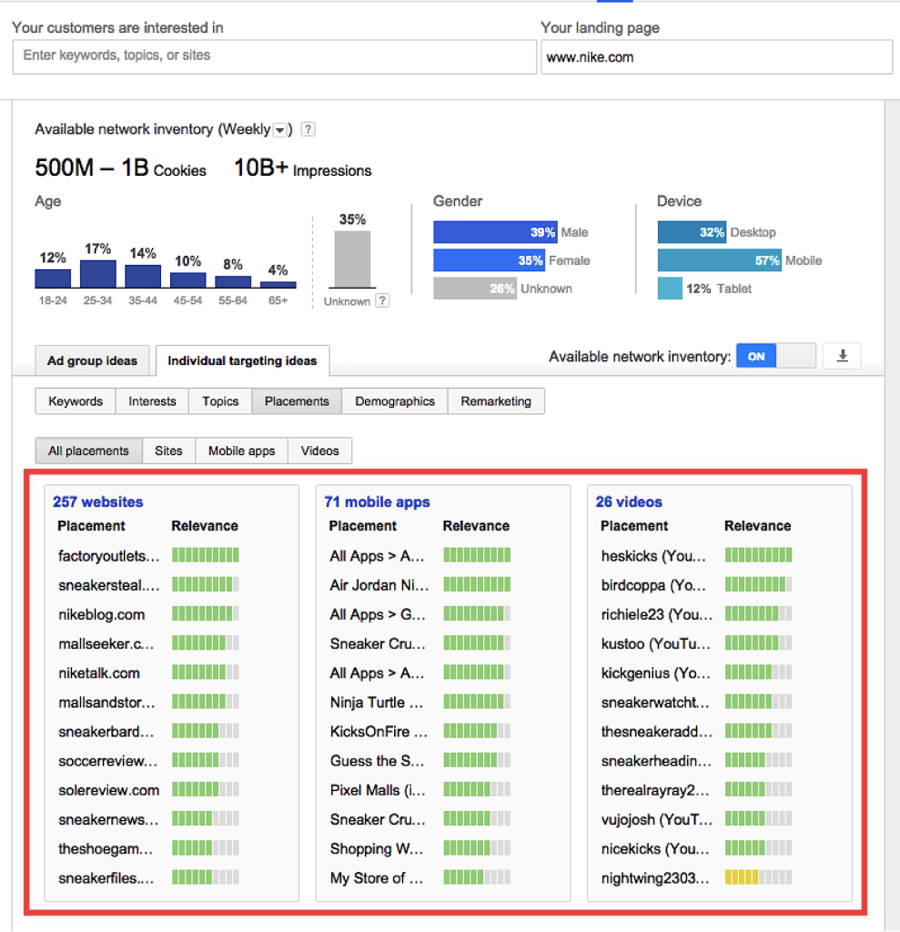
I also want to introduce you to an intelligent tool, by Google, that will help you come up with more targeting ideas for popular websites, apps, and the like.
Log in to your Google Ads account and navigate to Tools >> Display Planner.
You’ll need to type a competitor’s website in the landing page field. Then, move to the ‘Placements’ tab. You’ll get a list of popular websites and apps that you can consider for your ad.
Pro Tip: Remarketing works incredibly well for businesses because it’s based on the past browsing history of a user.
But, due to personally identifiable information in email, remarketing and “In Market Segments” are not available targets within Gmail Ads.
There’s a little trick to substitute remarketing, hone your targeting and conserve your budget – keyword targeting.
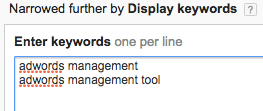
For example, you can target the people that are your subscribers already.
You might have sent them emails (that end up in their Gmail inboxes) through automated drip campaigns and definitely used your brand name in them.
If you’ve got an average email opening rate, then more than 50% of your subscribers won’t interact with your emails.
But, they are already familiar with your brand. So, targeting them will help in increasing your CTR as well as your quality score while lowering your CPC.
Similarly, you can also target your competitors’ brand terms.
Overall, remember that display keywords targeting is a broad match. Start with a group of generic keywords and analyze your results before narrowing your targeting.
Step #4 – Analyze your reports to track the health of your campaign
The most basic metric that you can use for judging your campaign performance is the open rate.
But that alone won’t give you insight into whether or not prospects like your ad and whether or not they interact with it after opening it.
Three additional metrics that you can pull up from your Google Ads reporting interface are forwards, saves, and clicks to website. You’ll need to customize your column to include them.
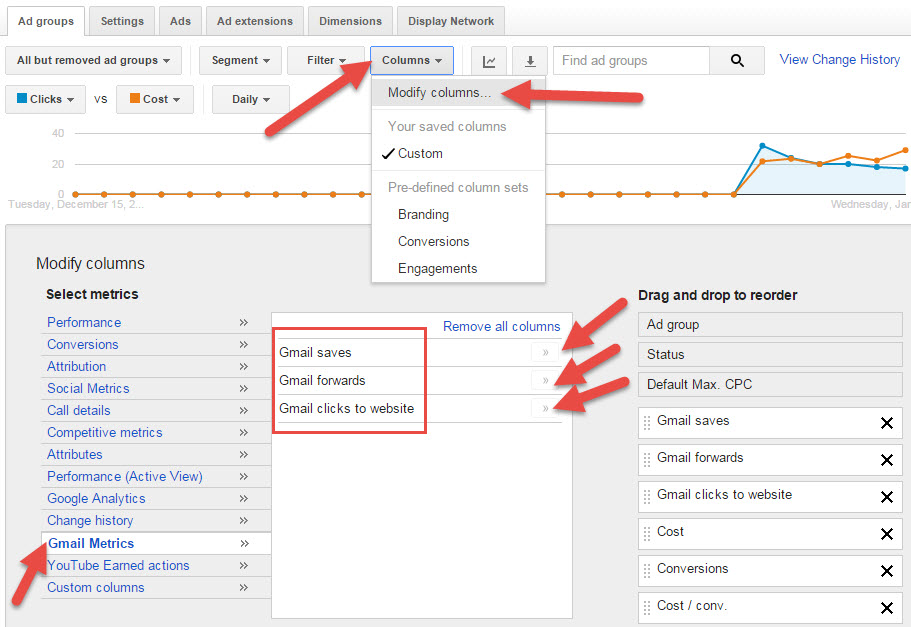
- Gmail clicks to your website is helpful, if you ultimately aim for conversions you’re driving from Gmail Ads.
- Gmail saves indicates the number of users who found your ad relevant and good enough to keep in their inbox.
- Gmail forwards indicate that your ad was so amusing for the user that he took the effort to forward it.
Let’s also look at the other metrics in your report.
- The cost per click (CPC) and (click-through-rate) CTR are the measure of clicks to expand your ad – not clicks to your website. So, don’t get stressed if you see low numbers.
- For finding clicks to your website CTR: divide the Gmail Clicks to Website by your normal clicks.
Generally, Gmail Ads are recommended for branding and advertising purposes. But Growth Everywhere tested them to get conversions at 1.27% with CPA numbers as low as $6.52.
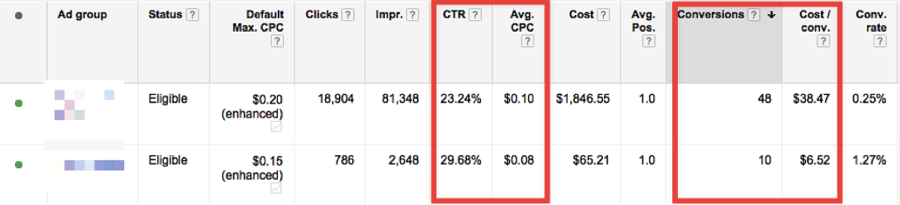
Additionally, you can track your time on site, bounce rate, and pages per session of your visitors from Gmail Ads inside Google Analytics. World First monitored all of these metrics to understand their level of brand engagement.
Conclusion
Gmail Ads can act as a superb growth channel for your business.
If you want help with how you can integrate them with your company’s advertising efforts, then you can directly get in touch with the Google Ads Support Team.
You’ll need to test these ads to see if they suit your brand’s awareness or conversion efforts.
Currently, they are less popular and have lower CPCs. Make your move before your competition starts using them.
Have you tried Gmail ads to expand your brand’s reach? I would love to hear your results in the comments below.