 Sign In











The other day, I was checking out a friend’s website.
I was poking around in his Analytics, trying to come up with some actionable insights for him to work on.
I saw a number that was super exciting. His referral traffic was through the roof!
Referral traffic can be super valuable. I had plans for how he could turn his referral traffic into insane revenue.
Until I started digging deeper. The referral traffic was 85% spam!!
Sometimes, owning a website means riding an emotional roller coaster.
You’ll take a look at your Google Analytics (GA) and see that you’re getting lots of referral traffic, like my buddy’s website.
That’s exciting! Right?
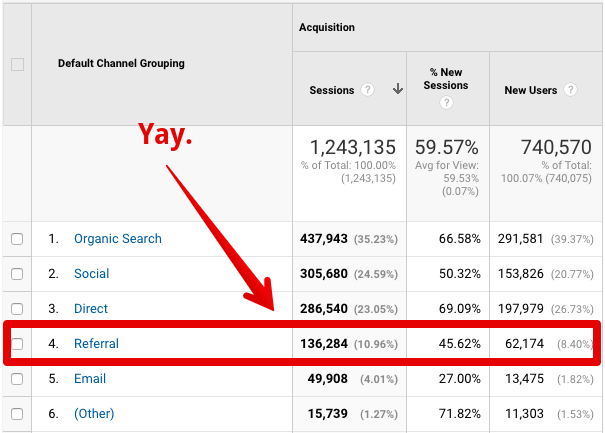
Unfortunately, if you dig deeper, you’ll probably find out that a lot of that referral traffic is nothing but spam.
This is exactly what was happening to my friend’s site.
Referral spam (or referrer spam) is a pain in the butt for site owners around the world.
It makes it look like you have more hits than you do and it can throw off your entire marketing strategy if you’re unaware of it.
Yes, it’s that bad!
If you’ve been seeing some traffic from odd sites that you don’t recognize, it’s most likely spam.
Don’t worry. You’re not the victim of some malicious hacker. In fact, it happens to almost every site on the web.
Thankfully, there’s a fix.
Once you take the steps to eliminate the spam infecting your site, your analytics will reflect your actual traffic and you’ll be able to count on the numbers.
Plus, you’ll be better able to make informed marketing decisions.
Unfortunately, most marketers and site owners don’t even know how to recognize spam.
That’s not anyone’s fault! Some spammers are so crafty that fake visits will appear perfectly legitimate.
First, let’s talk about how to identify spam.
Then, I’ll show you exactly how to spam-proof your GA and prevent it from happening again.
Learn how I used Google Analytics to increase my traffic to 195,013 visitors a month.
What is Referral Spam?
Like I mentioned before, referral spam basically consists of fake website hits.
Here are some screenshots of GA users, pointing out their referral spam.
This website is receiving new sessions (and look at those bounce rates!) from some weird sites.
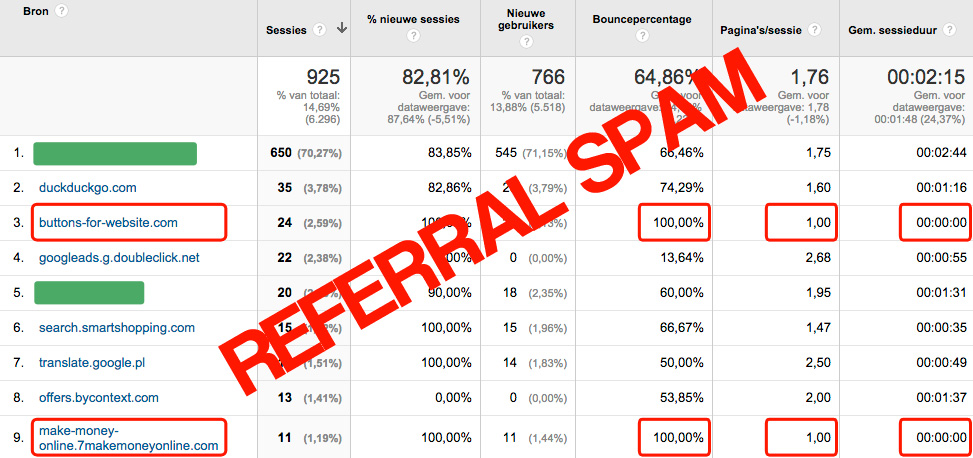
Are you beginning to see a pattern?

Yikes! This unfiltered view of my GA is displaying a bunch of spam visits.
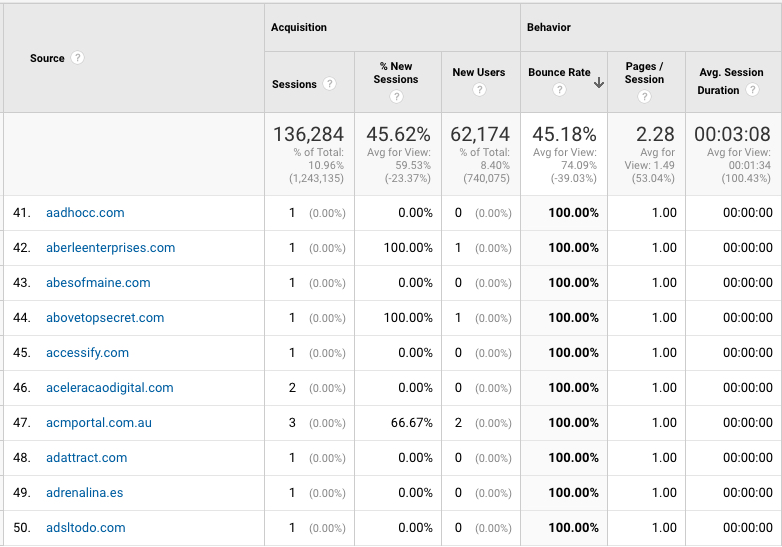
They’re not even real website visits (but we’ll get into that later on).
Sometimes, you’ll be able to tell that the hits are spam. But, other times, the spam comes from seemingly reputable sites.
Let’s start by examining some referral spam in its natural habitat.
Log into GA and click on Acquisition > All Traffic > Referrals in the left hand sidebar.
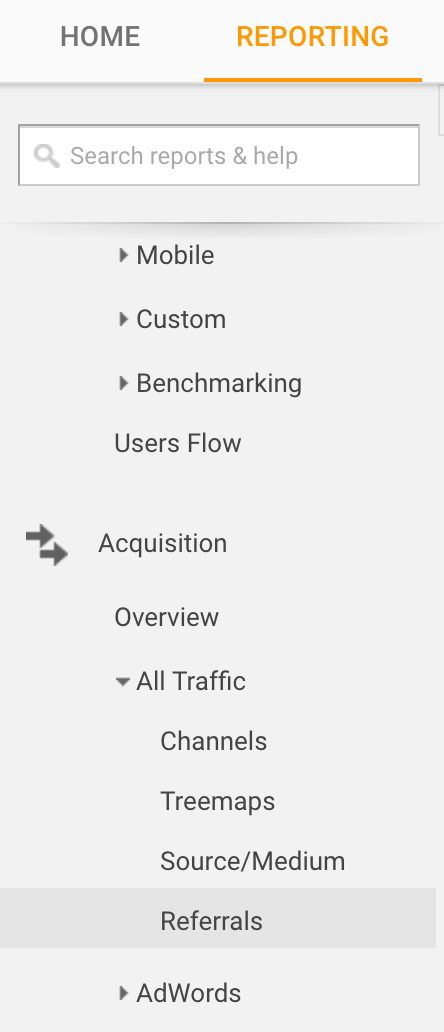
Scroll down until you see this box:
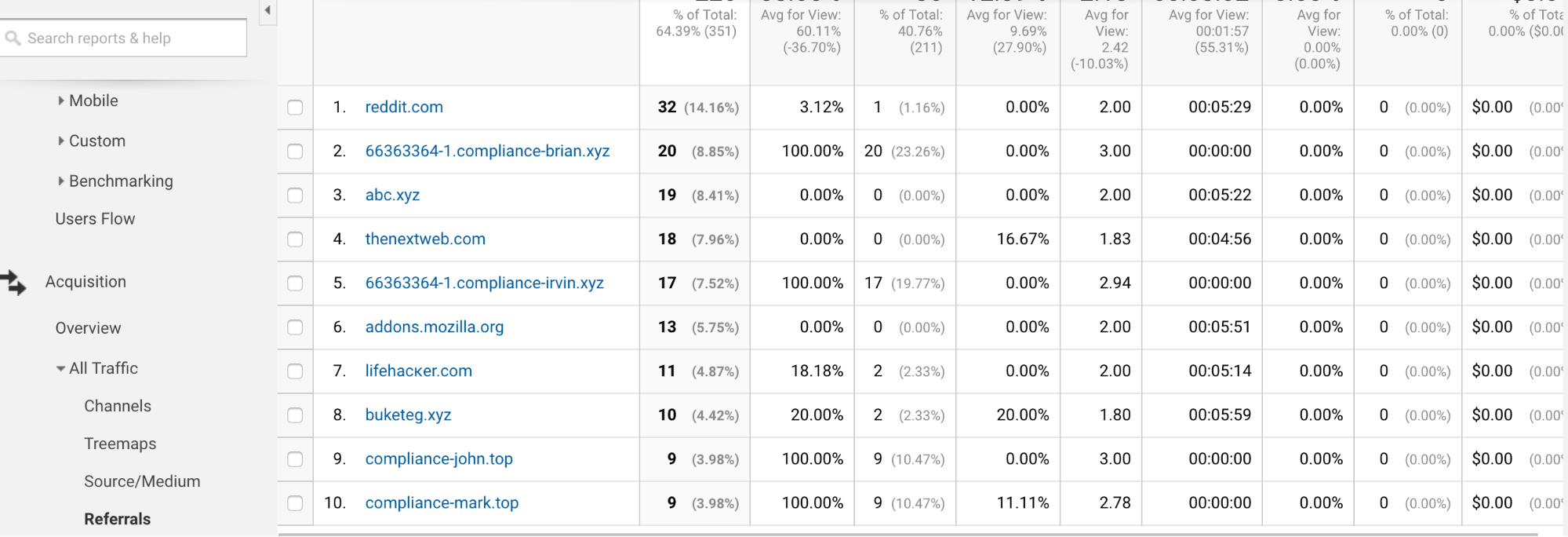
You’ll probably see valid visits, but we want to weed out the spam.
Thankfully, most spam is easy to spot. Several of the ones we noticed above had a 100% bounce rate and a session duration of 0 minutes, 0 seconds.
That basically means that a hit came through to your GA, but no one actually visited your site.
To find these spam hits, click on the Bounce Rate column, so visits with the highest bounce rates are listed first.
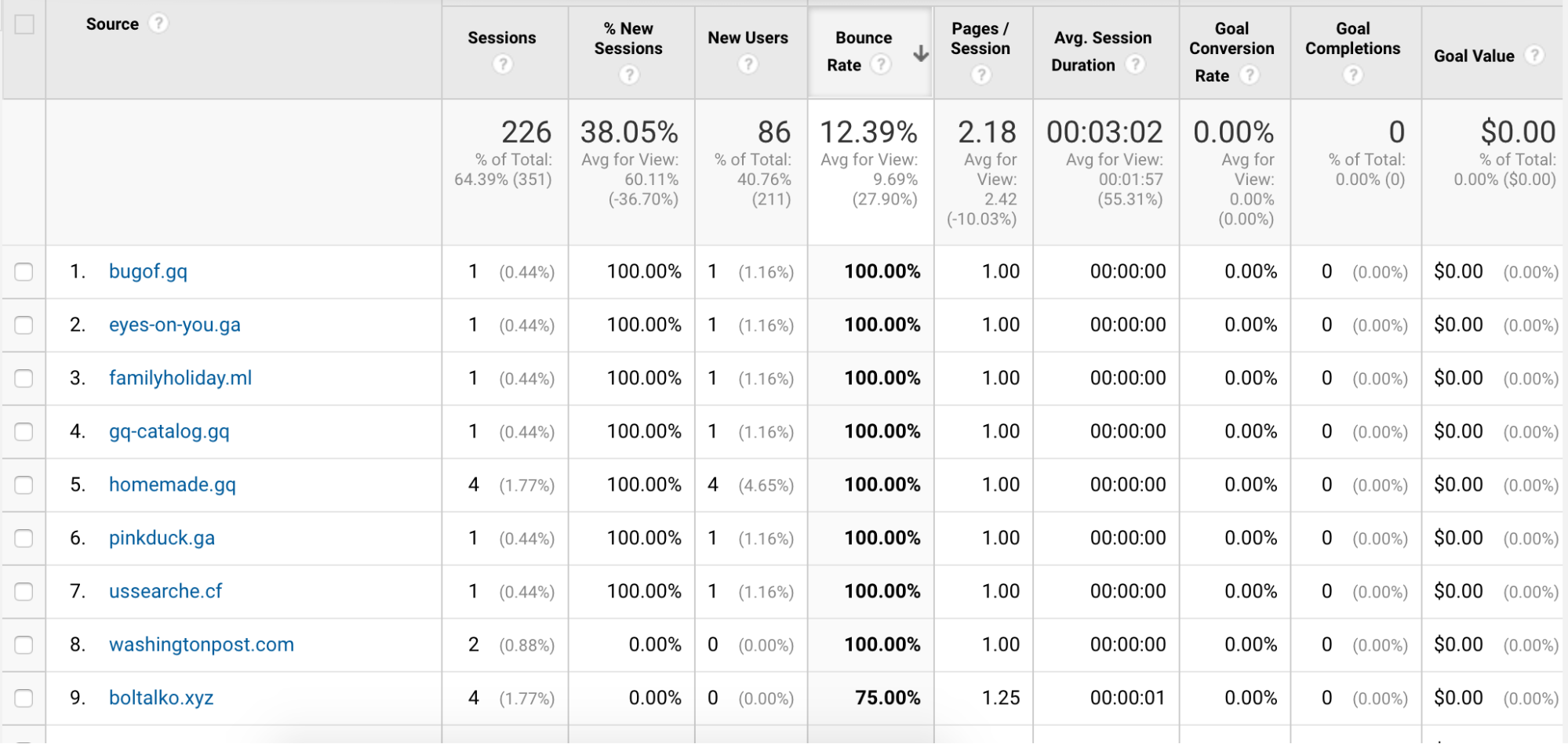
These hits have all the marks of spam. 100% bounce rates, 1 page per session and a nonexistent duration time.
This is exactly the kind of spam that you want to target and eliminate. Here’s how to do that.
Step 1: Clean Out Existing Spam
To remove spam from your existing GA reports, you can create a Custom Segment.
Go to Acquisition > All Traffic > Channels.
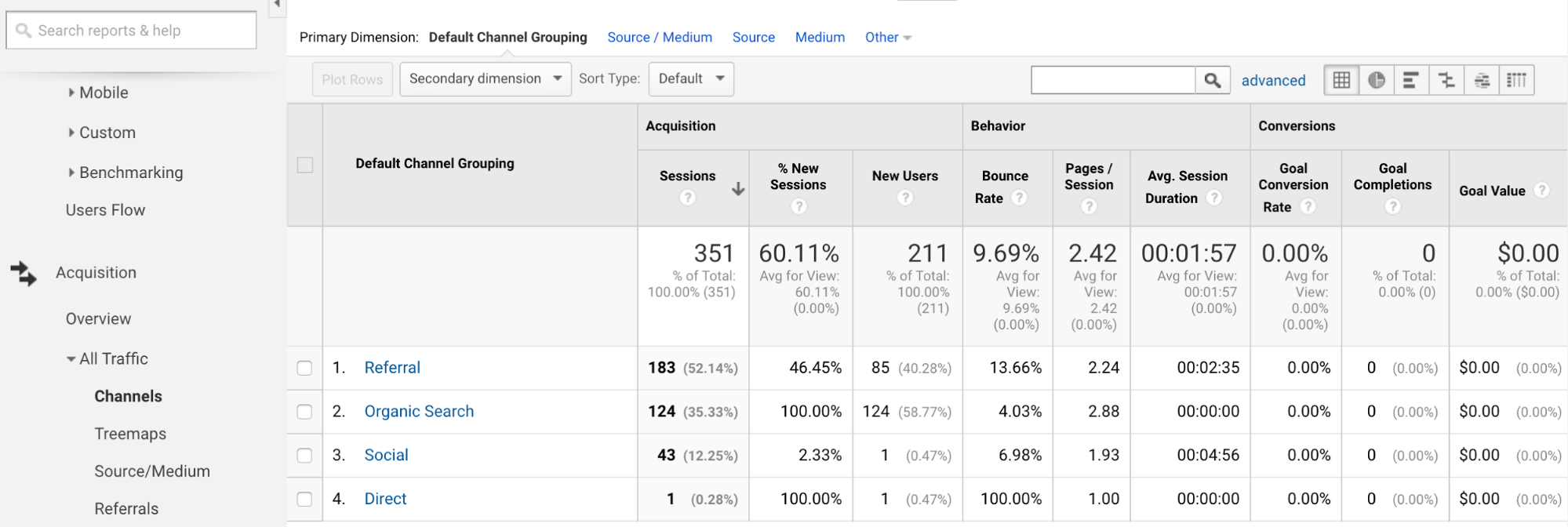
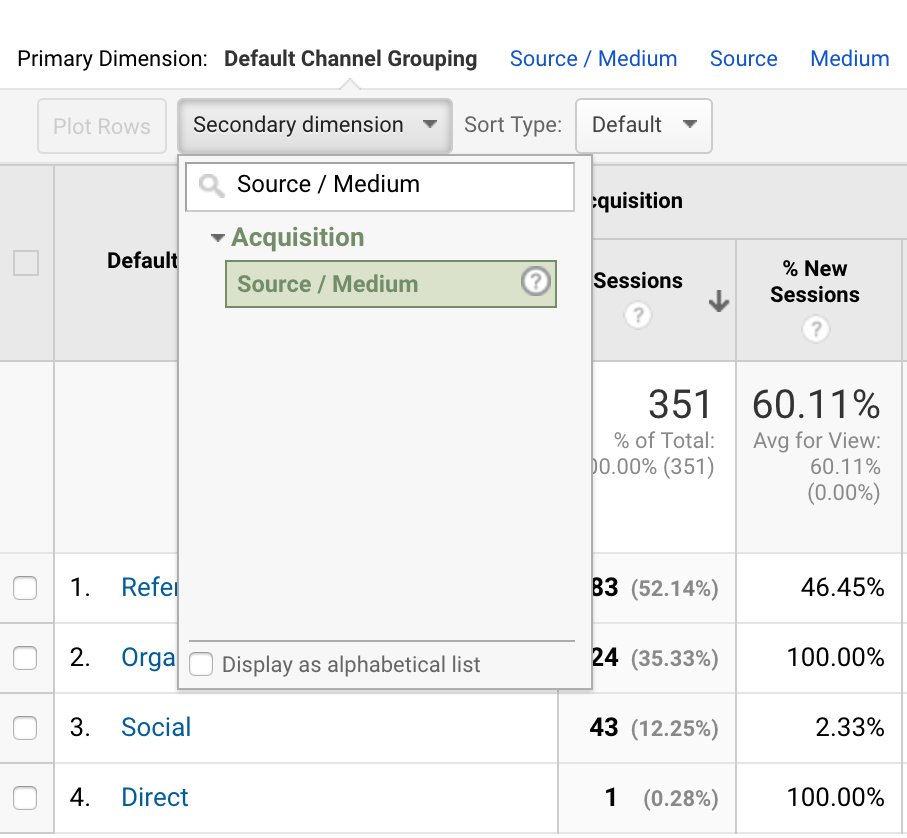
Click on the Secondary Dimension box and enter “Source / Medium.”
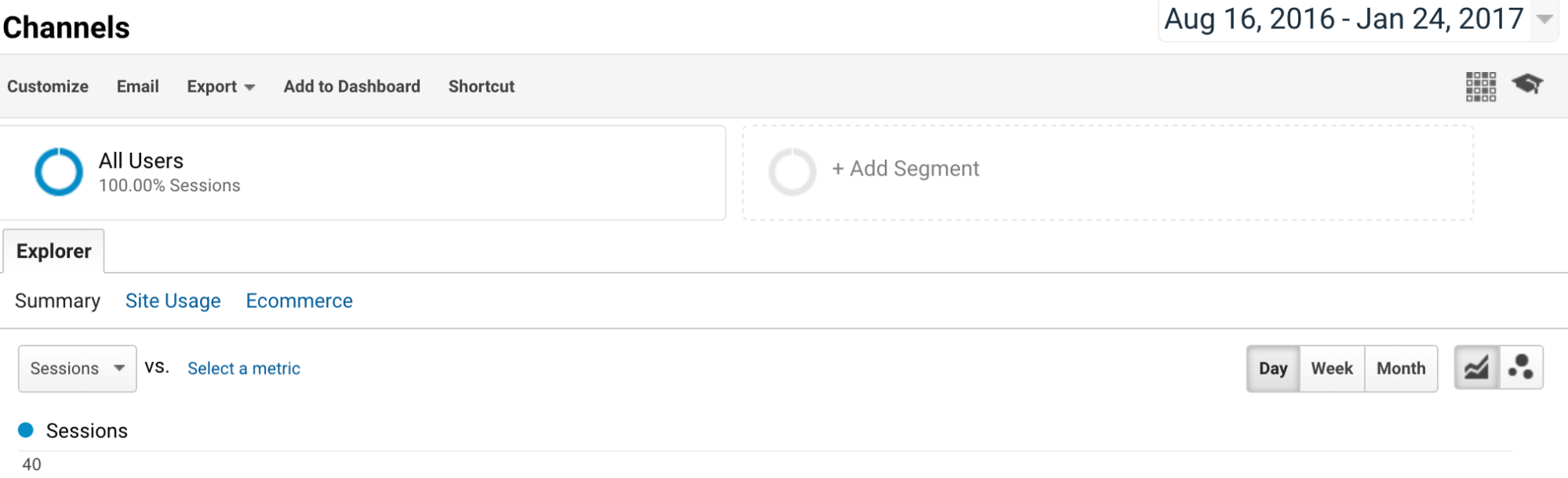
At the top of this page, click, “Add Segment.”
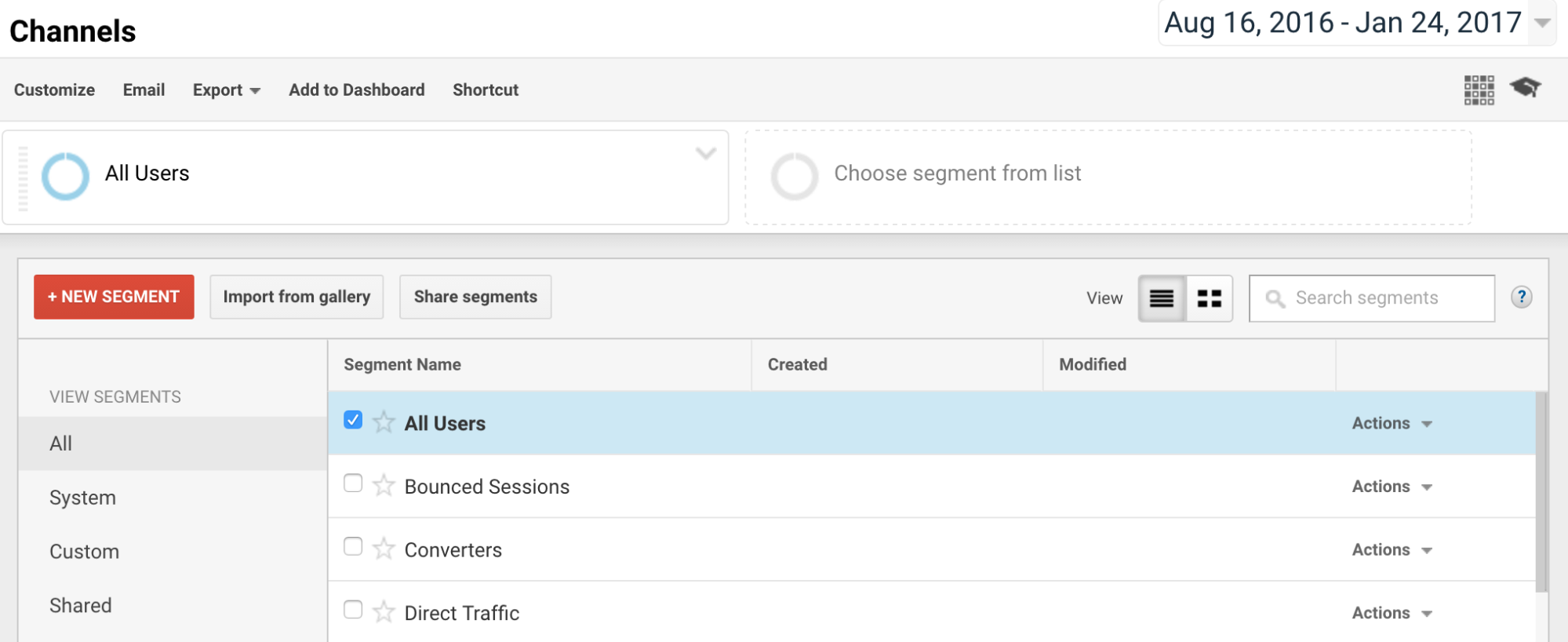
Click +NEW SEGMENT.
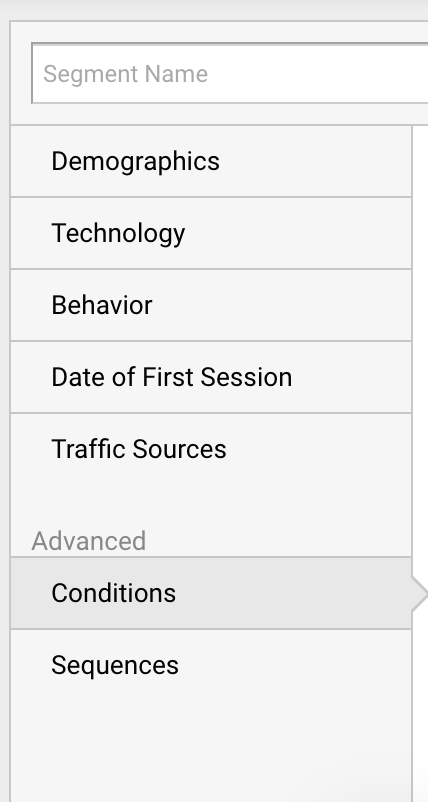
Click “Conditions” in the pane sidebar.
You should see this box:
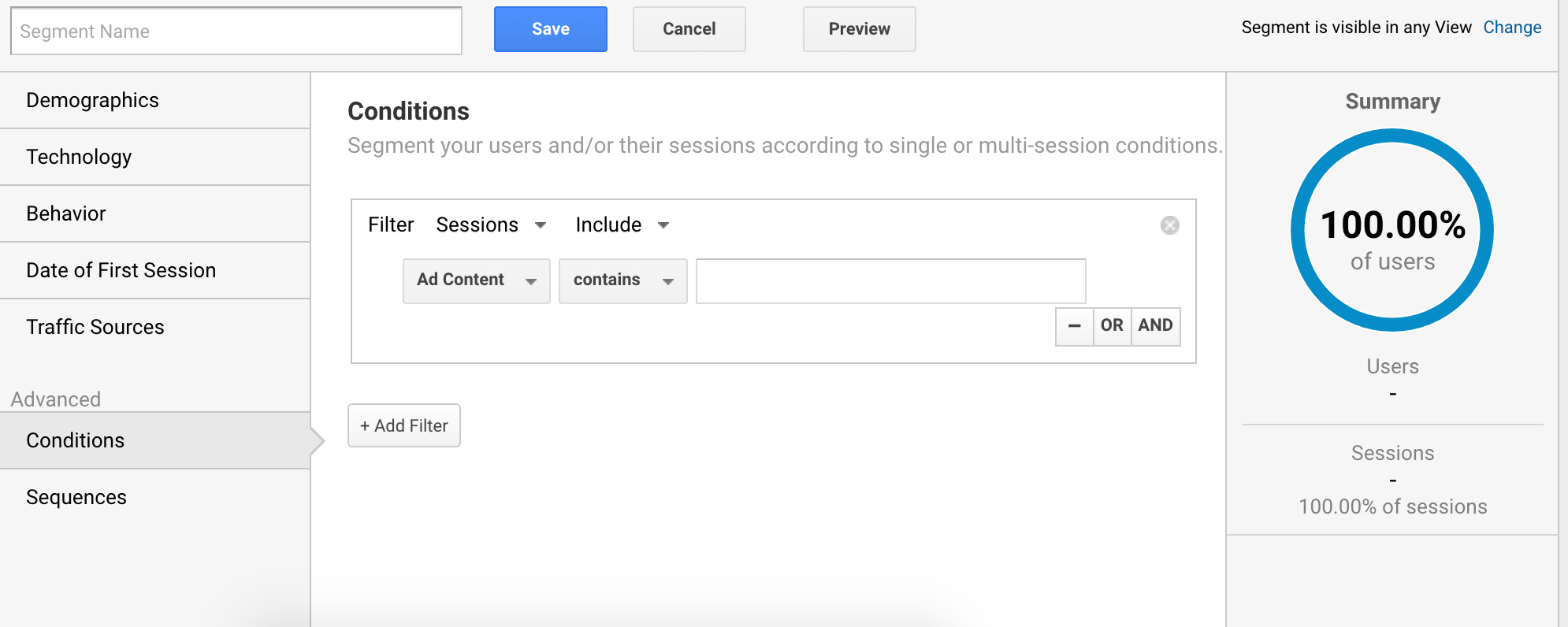
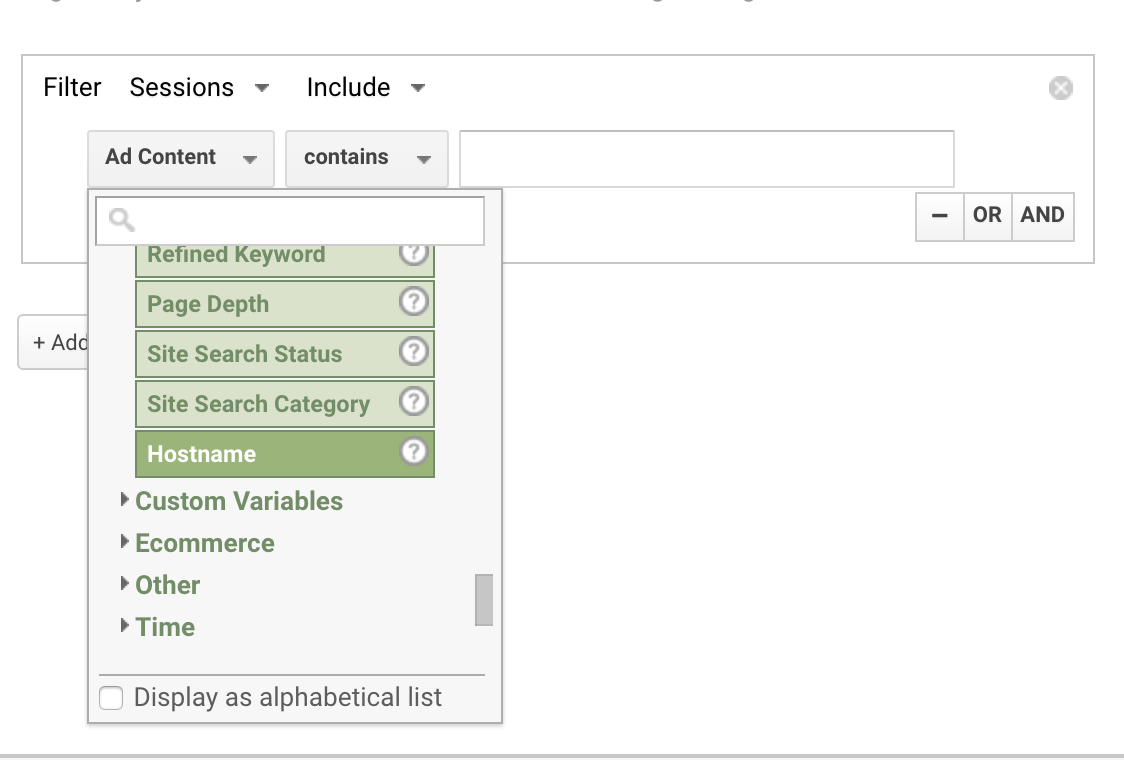
In the first dropdown, click Behavior > Hostname.
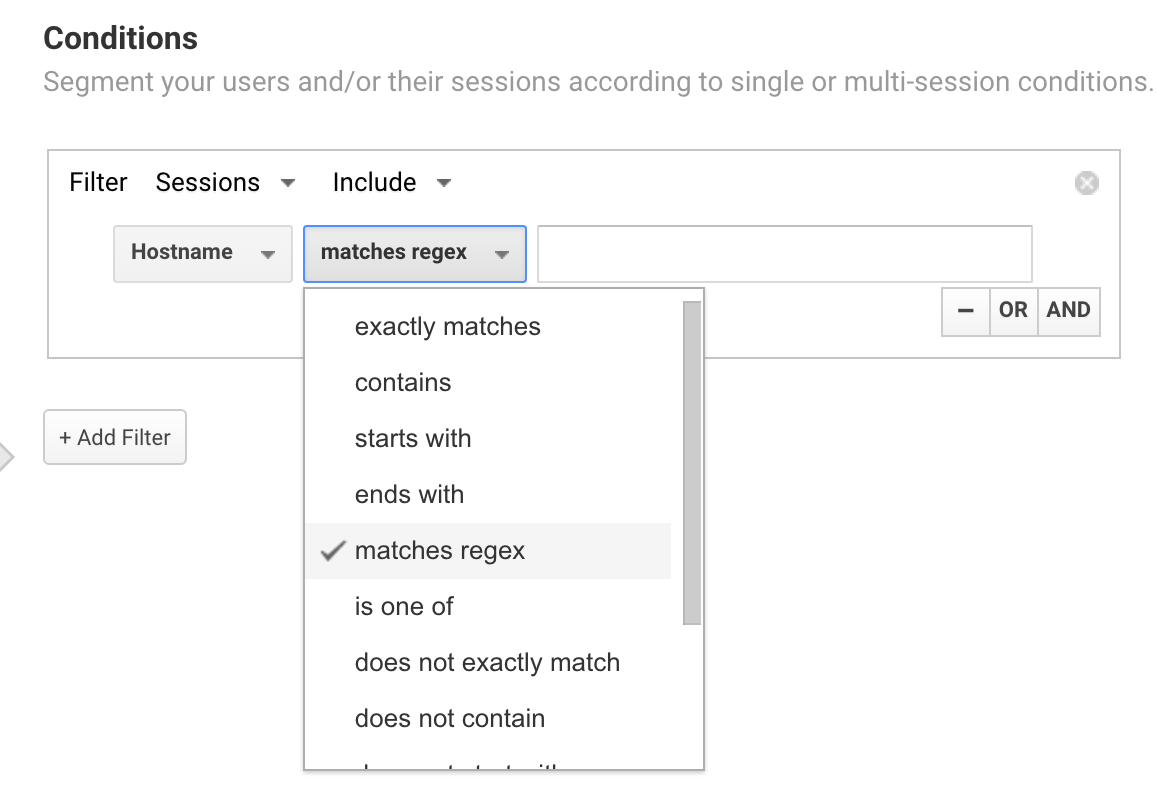
In the second dropdown, select “matches regex.”
In the third box, you’re going to copy and paste the string below, courtesy of Brian Clifton:
offer|free\-|share\-|mercedes|buy|cheap|googlsucks|benz|sl500|hulfington|buttons|
darodar|pistonheads|motor|money|blackhat|backlink|webrank|seo|phd|crawler|anonymous|\d{3}.*forum|porn|webmaster|flipboard|fl\.ru|mbca|ahrefs|game|\.io|^sex|^video
Hit the OR button. You’ll see another identical section pop up:
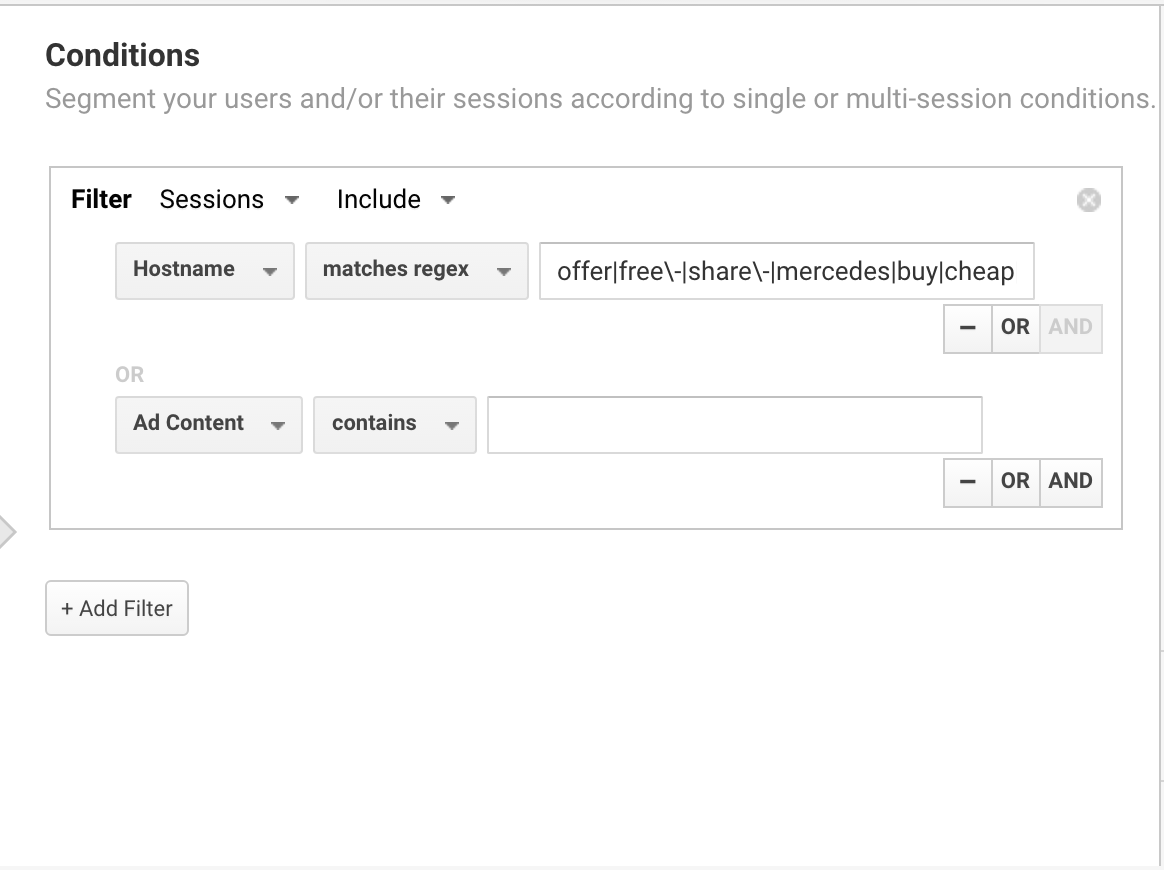
Make sure the dropdowns are also set to “Hostname” and “matches regex.”
This time, copy and paste this string:
dailyrank|100dollars-seo|anticrawler|sitevaluation|buttons-for-website|buttons-for-your-website|-musicas*-gratis|best-seo-offer|best-seo-solution|savetubevideo|ranksonic|offers.bycontext|7makemoneyonline|kambasoft|medispainstitute
Hit the OR button again, and copy and paste this string:
127.0.0.1|justprofit.xyz|nexus.search-helper.ru|rankings-analytics.com|videos-for-your-business|adviceforum.info|video—production|success-seo|sharemyfile.ru|seo-platform|dbutton.net|wordpress-crew.net|rankscanner|doktoronline.no|o00.in
Hit the OR button one more time, and copy and paste this string:
top1-seo-service.com|fast-wordpress-start.com|rankings-analytics.com|uptimebot.net|^scripted.com|uptimechecker.com
Again, make sure all of these are set to “Hostname” and “matches regex.”
Now you can apply this filter to any time frame and any view. Pretty useful, right?
Next up, we have to prevent future spam. Here’s how.
Step 2: How to Add Filters to Block Out Referral Spam
Lucky for us, GA has the handy capability to create filters that stop certain traffic sources from coming through.
In other words, once you add spam sites to your filters, you’ll no longer see fake hits from those sites.
There are two things I should mention, before we get into this step.
First, you’re going to have to keep these filters updated. New spam sites are always showing up and you want to stay protected from those.
I’d recommend looking for referral spam every month. If you see any new spam referrers, create a new filter to block them out.
Second, you’ll want to create a copy of your current Analytics view. This is simply making a backup of everything you see before you make any changes.
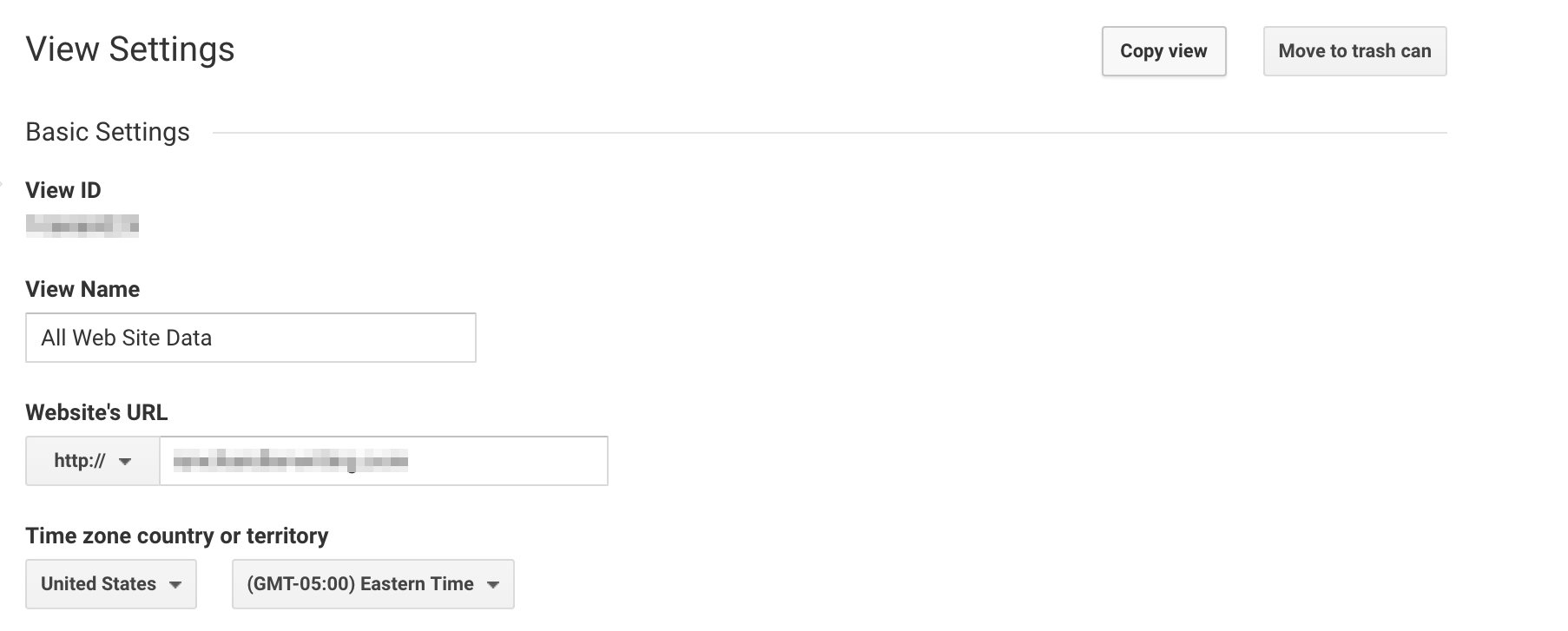
To do that, navigate to the Admin tab. In the right-hand column, click on “View Settings.”
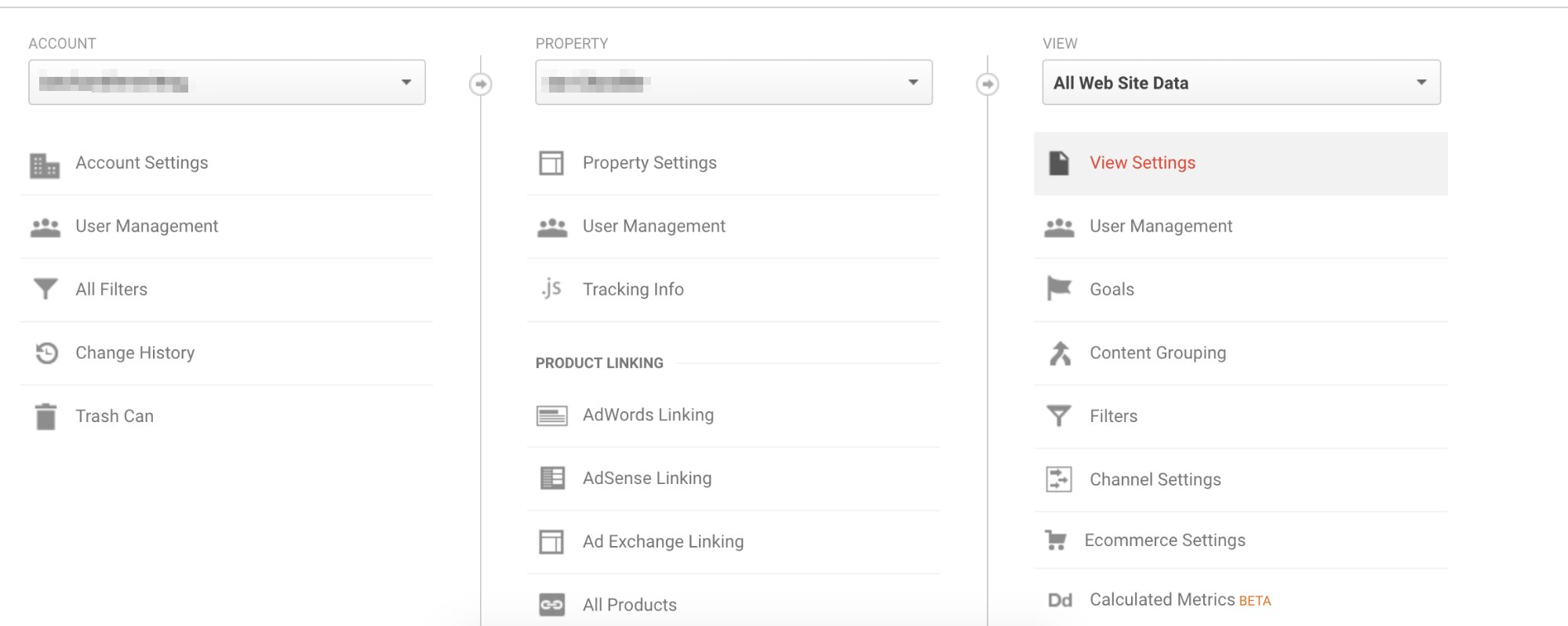
Next, click “Copy View.”
Give your new view a unique name so you can tell it apart from your original view.
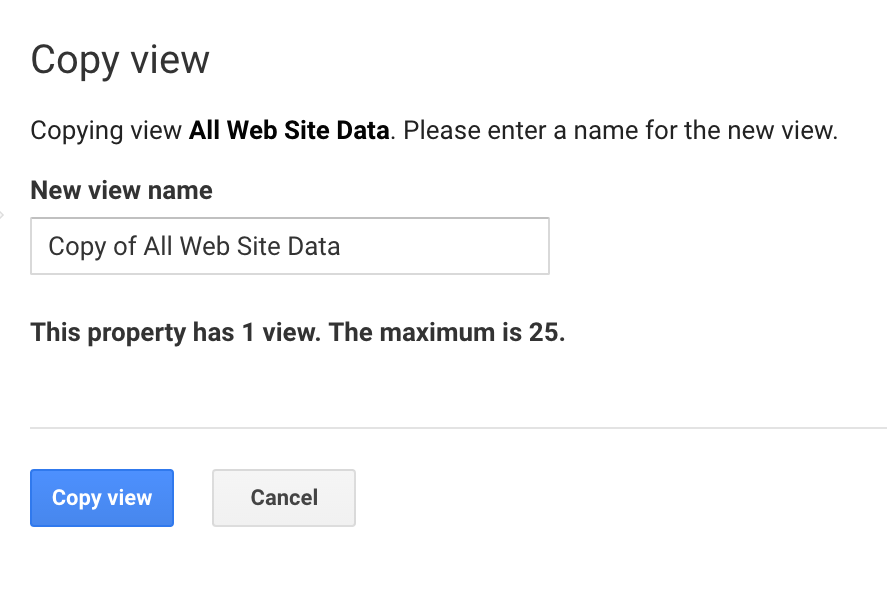
Now, if anything goes wrong with your new view, you can switch back to the old one.
Now, we’re going to add specific filters based on spam sites that have already given you fake hits.
First, you need to find the spam domains. You can do this by following the process above to get to your GA page on referral traffic.
(Hint: It’s Acquisition > All Traffic > Referrals. Don’t forget to sort the results by bounce rate by clicking the box at the top of the Bounce Rate column.)
Gather all of the spam domains in a spreadsheet or text document.
Second, you need to block the spam domains. Once you’ve compiled all of the spam domains (those with 100% bounce rate and a nonexistent session time), head to the Admin tab at the top of the screen.
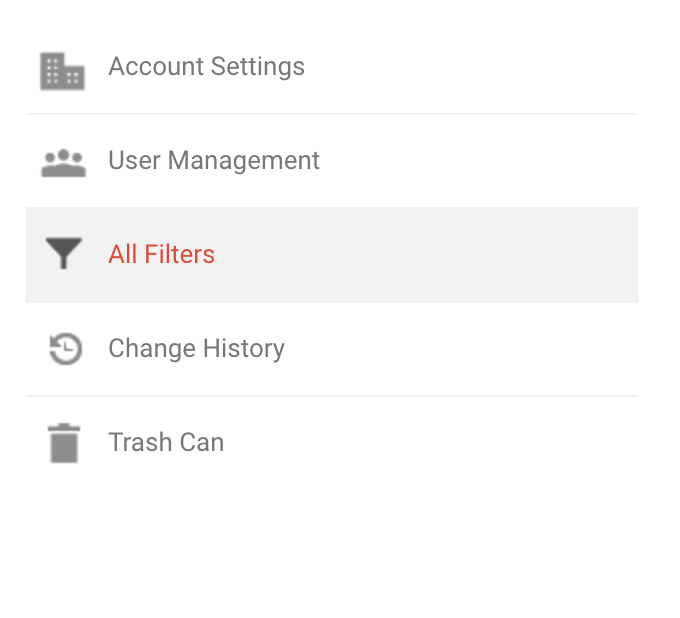
Click on “All Filters” in the left column.
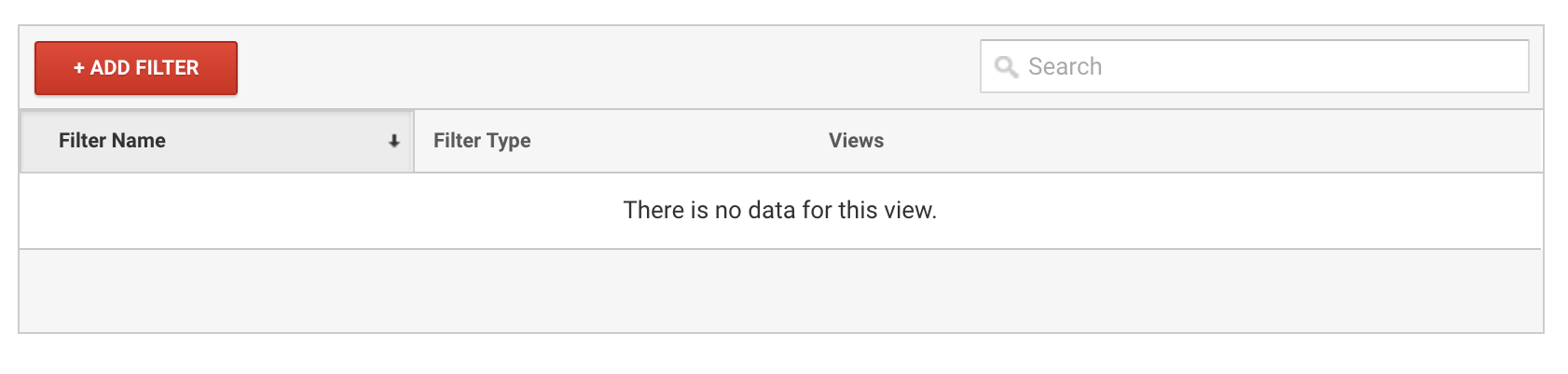
Click “+ADD FILTER.”
Give your filter a name like “Spam Domain Filter.” Next, click “Custom.”
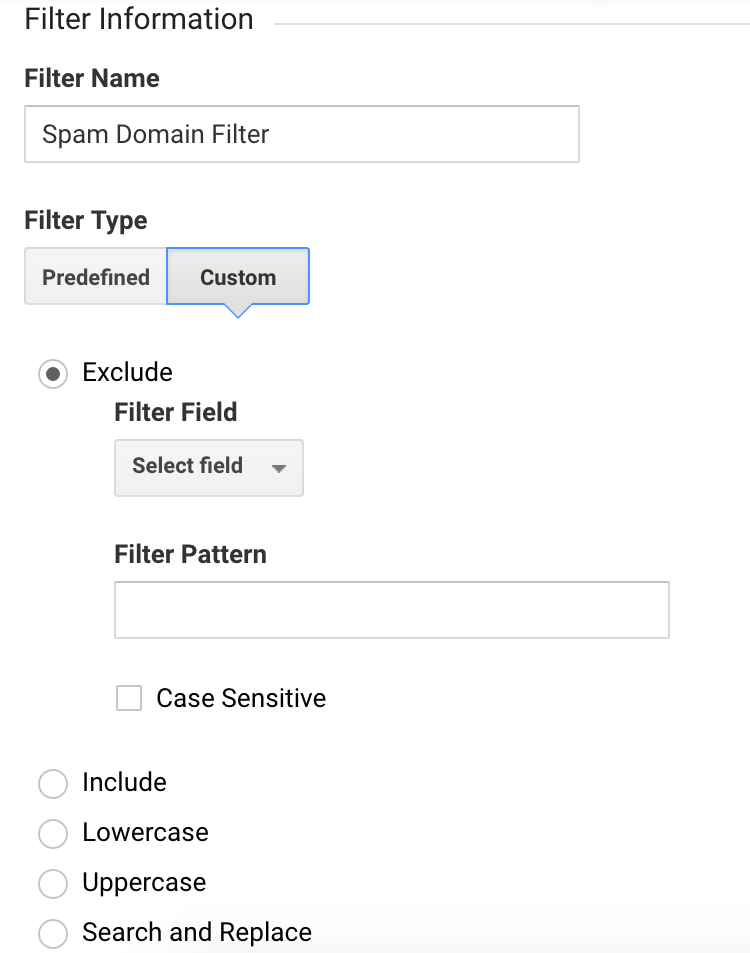
In the next drop down menu, make sure “Exclude” is checked. Under “Filter Field,” click on the drop down and select “Campaign Source.”
Next, you’ll enter the spam domains you want to block into the Filter Pattern box. But, there’s a specific way you have to do this.
The pattern looks like this:
domain\.|domain\.
So, if you wanted to block two spam sites called SpamMe and FakeViews, you’d enter:
spamme\.|fakeviews\.

Each domain ends with a \. And every domain (except the first) has a | in front.
To add a third called FakeHits, you’d enter this:
spamme\.|fakeviews\.|fakehits\.
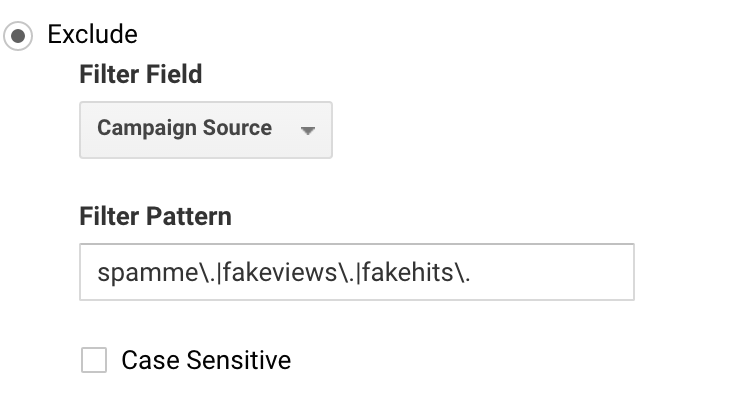
It’s kind of complicated at first. But, after a couple of tries, you’ll get used to it.
When you’re done, scroll down to the “Apply Filter to Views” and click “All Web Site Data.” Finally, click “Save.”
You now have a filter that is blocking all the spam sites that were plaguing you!
But, there is so much more you can do. Here are even more techniques to help you curb the amount of spam getting through to your site.
Step 3: Block Common Spam Referrers
You’ve probably gotten fake traffic from some more well-known spam sites, but there’s a good chance that other spam sites are out there waiting to pounce.
You’re going to stop these infamous spam sites right in their tracks.
You’ll need a total of four filters to do this. It sounds like a lot, but I promise it’s easy! There’s a character limit for each series of blocked referrers, which is why you need so many.
For the first filter, navigate to Admin > All Filters > + ADD FILTER.
This screen should look familiar. Give your new filter a name like “Common Spam Referrer Filter.”
Click “Custom” and make sure “Exclude” is checked. Once again, select “Campaign Source” from the Filter Field drop down.
This process is identical to what you just did, but you’ll also use the strings from earlier in this article that you used to clean up your current spam.
In the Filter Pattern box, copy and paste the string below, courtesy of Brian Clifton:
offer|free\-|share\-|mercedes|buy|cheap|googlsucks|benz|sl500|hulfington|buttons|
darodar|pistonheads|motor|money|blackhat|backlink|webrank|seo|phd|crawler|anonymous|\d{3}.*forum|porn|webmaster|flipboard|fl\.ru|mbca|ahrefs|game|\.io|^sex|^video
Then scroll down, click “All Web Site Data,” and then hit “Save.”
For the second filter, the process is almost exactly the same. This time, you’re going to copy and paste this string into the Filter Pattern box:
dailyrank|100dollars-seo|anticrawler|sitevaluation|buttons-for-website|buttons-for-your-website|-musicas*-gratis|best-seo-offer|best-seo-solution|savetubevideo|ranksonic|offers.bycontext|7makemoneyonline|kambasoft|medispainstitute
For the third filter, copy and paste this string:
127.0.0.1|justprofit.xyz|nexus.search-helper.ru|rankings-analytics.com|videos-for-your-business|adviceforum.info|video—production|success-seo|sharemyfile.ru|seo-platform|dbutton.net|wordpress-crew.net|rankscanner|doktoronline.no|o00.in
For the fourth filter, copy and paste this string:
top1-seo-service.com|fast-wordpress-start.com|rankings-analytics.com|uptimebot.net|^scripted.com|uptimechecker.com
That’s it for this section! You’ve now got four (or five) filters working to combat spam.
Step 4: Block Third Party Traffic
There’s one more thing that you can do in GA to reduce the amount of spam traffic that you get.
Most of the time, when you get a fake hit, that referrer never even visits your site! This means that these referrers never request your actual hostname (usually your domain name).
To see this in action, make sure you’re on the Reporting tab in GA and head to the left-hand sidebar. Navigate to Audience > Technology > Network.
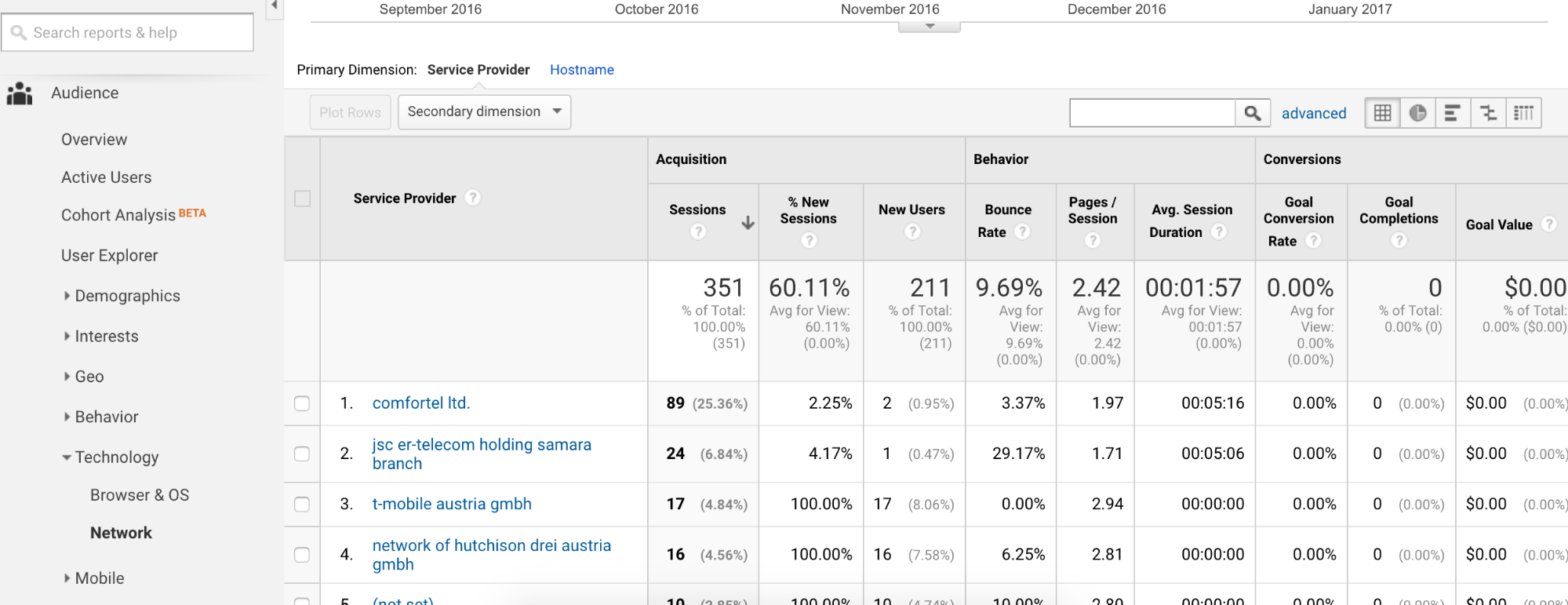
Select the Hostname tab.
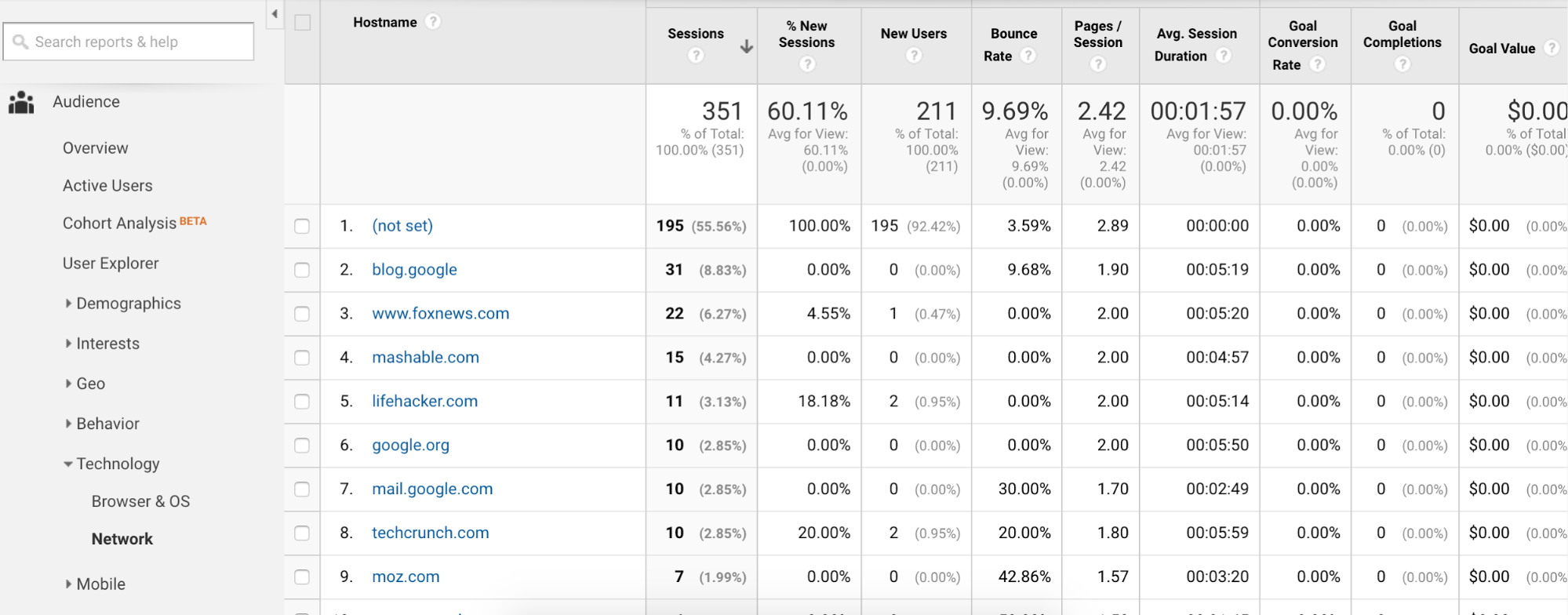
If you don’t see your actual domain name (or a variation of it), then that traffic isn’t even visiting your site.
By blocking third party traffic entirely, you’ll ensure that the traffic you get actually visits your website.
To do this, you can create a Hostname filter.
Start by going to the Admin tab and navigating to All Filters > +ADD FILTER.
This filter will be almost exactly the same to the other filters we created in Step 3. There are two differences.
First, choose “Include” instead of “Exclude.”
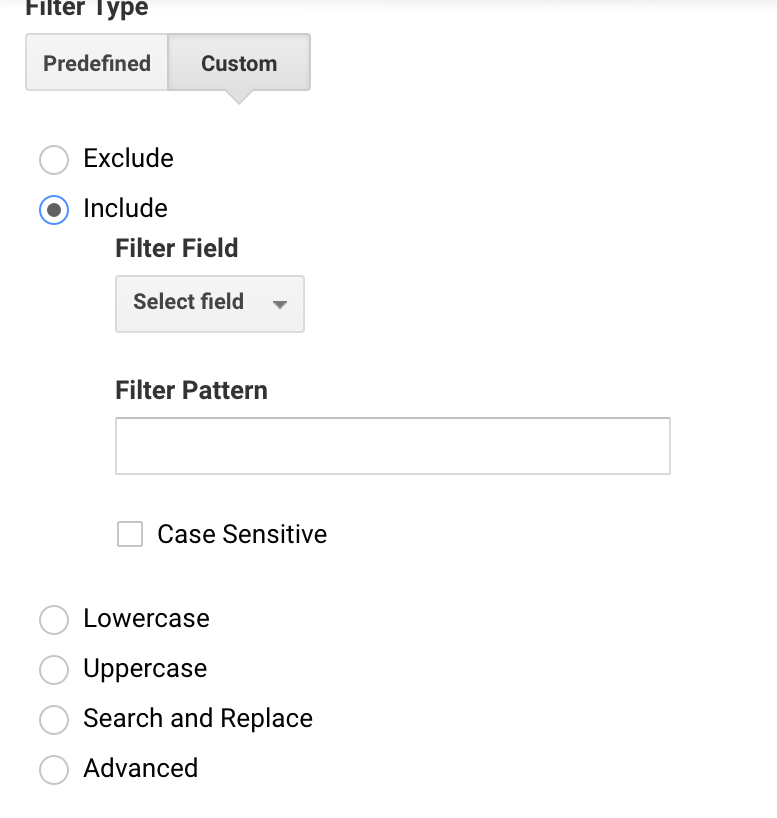
Second, select Hostname in the Filter Field dropdown.
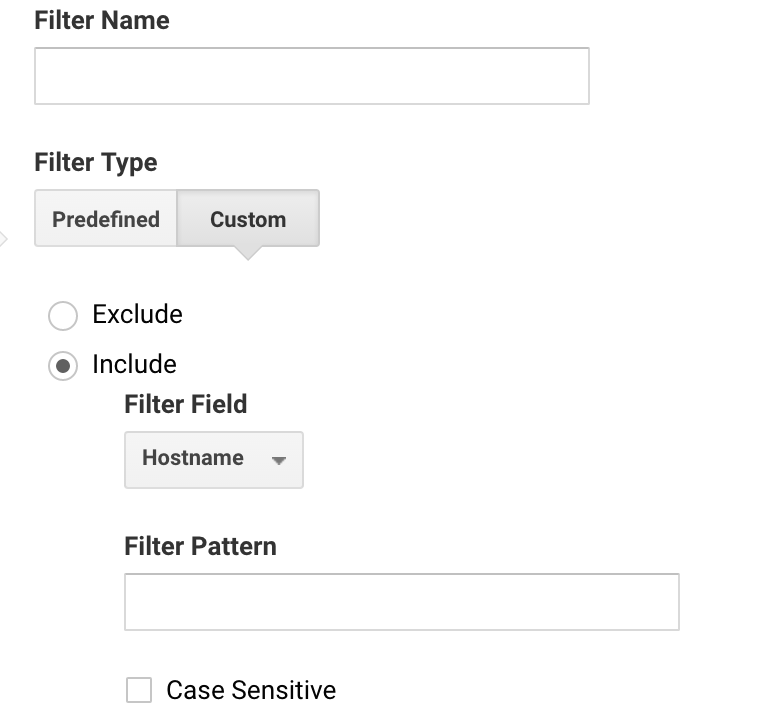
In the Filter Pattern box, enter your domain name. Select “All Web Site Data” in the Apply Filter to Views section and click Save.
Now, you’ve effectively blocked out all third party traffic.
You can go a step further and block out traffic by country, if you’re seeing a lot of repeat offenders from the same country.
Obviously, this can also be problematic, so think carefully before you choose this option.
Conclusion
Unfortunately, there is no ultimate solution to completely eliminate spam. Spammers have always found a way to do their dirty deed.
Google and other huge companies are working to fight spam better, but there’s no perfect solution on the horizon (at least, not soon).
So, it’s safe to say that if you own a website, you’ll be facing spam for a while.
That’s why it’s crucial to regularly clean out your analytics and make sure only the good stuff’s coming through.
If spam is inflating your analytics, everything else gets thrown off. You could waste time, money and energy on strategies that are ultimately useless.
All it takes is a few minutes to set up these filters and you’ll successfully eliminate 99% of spam. And, if you spend a few more minutes every month updating your filters, you’ll be even better off.
Trust me––it is absolutely worth your time to battle spam.
What are your favorite anti-spam tips and tricks?