
 Sign In













TikTok is absolutely huge right now—and will be long into the future.
It has almost 100 million monthly active users in the U.S. alone, and is one of the most downloaded apps on the App Store, topping giants like YouTube, Instagram, and WhatsApp.
Why has it become so popular?
TikTok has boomed due to the potential for anyone to become an influencer on its platform. You don’t need to be a professional to create cool videos or even have a huge following to go viral. All you need is a phone and a personality—then your audience will come to you.
However, content creation does come with a warning: not every video you create is going to be perfect the first time around.
Editing is a great way to sharpen footage to improve the quality or create something that would be impossible with just one take. Perhaps you want a video where you are having a conversation with yourself. Through editing, this is possible.
If you don’t know where to start when it comes to editing videos on TikTok, this in-depth guide will have you creating viral-worthy TikTok videos in no time.
How to Edit TikTok Videos
Luckily, it’s pretty straightforward to edit TikTok videos, and in-app features allow you to make changes and adjustments without complication.
Step 1: Create a Video
You’ll need to record a video before you start editing one. Open up the app, choose the length of video you want to create, and get recording. Record several clips if you mean to stitch clips together, or upload footage if you have video content already.
Now let’s get editing.
Step 2: Adjust Clips
Tap “Adjust Clips” if you want to cut your videos down to size. Simply move the red lines on either side of the video bar to change the start and stop points. Tap and hold video clips to rearrange them or delete them. You can also split a video in two by using the white line that runs down the video bar.
Step 3: Add Filters
You can quickly add a filter to your video by clicking on the “Filters” tab. Blanket filters come in four categories:
- portrait
- landscape
- food
- vibe
Pick whichever seems most appropriate to your video, and you’ll be good to go.
Step 4: Add Sound
Sound is a vital part of any viral TikTok video and it’s super easy to add a great song to your creation.
Tap on the “Sounds” section at the bottom of the screen to explore all of the pre-loaded music the app offers. You can browse trending songs or search for a specific track you have in mind. Once you’ve found the perfect sound, choose where you want it to start.
You can also play sound while you record to better sync your shots with the music—a great feature for when you are joining in on TikTok trends.
Step 5: Add Effects
Effects are what make TikTok videos stand apart. Tap on the “Effects” tab to add a huge range of visual effects to your video. You can speed up your video, reverse it, add special filters, and create transitions between video clips.
Step 6: Add Text
Tap on the “Text” tab to add captions to your TikTok video. There’s a huge range of fonts to choose from and you can also change the color and alignment of your copy.
Type what you want to appear on your video, as well as the font and color. Then choose at which point you want it to appear on the video and for how long. Simple.
Step 7: Add Stickers
Finally, you can add stickers to any part of your video. These include polls, timestamps, and emojis.
7 External Editing Tools for TikTok Videos
TikTok’s internal editor is a fantastic tool, but it does have its limitations. For example, you can’t add the “Ken Burns” effect (which creates motion from static images) or record time-lapses. That’s why many TikTokers prefer to use an external editor to take their videos to the next level.
Some require editing skills, but there are others that can be used by anyone.
1. CapCut
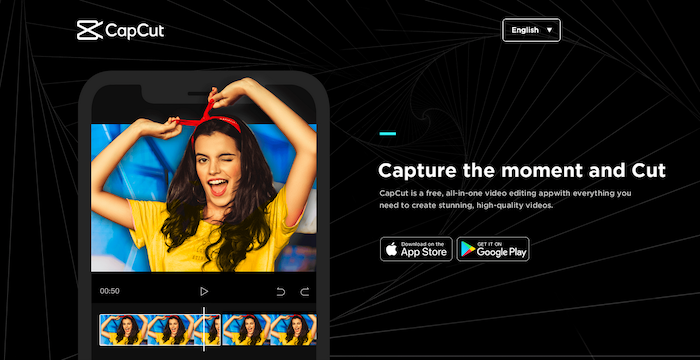
CapCut is a free all-in-one editing tool owned by TikTok’s parent company, ByteDance. It’s packed with all the editing functions you need (trimming, filters, stabilization, and splitting) plus all of the functions you’ve been dying to experiment with (such as zooming, filters, stickers, and loads more). The app also has a massive library of licensed music you can use for free in your videos.
2. InShot
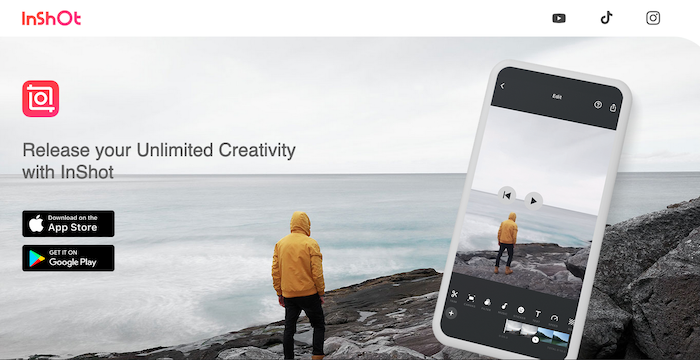
InShot is an undisputed leader when it comes to editing video clips for social networks. Best of all, it’s easy to do from your iPhone or Android device. As well as the standard editing features you’ve come to expect, InShot has an abundance of visual and audio effects, and you can also import your own tunes. There is a slight downfall, however, that InShot doesn’t have its own built-in music library.
3. Zoomerang

Zoomerang is a simple and easy-to-use video editing app that’s perfect for anyone looking to get started editing TikTok videos. Inside, you’ll find helpful tutorials, a library of more than 100 effects, filters, music, and loads more. You can buy a subscription to have an ad-free experience, but the free version works perfectly well.
4. Videoshop
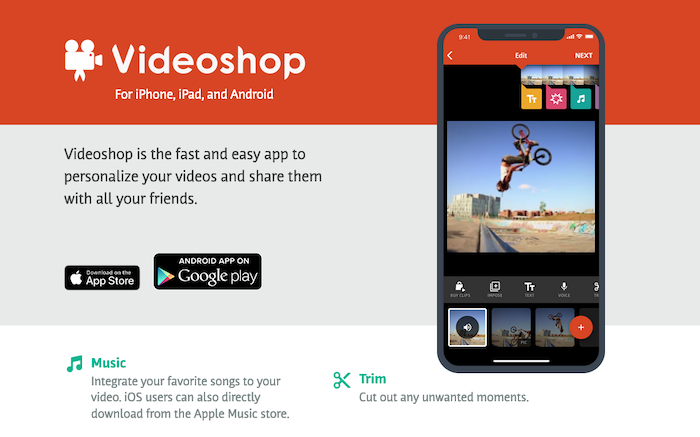
The Videoshop app is available on the App Store and Google Play. You can add music, captions, and a wide range of effects and filters. You can also adjust the video speed. Videoshop is one of the best apps for merging and splicing clips from different videos.
It also allows you to upload videos directly to every major social media platform—making an influencer or digital marketer’s job just a little easier.
5. Funimate

Funimate is another excellent app for editing TikTok videos. The app is available for free on the App Store and Google Play, but you’ll need to pay for advanced features like removing the Funimate watermark.
Free features include splicing clips, adding music, and inserting a range of effects and stickers. What makes Funimate stand apart from other video editing apps is its daily challenges. These are a great way to enhance your editing experience and get better every day through new and exciting ways. Funimate’s prompts are great for inspiring creativity.
6. VEED

Do you prefer to sit at your computer?
No problem. Just use VEED.
They offer an extensive editing suite complete with all of the functionality you need to create killer TikTok videos. It also has its own in-built library of music, making it easy to find the perfect song. If this sounds overwhelming, don’t worry. VEED has a great user platform, which is simple to learn, and you’ll soon be editing like a pro.
7. BeeCut

If you’re looking for a free video editor that works on both Windows and Mac, you can do worse than BeeCut. This popular editor is easy to use and comes packed with a suite of editing tools. You can add filters, transitions, and overlays, as well as a host of TikTok effects.
5 Tips for Editing TikTok Videos
The beauty of TikTok’s platform is that anyone can make awesome edits to their videos. If you’re serious about editing your video, follow these tips:
Tip 1: Focus on the Sound
Sound is one of the most important elements of a great TikTok video. (Here’s a lesser-known secret: it’s almost as important as the video quality). If you’re not going to layer sound over your content, then make sure you’re using a good quality microphone when speaking and minimize background noises.
You must also remember that not everyone will play videos out loud. In fact, 92 percent of viewers watch videos with the sound low or off—so it pays to add captions to your videos so that people can still enjoy them in silent mode.
Tip 2: Try the TikTok Photo Editing Trick
The TikTok photo editing trick is a neat way to create stunning, vibrant images. Plus, it’s not hard to do. Just add these settings to your images:
- highlights: -35
- shadows: -28
- contrast: -30
- brightness: -15
- black point: 10
- saturation: 10
- vibrance: 8
- warmth: 10
- tint: 39
- sharpness: 14
- definition: 23
- exposure: 0
- brilliance: 0
Tip 3: Save Your Favorite Effects and Filters
Have you ever come across an awesome effect or filter on TikTok and wanted to use it in your own videos? You can now save filters and effects to your favorites section for easy access when editing your next video.
For tracks, tap on the “Sound” tab at the bottom of the screen and click “Add to Favorites.” For effects and filters, you can find the name above the TikToker’s account details.
Tip 4: Use the Green Screen Effect
The green screen effect lets you change your drab background into literally anything. You can find it in the “Effects” section in the bottom left-hand corner when creating videos. You can either use a photo as your background or a video. Choose whichever you like then hit record.
Don’t forget you can change your background between clips to mix things up!
Tip 5: Add Voice Effects
Is there anything worse than the sound of your own voice? On TikTok, you don’t have to settle for it. Once you’ve recorded your video you can use the “Voice Effects” tab to change your voice into a robot, a chipmunk, or dozens of other fun alternatives.
TikTok Video Editor for Advertisers
TikTok also has a great editing dashboard for businesses or personal brands looking to utilize their audience for sales. Advertisers can access a suite of editing tools to make their video content suitable to upload on TikTok through these steps:
- Find the editor under the “Create a Video” section of your Ad Manager dashboard.
- Choose a video from your existing assets or upload a new one.
- Click on the music note to add music to your video. You can even choose from a library of popular music inside the editor.
- Click the “T” to add text captions.
- Add transitions, effects, and crop your video in the post-production section.
Frequently Asked Questions About Editing TikTok Videos
Can You Edit a TikTok Video After Posting?
No, you won’t be able to edit any part of your video once published. Your best bet is to create a new video.
Can You Edit a Saved TikTok Video?
Yes, you can make exactly the same edits to a saved video as you can to a video you’ve just recorded.
What Is the Best Editing App for TikTok?
TikTok’s in-app editor is very good and fit-for-purpose. Otherwise, CapCut, Zoomerang, and BeeCut are great alternatives with extra features.
What Can You Edit on a TikTok Video?
You can edit virtually everything including the sound and speed. You can mesh clips together, add text, sound, filters, and other images.
Conclusion of TikTok Video Editing Guide
It doesn’t matter if you’re just using TikTok for fun or to promote your brand, knowing how to edit your videos effectively will help make creating high-quality, engaging videos with the potential to go viral ten times easier.
Growing a following on TikTok doesn’t have to be as complicated as you think.
Instead of messy content, do yourself justice through high-tech editing.
Which TikTok editing feature will you use the most?