 Sign In














Trello is one of my all-time favorite tools for content marketing and for work in general. It’s super easy to use, intuitive to understand, and free!
People use it for all kinds of things, but it’s especially handy as a marketing tool.
While there are certainly many tools you owe it to yourself to pay up for, you don’t need any expensive or complex software for simply organizing your content marketing.
Trello is one of those standout tools that can do a lot for your business with just a little time and work. And did I mention it’s completely free?
Companies all over the world, like Buffer and Brit + Co, use Trello every day. It has 1.1 million daily users. In a few short years, it’s become an organizational powerhouse because it does so much.
It takes a simple, intuitive system and makes it digital. In my personal opinion, I think Trello is the organization tool to have.
Just by using Trello, you’ll probably find your content marketing strategy will become more streamlined. Everything will be all in one place, easy to find, and easier to manage.
That means that your content marketing strategies will be more effective. You’ll be able to track your progress, keep things updated, and communicate effortlessly with your team.
If you’re just getting started with online marketing, you might as well start out organized. You can also use Trello at any point in your marketing journey.
Sounds pretty amazing, right?
The great thing is that it’s easy to do, too.
Let’s explore how to use all of Trello’s cool features. I’ll show you step-by-step how you can use it to make your content marketing strategies so much better.
Learn how I generate 195,013 visitors a month by streamlining our content marketing.
How to get started with Trello
Before we get into some of the more advanced uses of Trello, I’ll give you a crash course on how to use Trello.
If you haven’t created a Trello account, here’s how to do it.
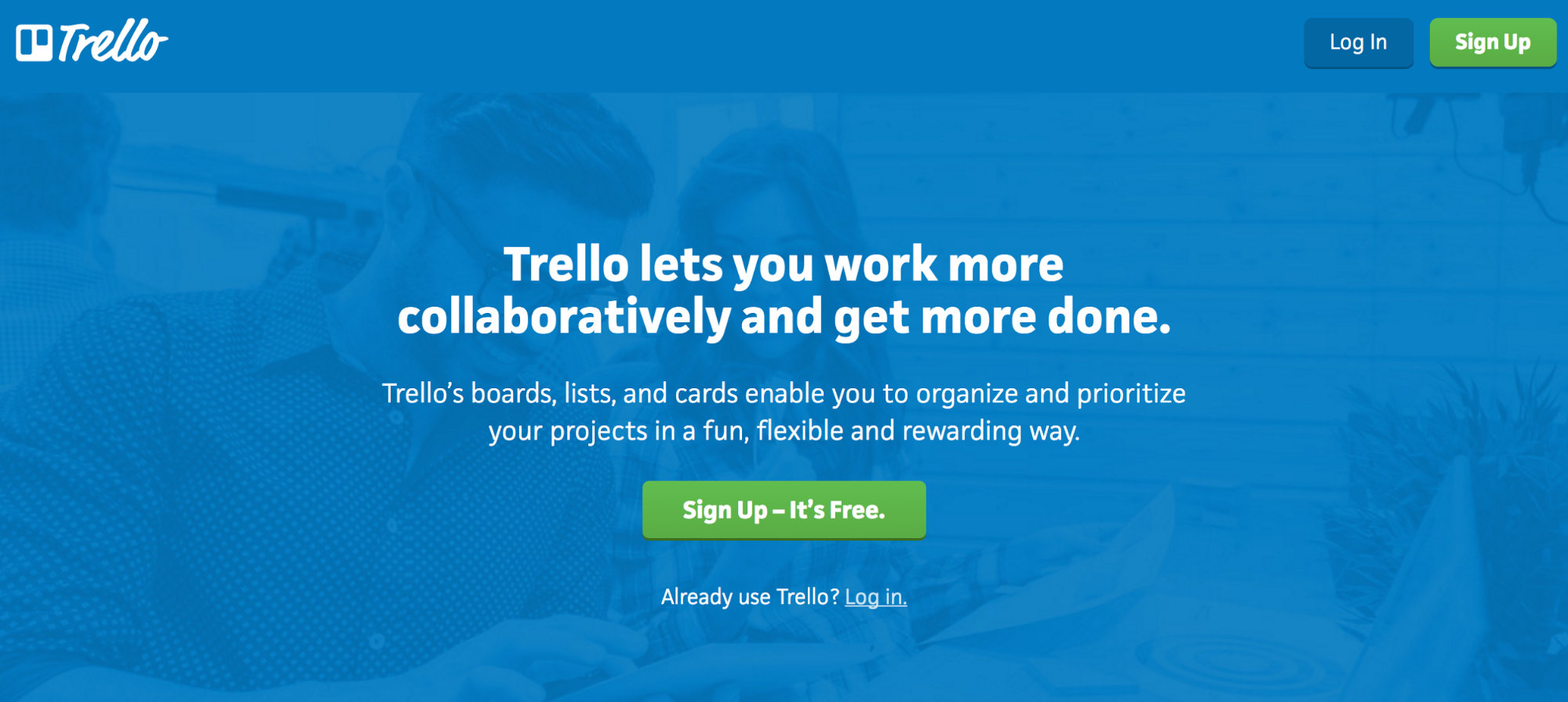
Head to Trello.com and click the “Sign Up – It’s Free” button in the middle of the page.
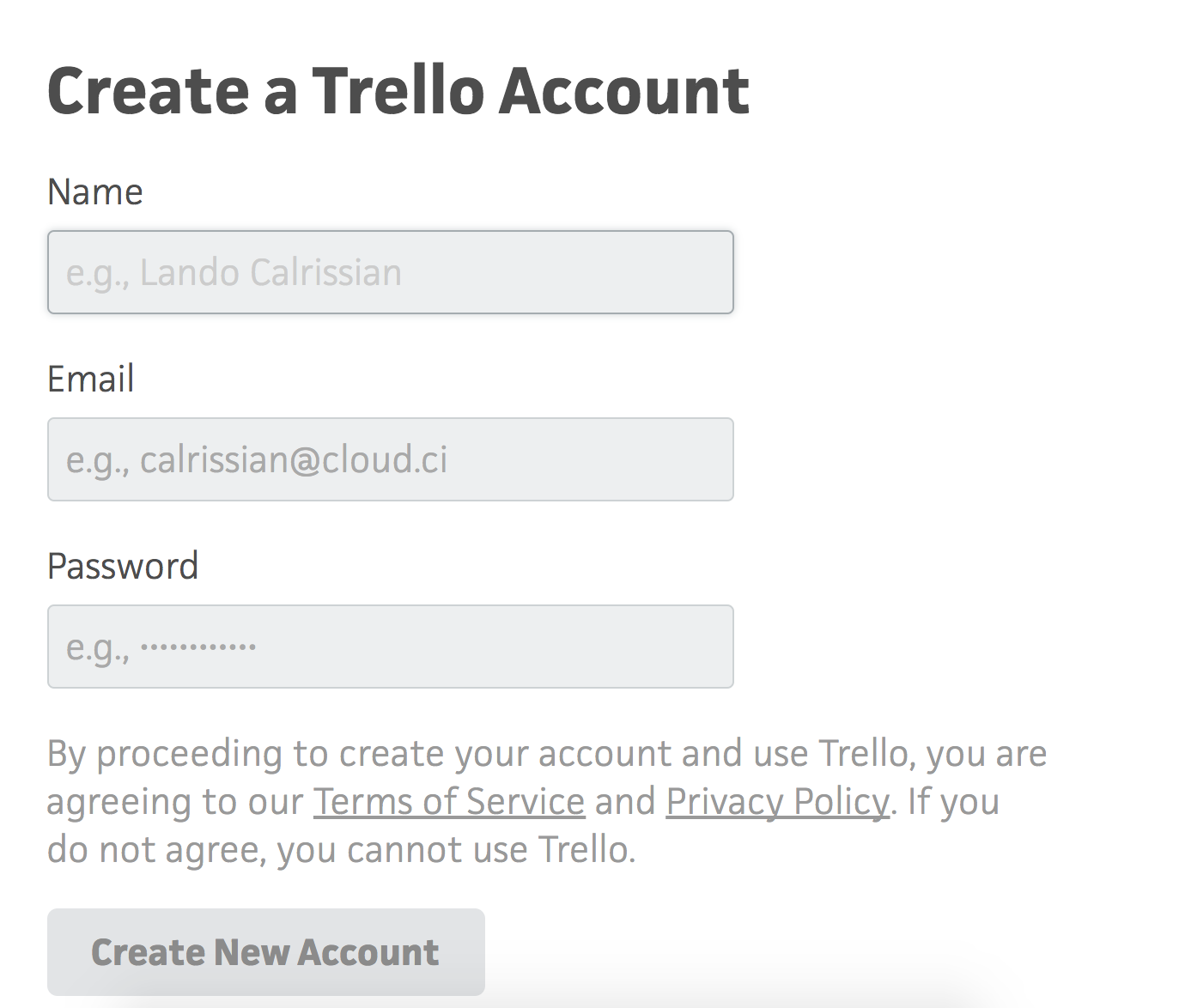
Fill in your information and hit “Create New Account.”
Once you’ve created an account, you’ll see this screen:
If you don’t know about Trello, here’s how it works.
You know that old corkboard covered in Post-Its in your office that no one ever uses? That’s sort of the idea behind Trello.
Trello takes an old school concept and brings it into the digital age.
With Trello, you have boards, lists, and cards (kind of like the Post-It notes). I’ll explain all of these more in depth as we go on.
And if the “board,” “list,” and “Post-it” concepts are lost on you, don’t worry. You don’t have to be familiar with those themes to make Trello work.
First, there are boards, which hold everything else. Boards are best used for general themes like “content marketing” or “Facebook Ads.” Boards can hold a lot of information, and you can usually fit your entire workflow into one board.
But you can create as many boards as you want.
So for example, you could use one board for an editorial calendar, another one for social media content creation, and another one for videos.
To create a board, click “Create new board…” Give your board a name (in our case, “Content Marketing”).
Here’s what your board will look like:
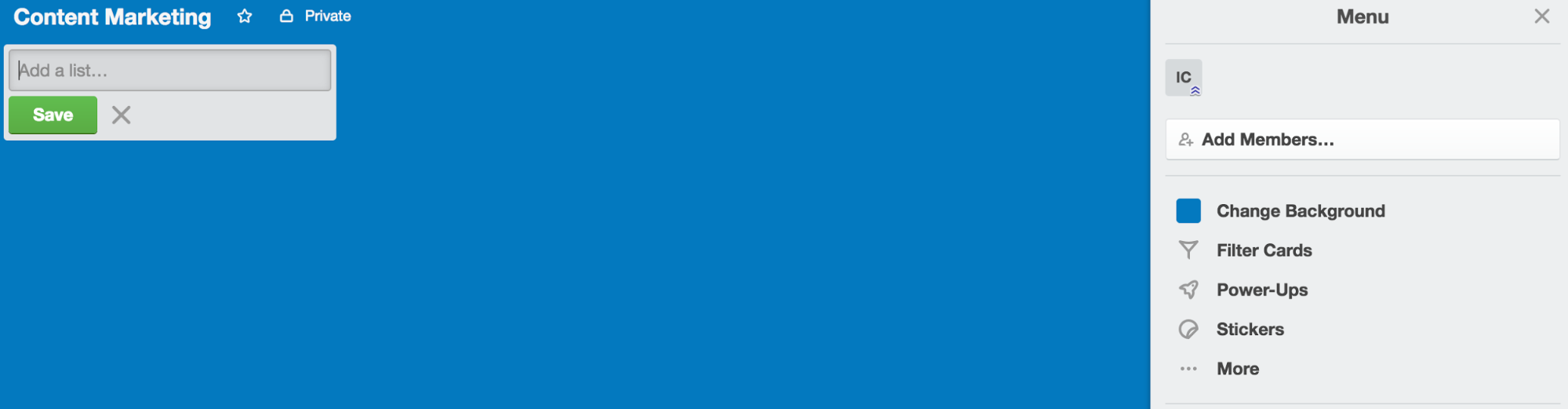
Think of this as your dashboard. You have the ability to fill this board with anything you want. You can also manage multiple boards, but we’ll get to that later.
So let’s talk about lists. Lists are vertical columns that hold cards, which are the smaller parts. (We’ll get to those in just a minute.)
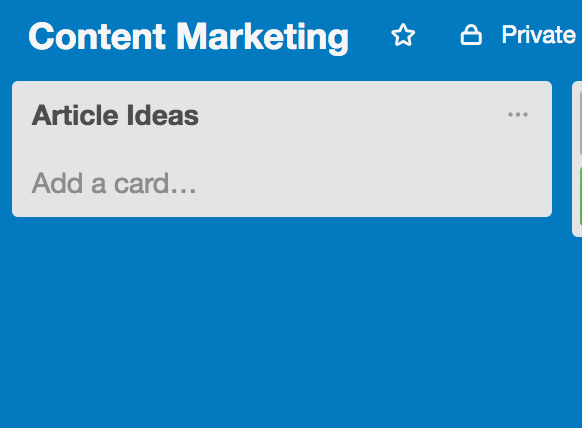
Here’s what a list looks like:
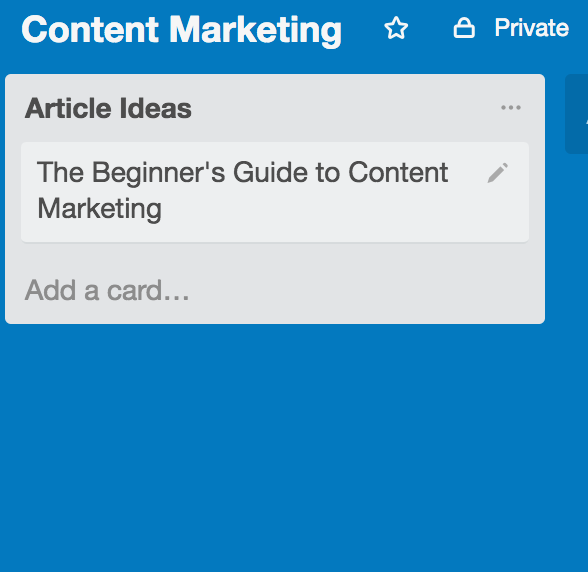
Basically, lists are a smaller level of organization. They help you create more specific categories to work with. And they’re really flexible, which you’ll see later on in this article.
For now, since our example board is for content marketing, we’ll make a list that says Article Ideas. (You can use this example for your own board or use a completely different name. It all depends on your exact content marketing strategy.)
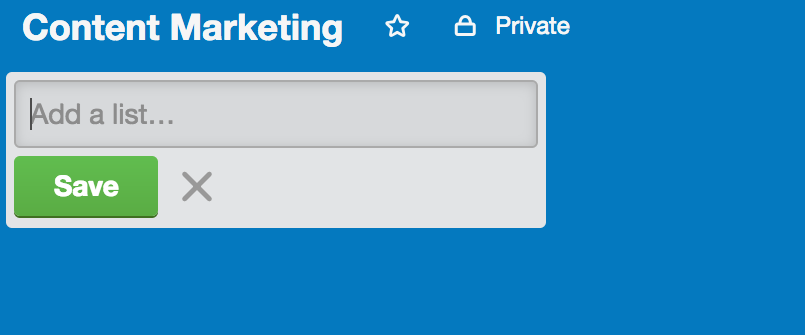
You’ll see an option to “Add a list…”
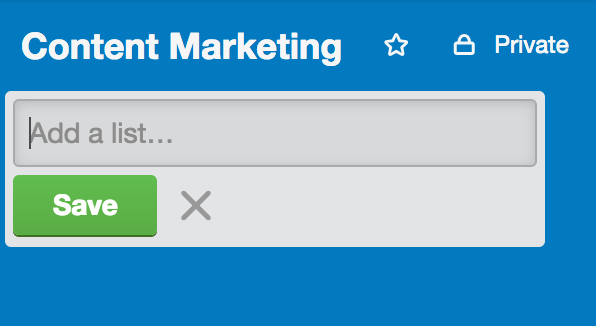
Add a new list and give it a name. We’ll use “Article Ideas.”
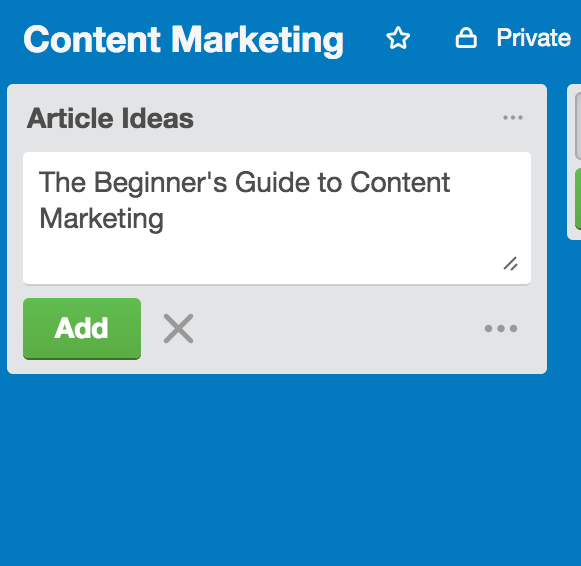
This list can now hold cards. Cards are like individual Post-Its. They hold information about specific micro-subjects.
Now, you have a central place to store your article ideas. Perfect!
To recap, our board is called Content Marketing and our list is called Article Ideas. Keeping those themes in mind, we could use each card in the Article Ideas list to represent each article idea that we have.
The organization of your article ideas happens naturally.
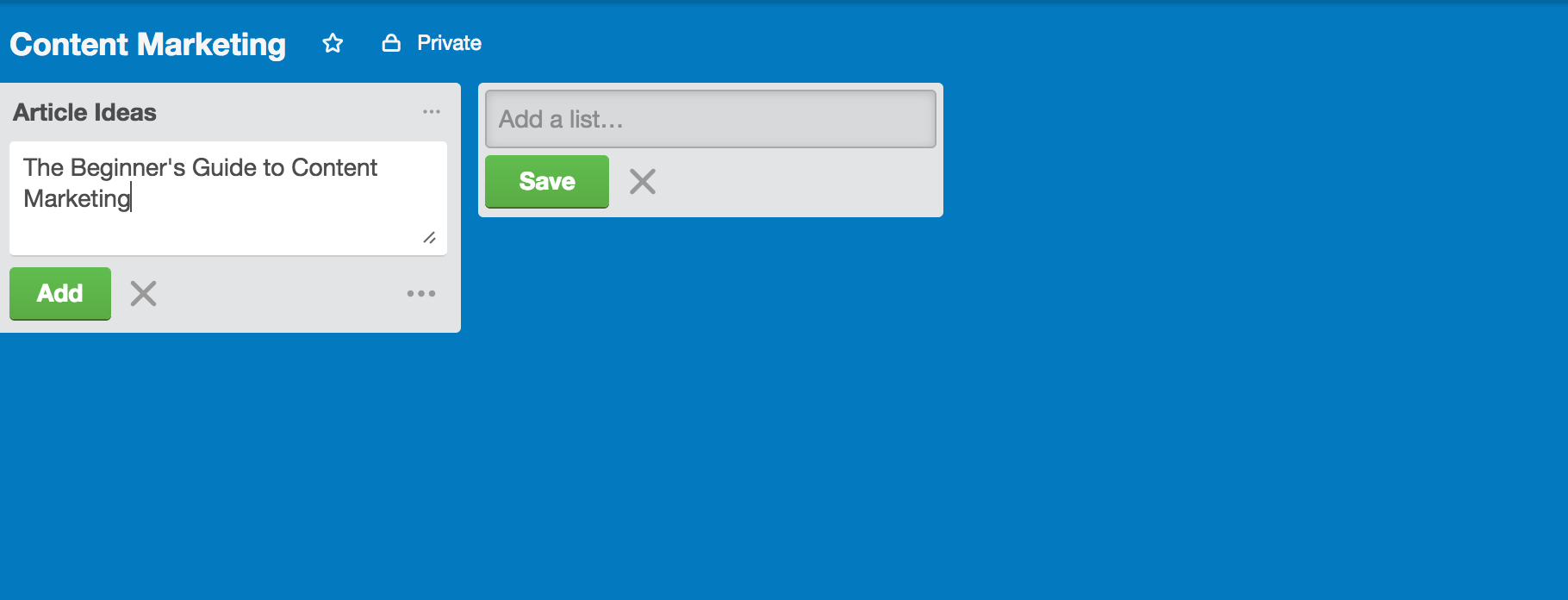
To see what this looks like for yourself, click on the “Add a card…” button at the bottom of the list to add a card.
Give it a title and click “Add.” In our case, we’ll use a generic article title: “The Beginner’s Guide to Content Marketing.”
Now, you have a board, a list, and a card. Those are the three basic components you’ll be working with on Trello.
When you view your board, you’ll see something like this:
When you click on a card, a pane will pop up. You can edit your cards in this pane.
This is a broad overview of your cards, helping you see the flow and organization. (It’s going to become more built out as you add more.)
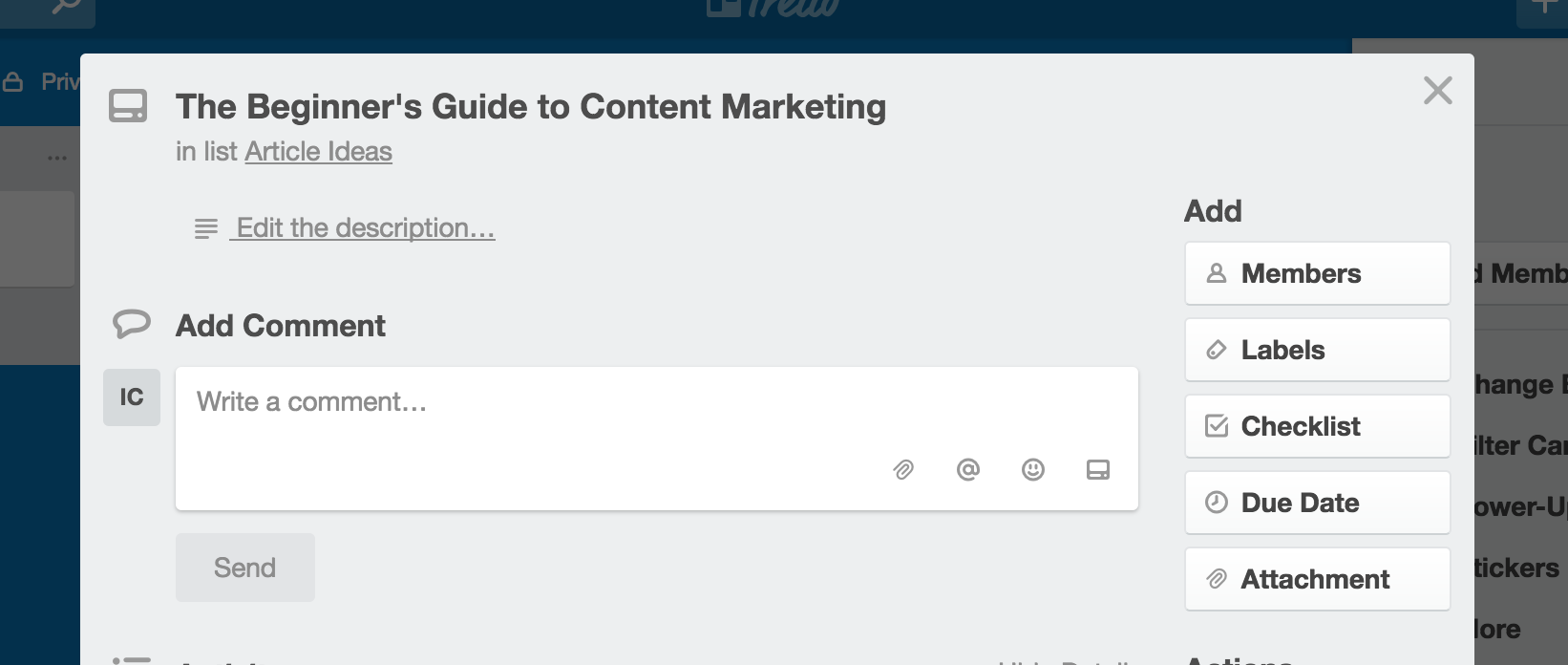
Each card can hold a description and comments. The description tells members what the card is about, and the comments serve as a method of discussion.
In a minute, we’ll see how this all ties together, but for right now, let’s take a closer look at cards.
To add a description to a card, click on the text “Edit the description…”
You’ll be able to add whatever you want here.
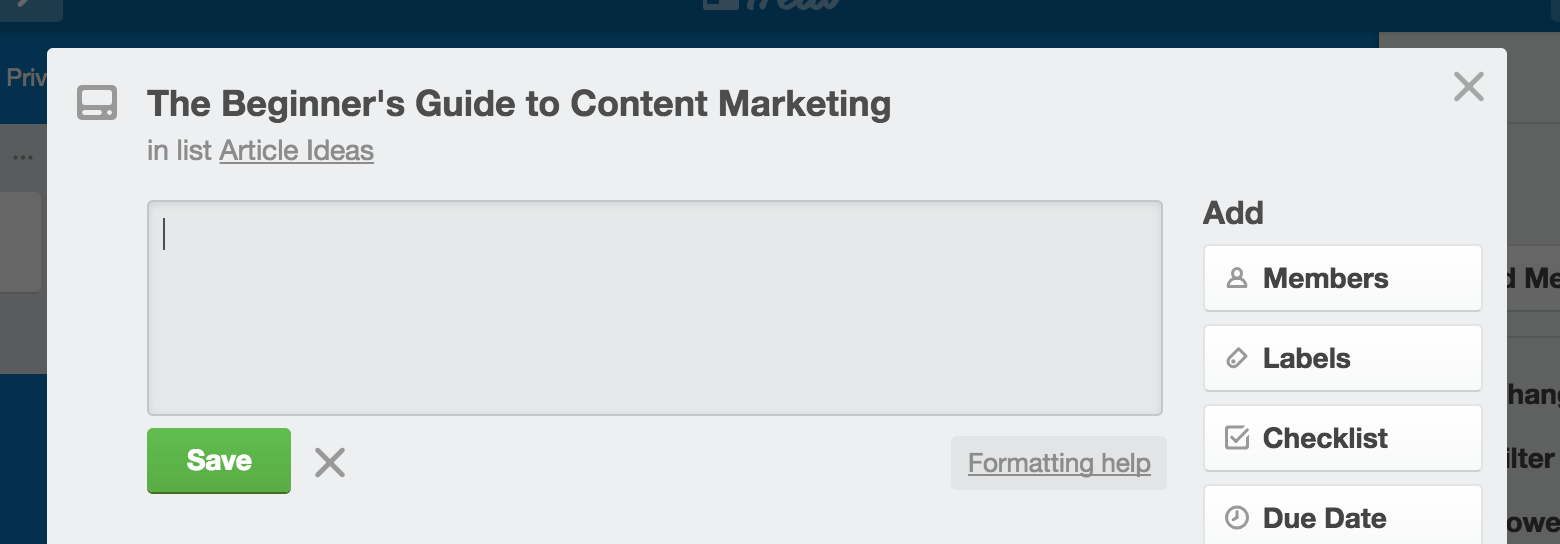
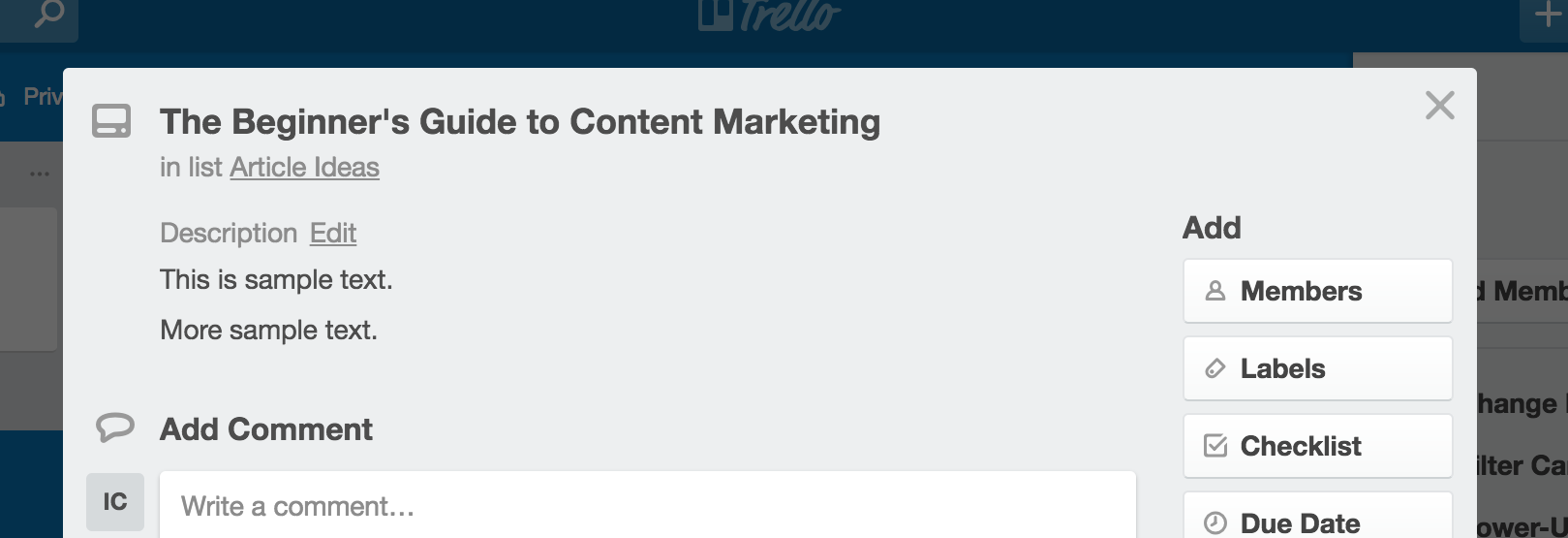
Notice the buttons for adding members, labels, a checklist, and a due date. Each of these key elements helps to keep the project on task.
You can add the right members, organize projects according to unique label identifiers, add a checklist for keeping team members on task, and set your due date so no one misses a deadline.
It’s worth noting here that you can use Markdown in Trello to format your content.
If you’re not familiar with Markdown, don’t worry; Trello has you covered. To see a helpful guide, go to edit the description of a card and click on “Formatting help” in the lower right-hand corner:
You’ll see this list of some basic Markdown terms you can use to format your cards:
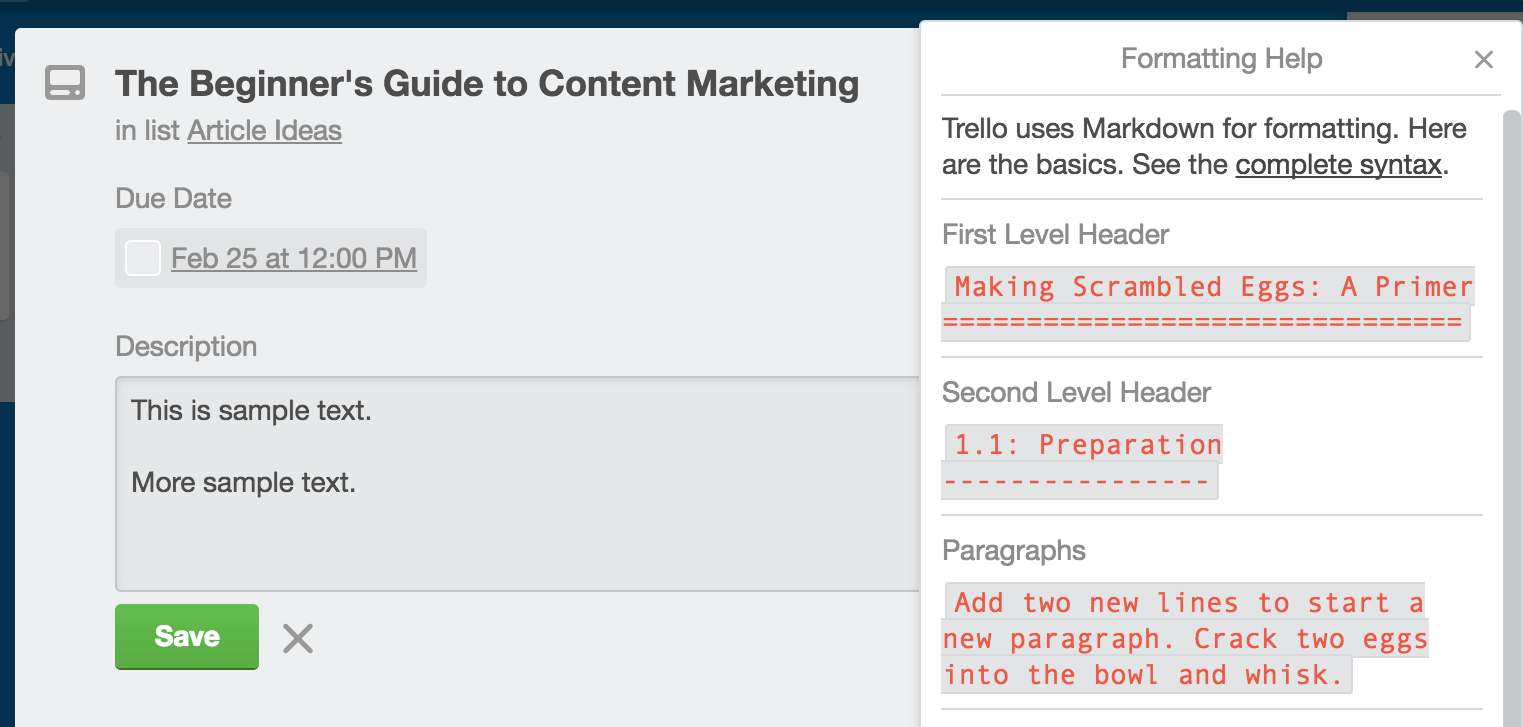
This is really handy if you want to format your text, add links, or post images. You can get really detailed using these features, so I highly recommend taking some time to familiarize yourself with them.
You can also add comments to cards. Underneath the text that says “Add Comment,” you should see a box that says “Write a comment…”
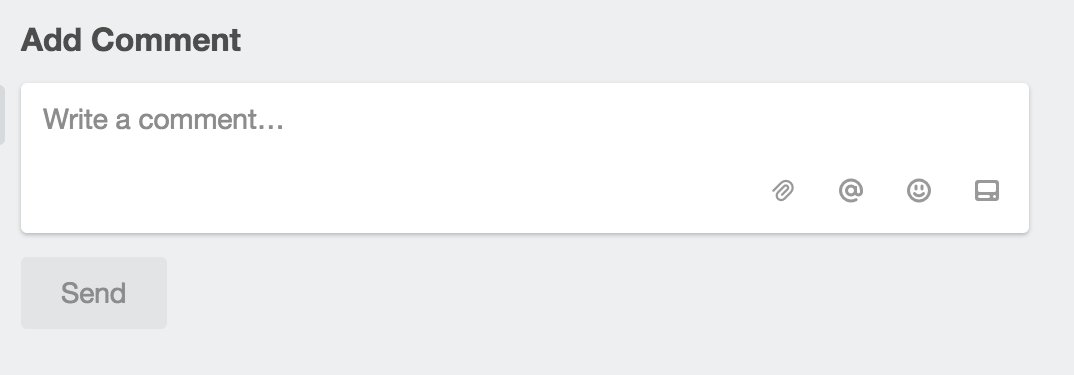
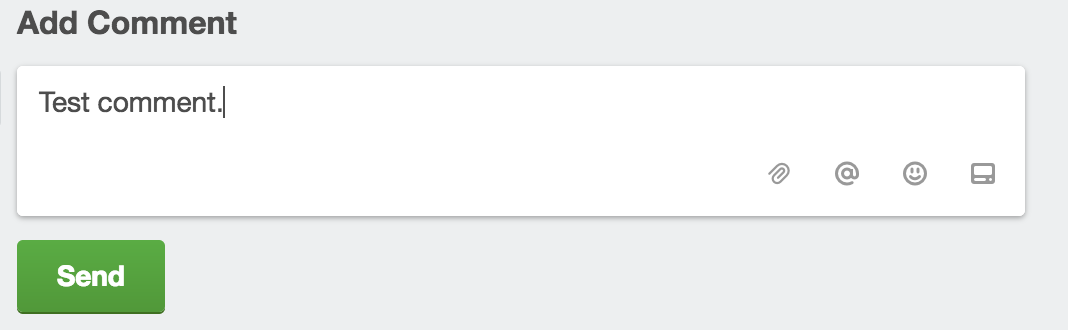
Click inside this box to create a comment.
So now, let’s take a look at everything we’ve done so far. We’ve made a board, a list, and a card, and we’ve learned to edit all three of those things.
Here’s what you should see on your general board:
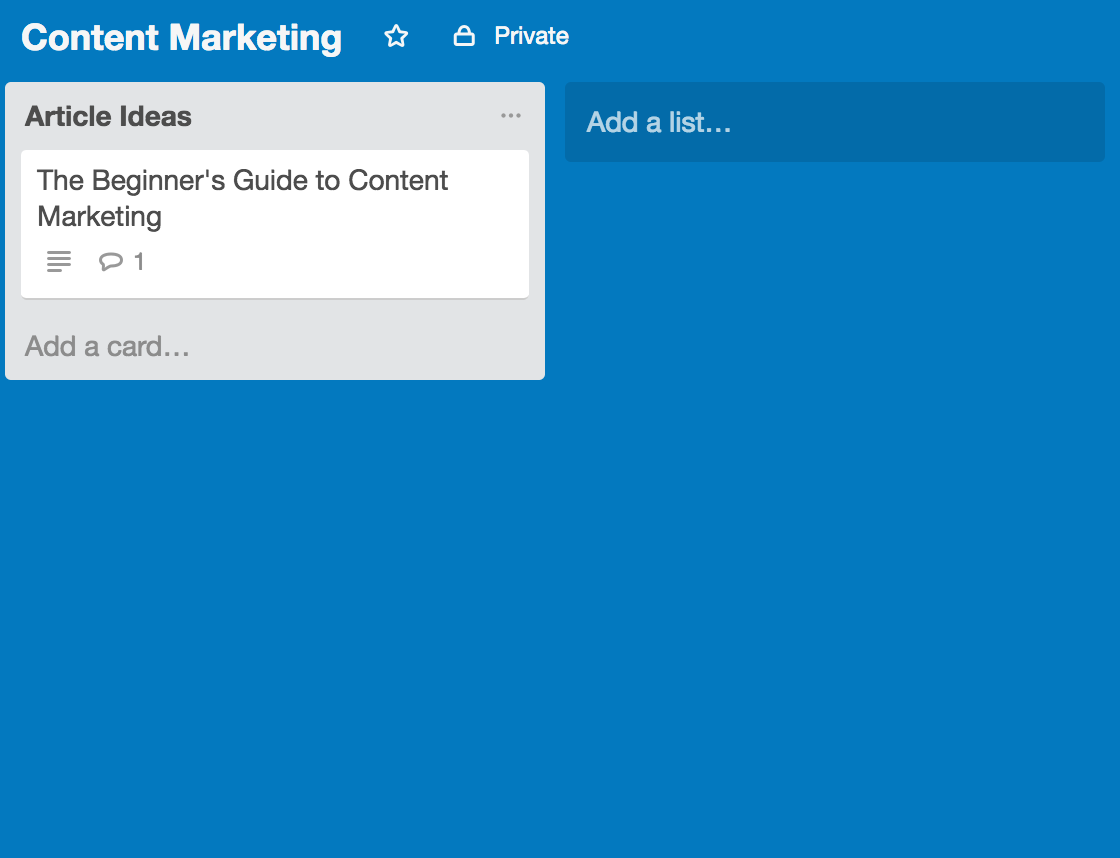
These elements form the basis of how Trello works. Once you understand these, you can start thinking about how to use them, and that’s where it gets crazy.
Using Trello for Content Marketing
Trello is super simple, right? That’s what makes it so great for content marketing. You don’t have to waste your time with complicated programs.
There are almost endless ways of organizing your content marketing on Trello. I’ll show you a couple of the ways companies are using, and then I’ll show you how to replicate their success.
Earlier in this article, I mentioned that companies like Buffer and Brit + Co use Trello. Guess what? You can actually view their boards.
Trello has a list of Inspiration Boards from companies who have agreed to make some of their boards public.
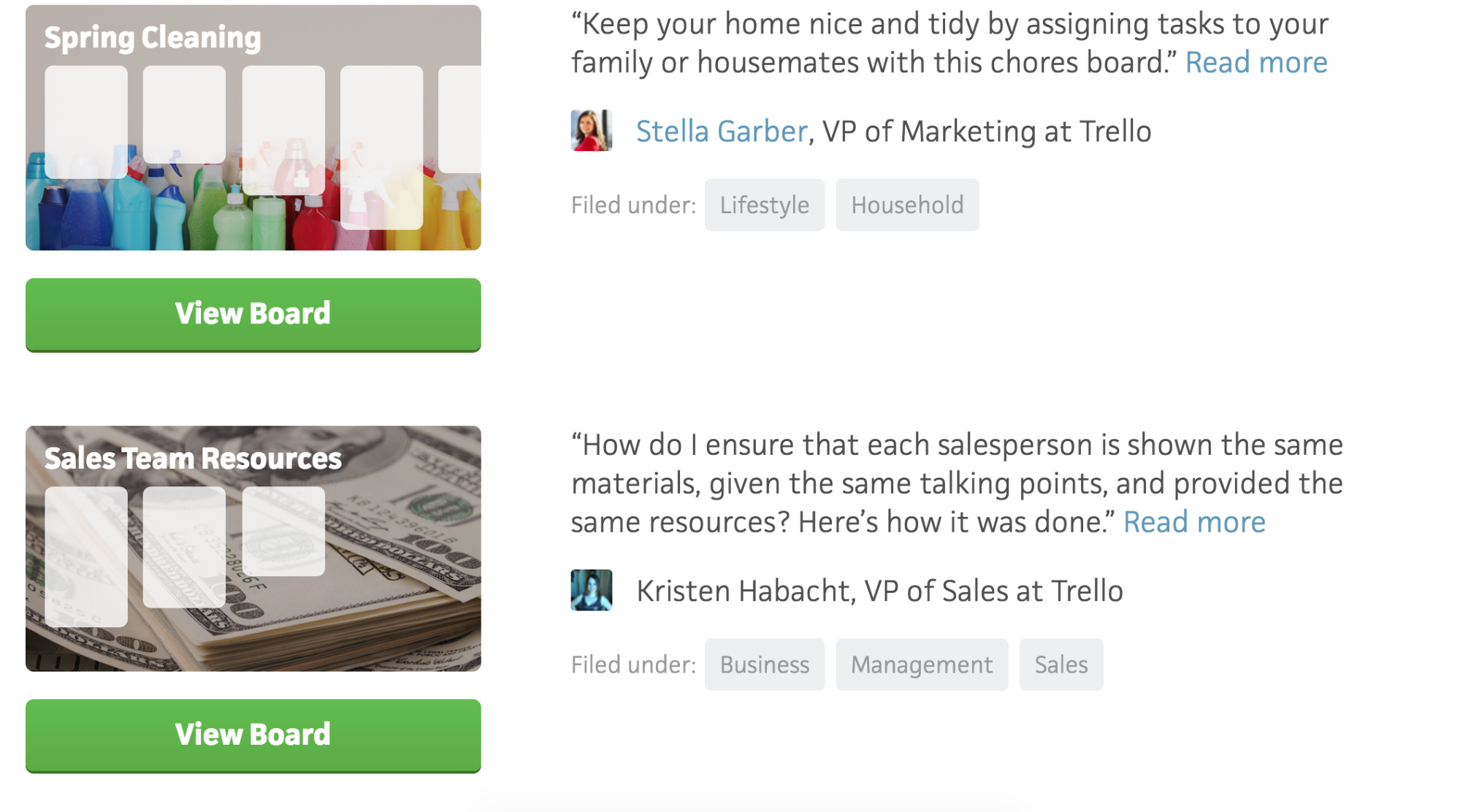
This page gives you a behind-the-scenes look at what some of today’s top companies are doing, and they’re also great places for you to get new ideas.
Let’s head to Trello’s Inspiration Boards and find a couple of the main methods you can use to organize material on Trello.
The Smorgasbord Method
I’ve nicknamed this “The Smorgasbord Method” because this method organizes a wide variety of content in an efficient fashion.
The basic idea is that you use Trello like you’d use your wallet. You likely have a lot of different things in your wallet, from credit cards to receipts.
There’s still some organization, but it’s a rather loose kind of organization. The wallet is basically a container for everything in the wallet. It’s not the most organized, but it’s easy and convenient.
Let’s look at Buffer’s board for a great example of this method:
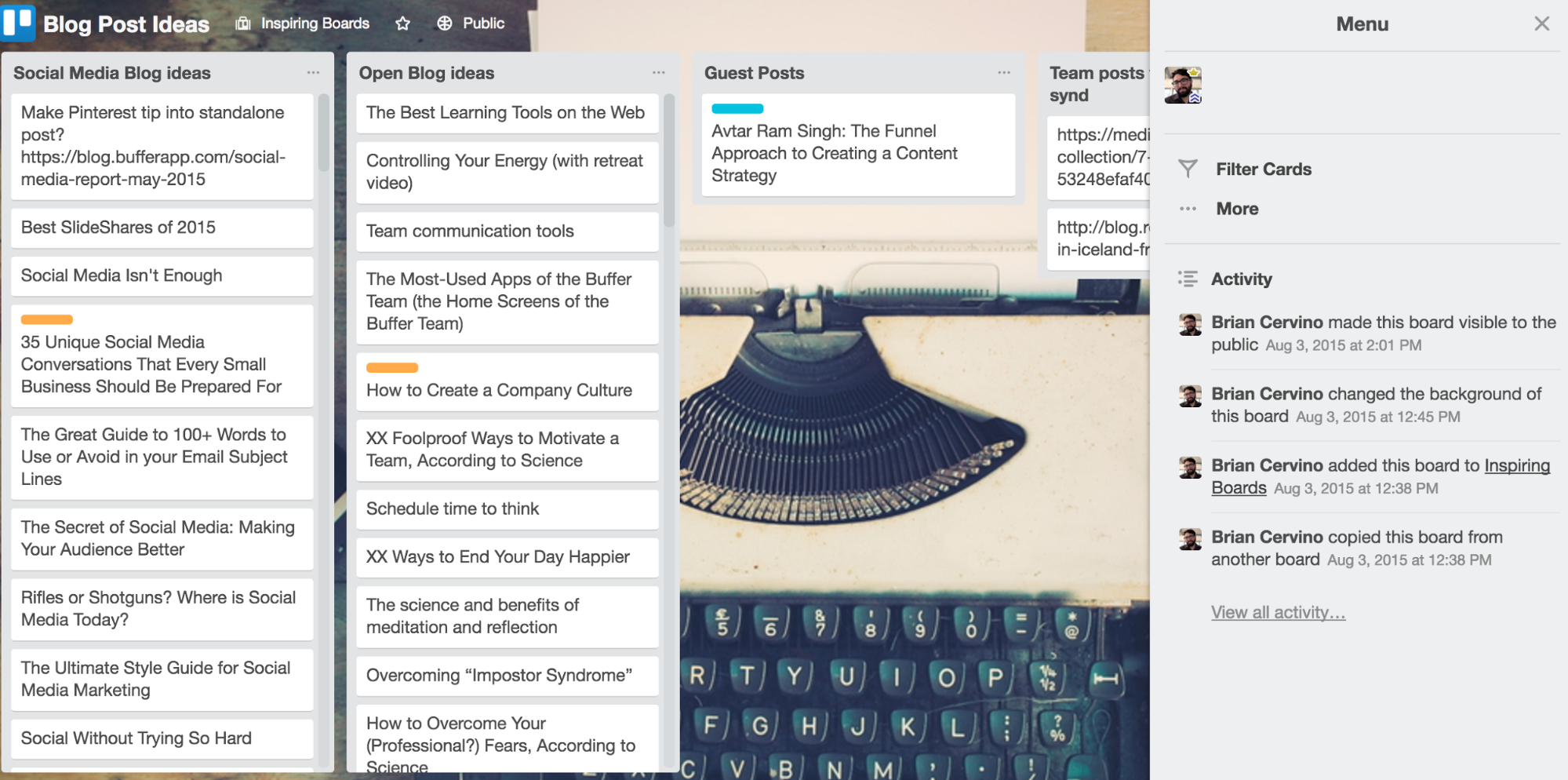
Let’s break this board down step by step to see exactly what they’re doing here.
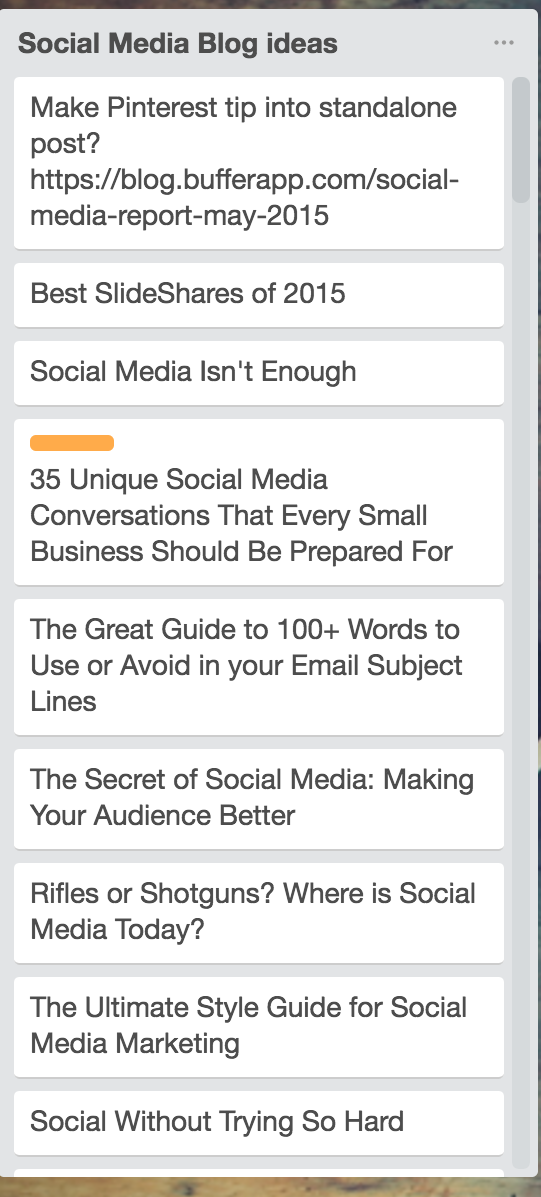
The first list is called “Social Media Blog Ideas.” Here’s where the Buffer team posts article ideas that are specific to social media.
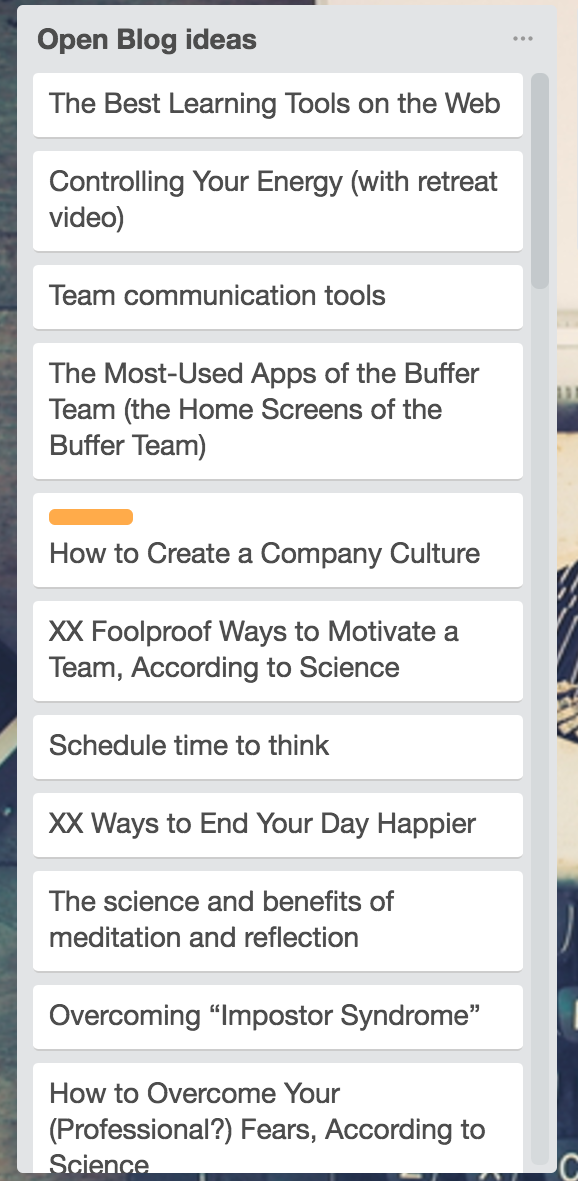
The next list is “Open Blog Ideas.” This is where unclaimed ideas hang out. When a writer claims one, the team can move that into its proper category.
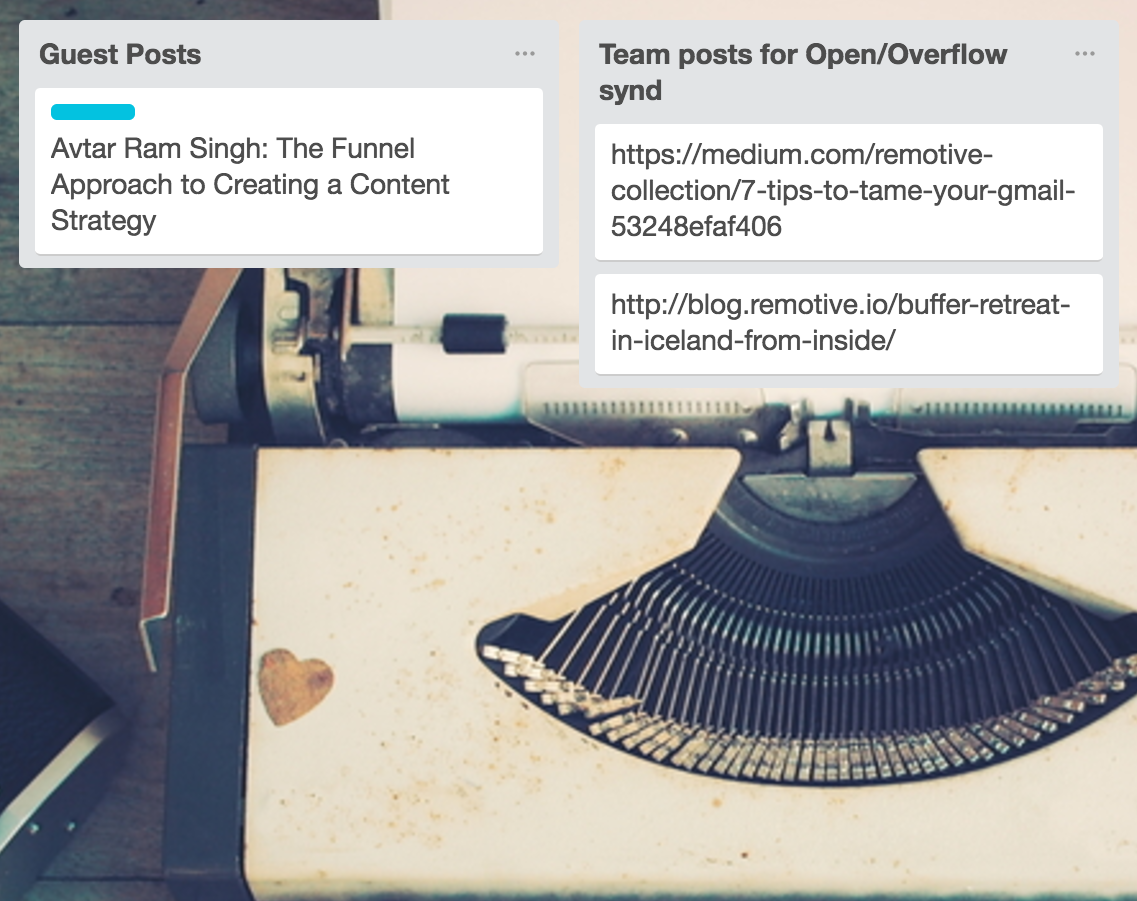
The next two lists are “Guest Posts” and “Team posts for Open/Overflow synd.”
Finally, we see three lists all called “Social” with different dates to help organize postings:
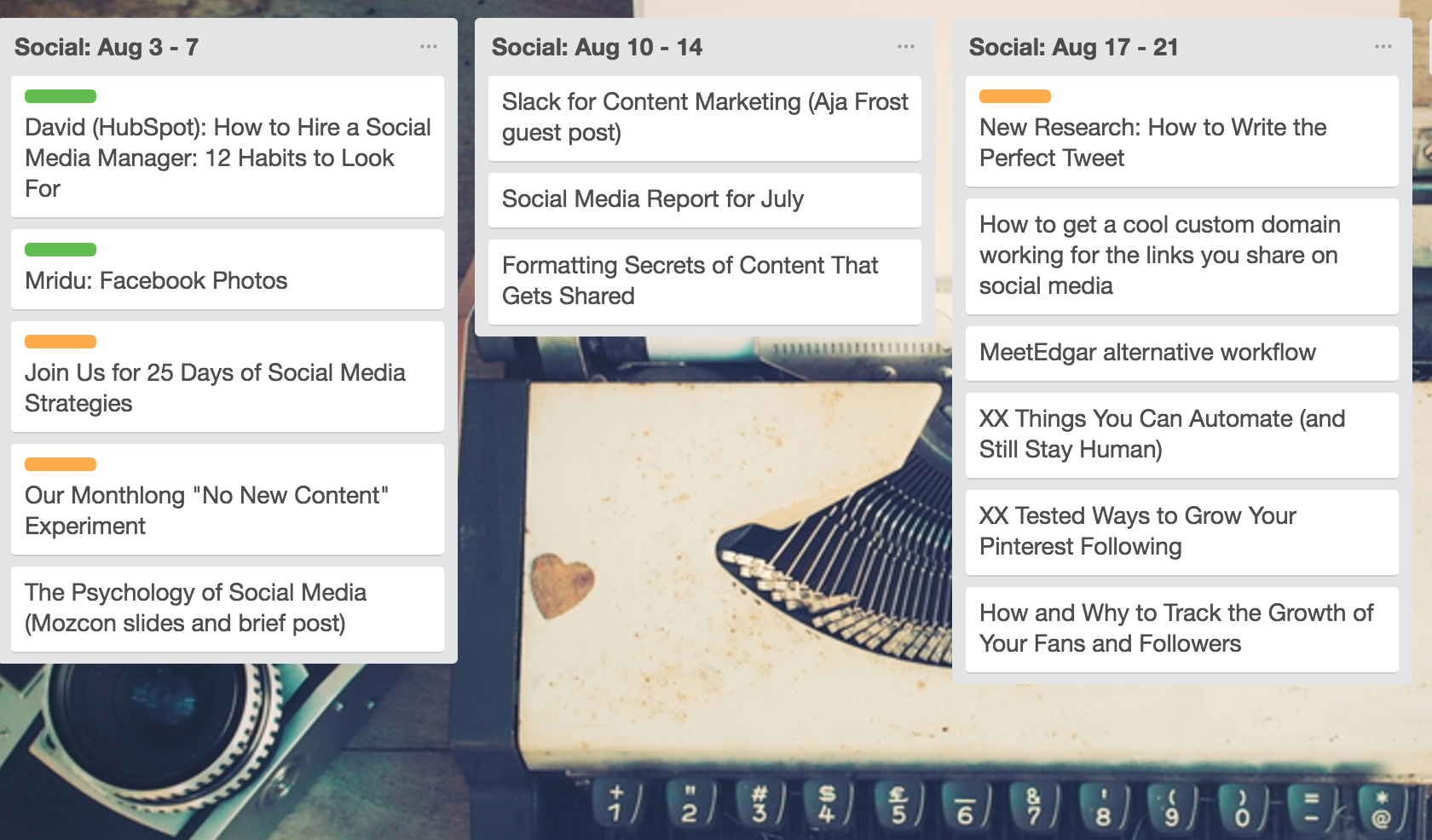
Basically, Buffer is taking a multi-category approach. They have different lists for different areas of their content strategy, and the board is home to all of those ideas.
Think of this method as dumping relevant ideas into category-based lists. This isn’t the most meticulous approach to Trello, but it can work really well, especially with remote teams.
That’s one way of using Trello. If you like a loose form of organization that keeps everything in check, this is a great method to use.
The Funnel Method
Another way is to take advantage of one of Trello’s design features to organize your content. This is one of the most clever uses of Trello, and it’s great for editorial calendars and content strategies.
The idea is to make your Trello lists read from left to right so you essentially create an organizational funnel.
Here’s a great example from ReadWrite:
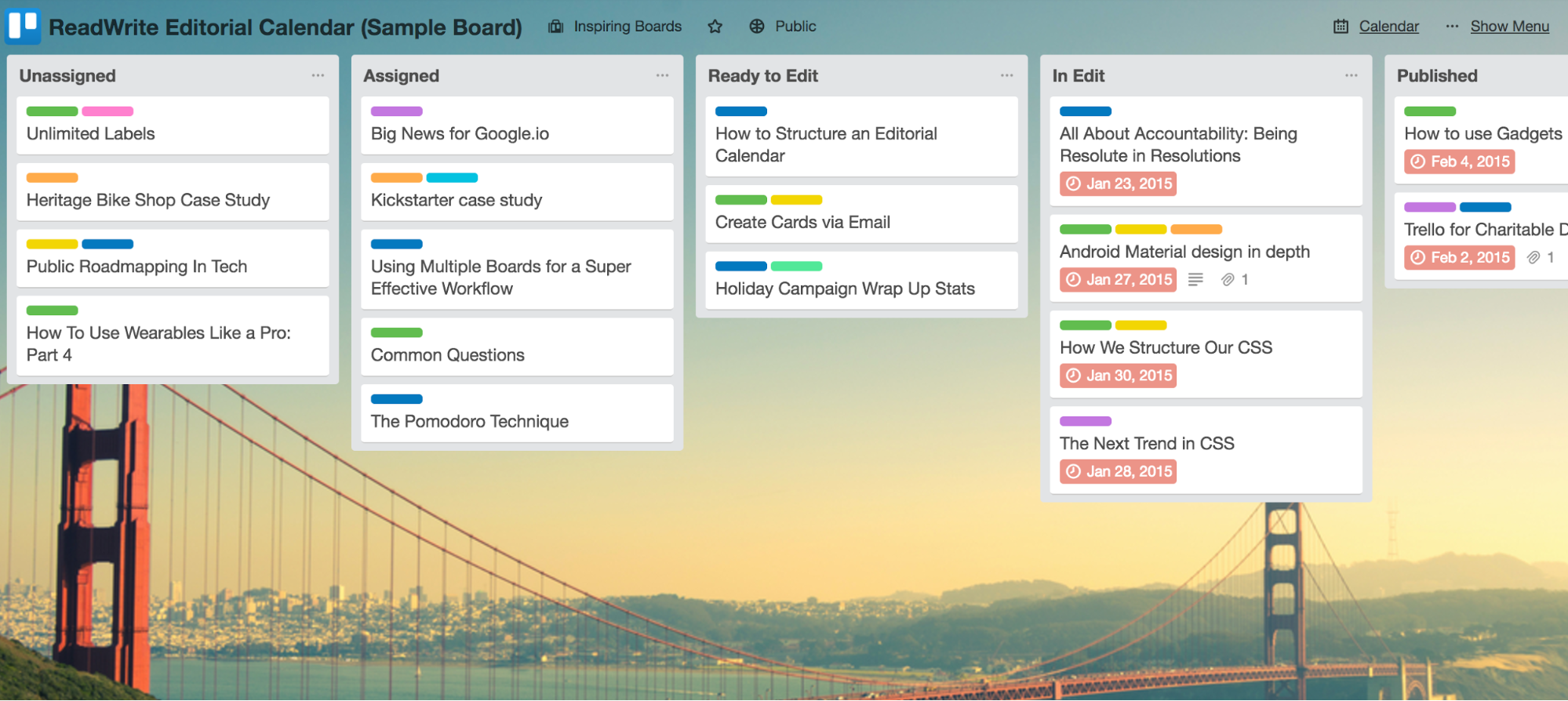
Their lists go from left to right. This layout flows well and makes perfect sense.
On the complete left, there are unassigned posts:
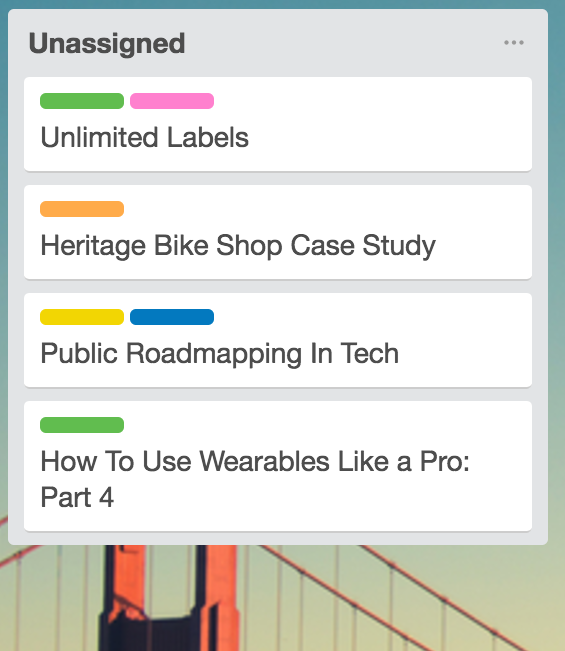
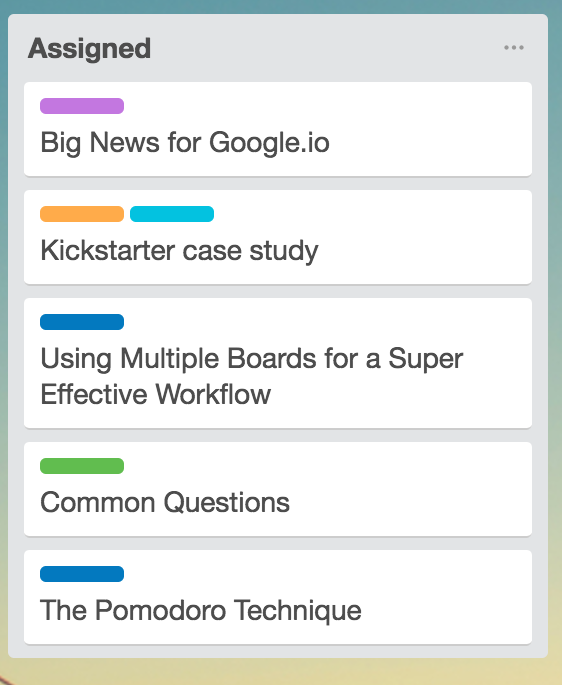
Writers on the team then get assigned to posts in the next list.
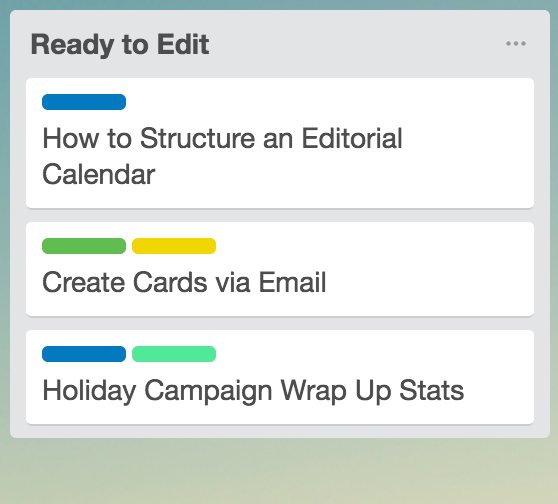
Once writers are done with their posts, they can share the post in the “Ready to Edit” list to let the editors know they’ve finished.
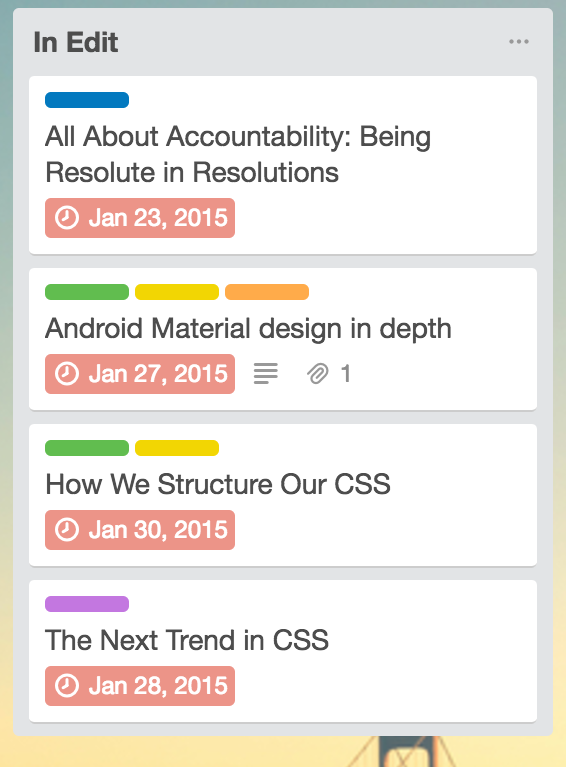
An editor takes the article and lets everyone know it’s in progress by moving it to the “In Edit” list.
Then all of the published posts go in the “Published” list. (These will probably be deleted regularly since they’re not relevant to the board after they’re published.)
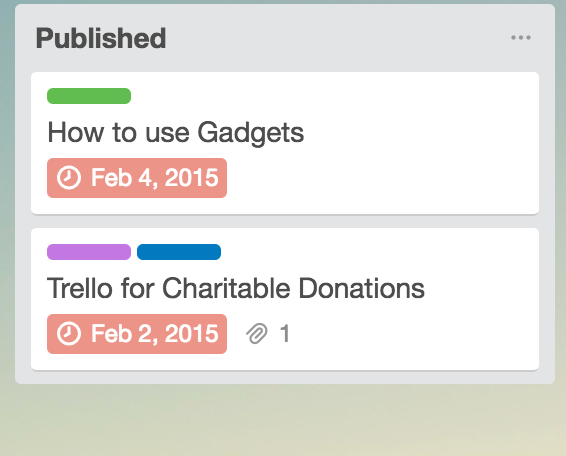
This is a great option for anyone managing an editorial or content calendar. If your content marketing strategy is mainly your blog, you should consider this Trello layout.
You might have noticed that some of the cards on this board had deadlines on them:
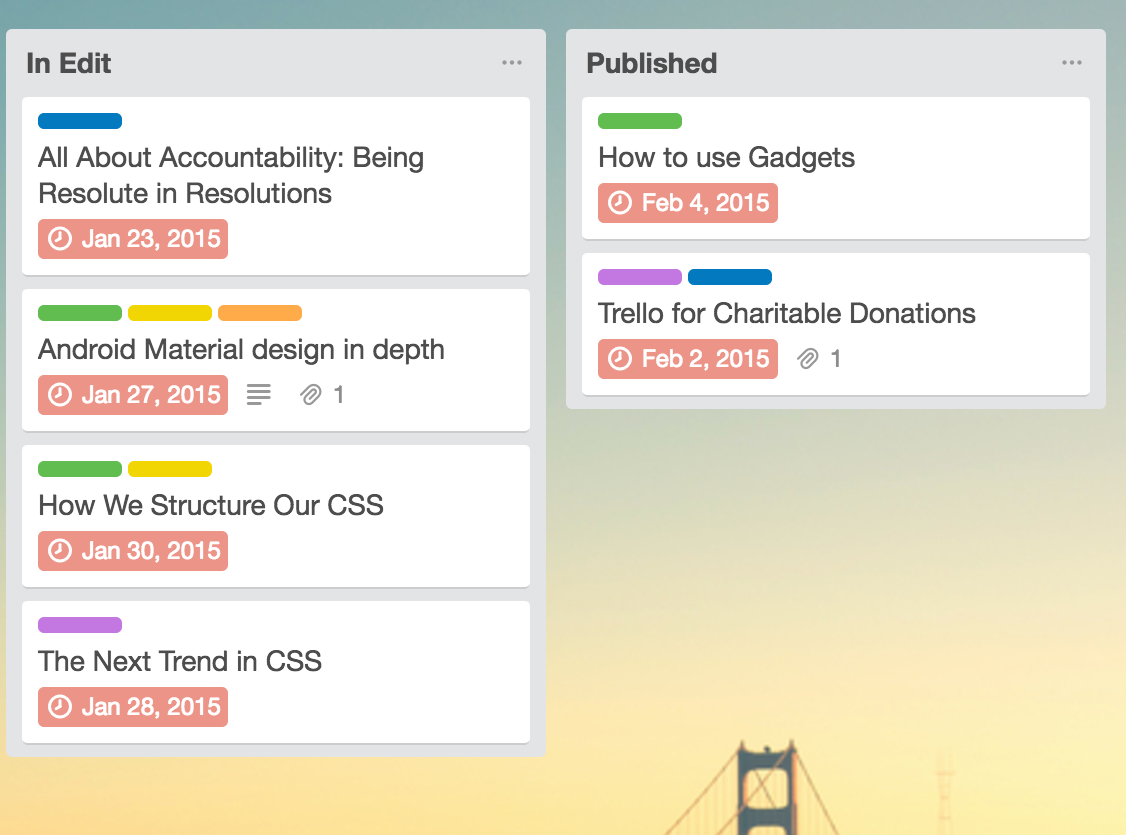
This is yet another awesome feature of Trello. Here’s how to do that on your own board.
Click on a card to edit it.
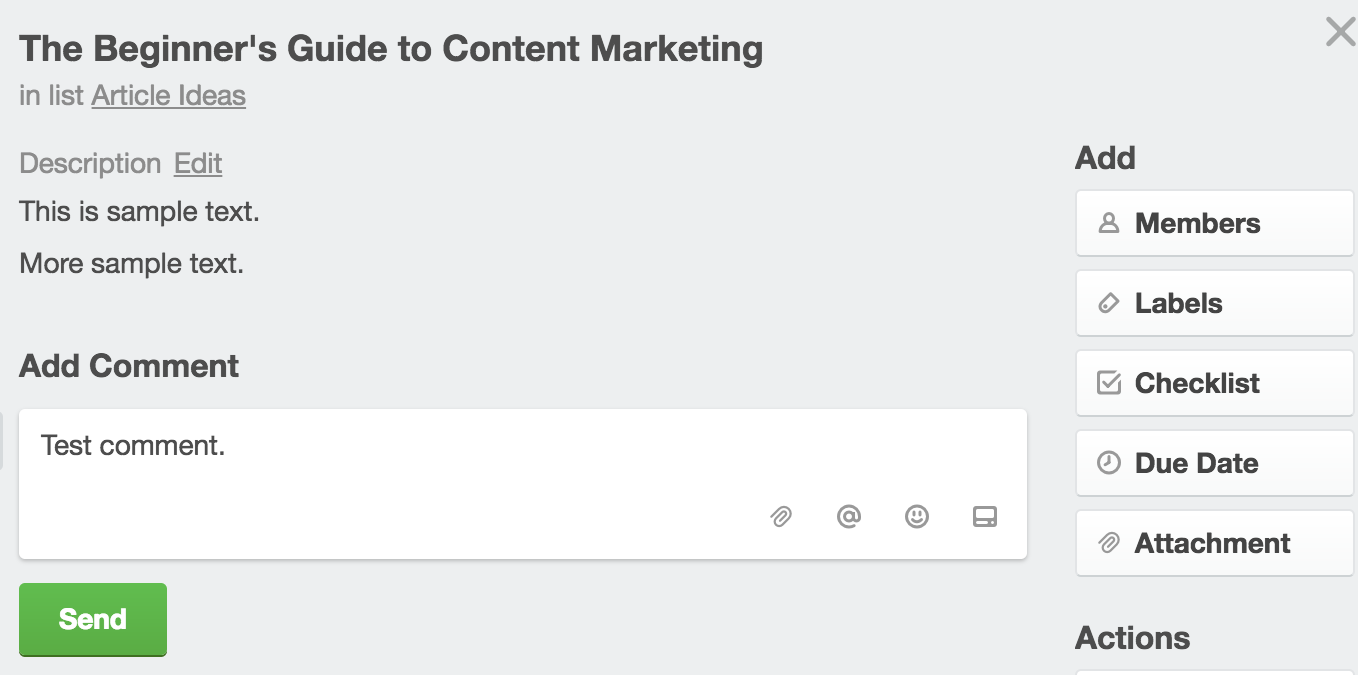
You’ll see a button on the right that says “Due Date.” Click on that.
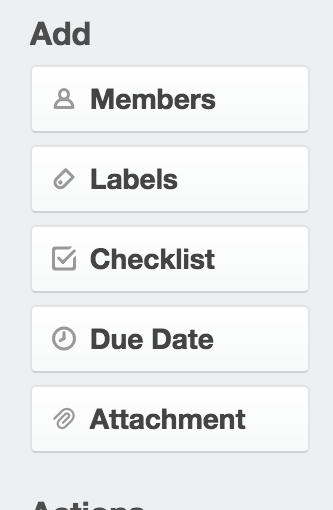
Here you can enter a specific date or pick from a calendar to choose your deadline.
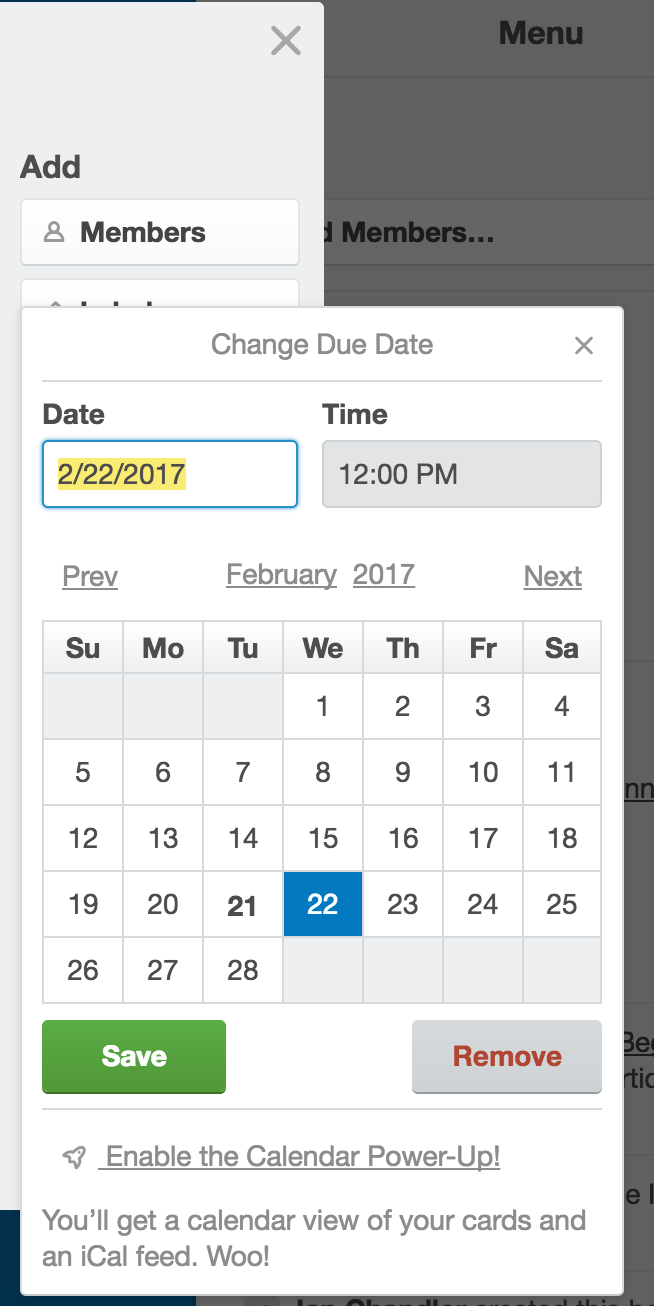
Once you’re done, hit “Save.” Now when you view that card, you’ll see the due date on it like this:
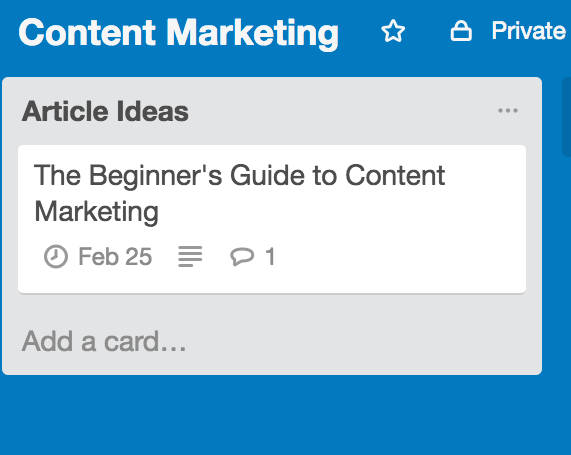
This deadline feature works really well for making organizational funnels. It’s super easy to navigate, and the left-to-right structure is ideal for time-based content needs, like publishing articles.
This is also a handy feature if you want to assign any sort of tasks to team members. Whenever someone takes on a task, you can create a due date for that task.
Creating your own Trello system
As you can see in these examples, you have an insane amount of flexibility with Trello. You can design almost any kind of organizational system you can think of.
When it comes to using a particular Trello system, you can do one of three things:
- You can copy one of these systems and use it as is.
- You can copy one of these systems and tweak it.
- You can create something from scratch.
All of these are good options. If you’ve seen a Trello board system you really like, you can use that board as is or for inspiration.
But don’t worry––you won’t have to recreate one of these boards if you see one you like. Trello actually lets you copy boards if you like the layout.
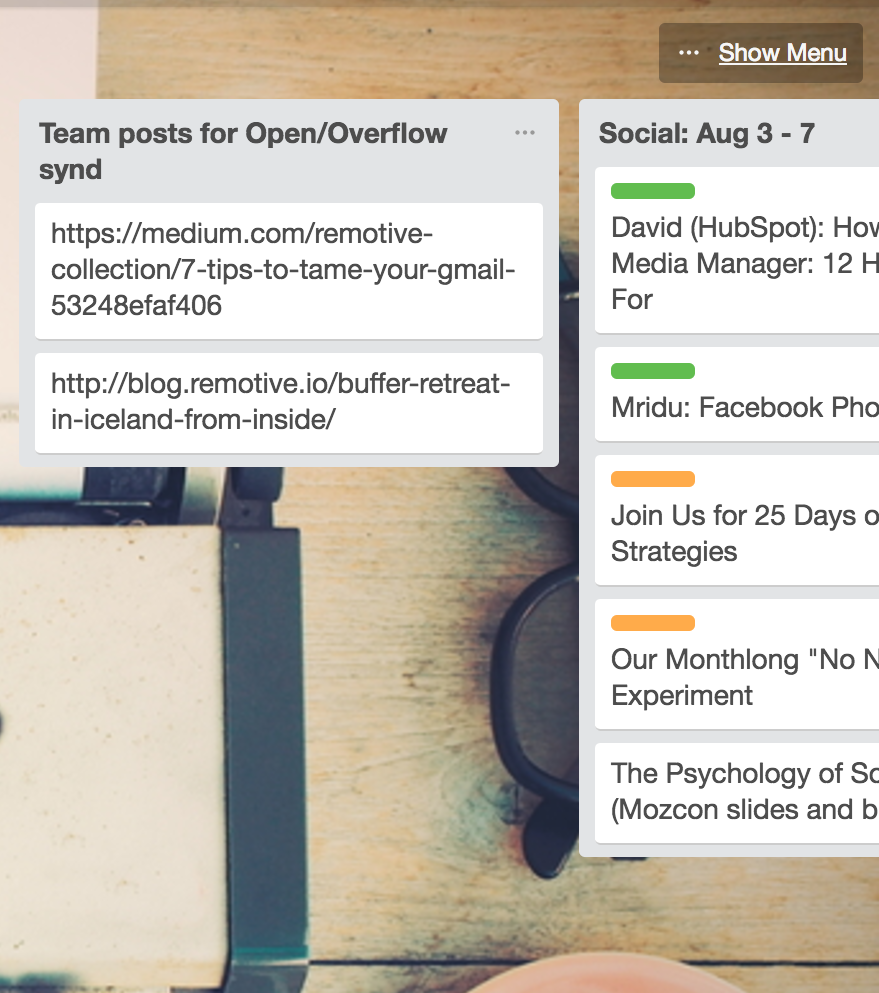
First, choose a board you like. We’ll use Buffer’s board:
Click “Show Menu” in the top right corner.
Click on “More.”
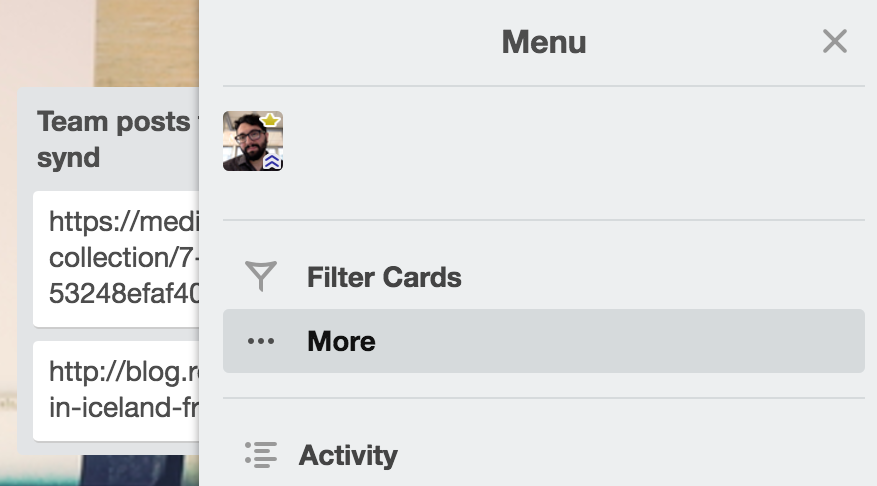
Select “Copy Board.”
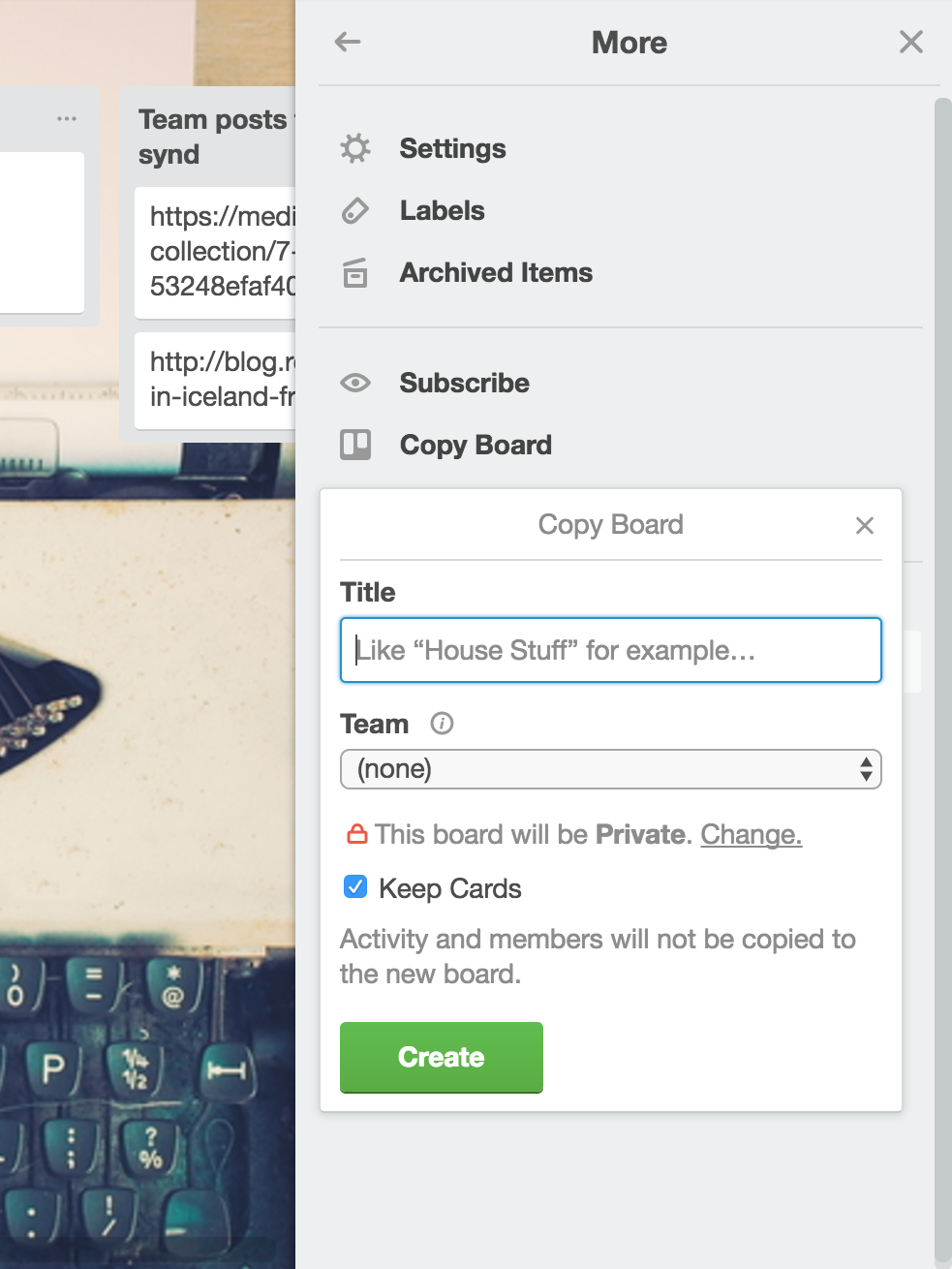
Now you can give your board a name, select the correct team for the board, and choose the board visibility you prefer.
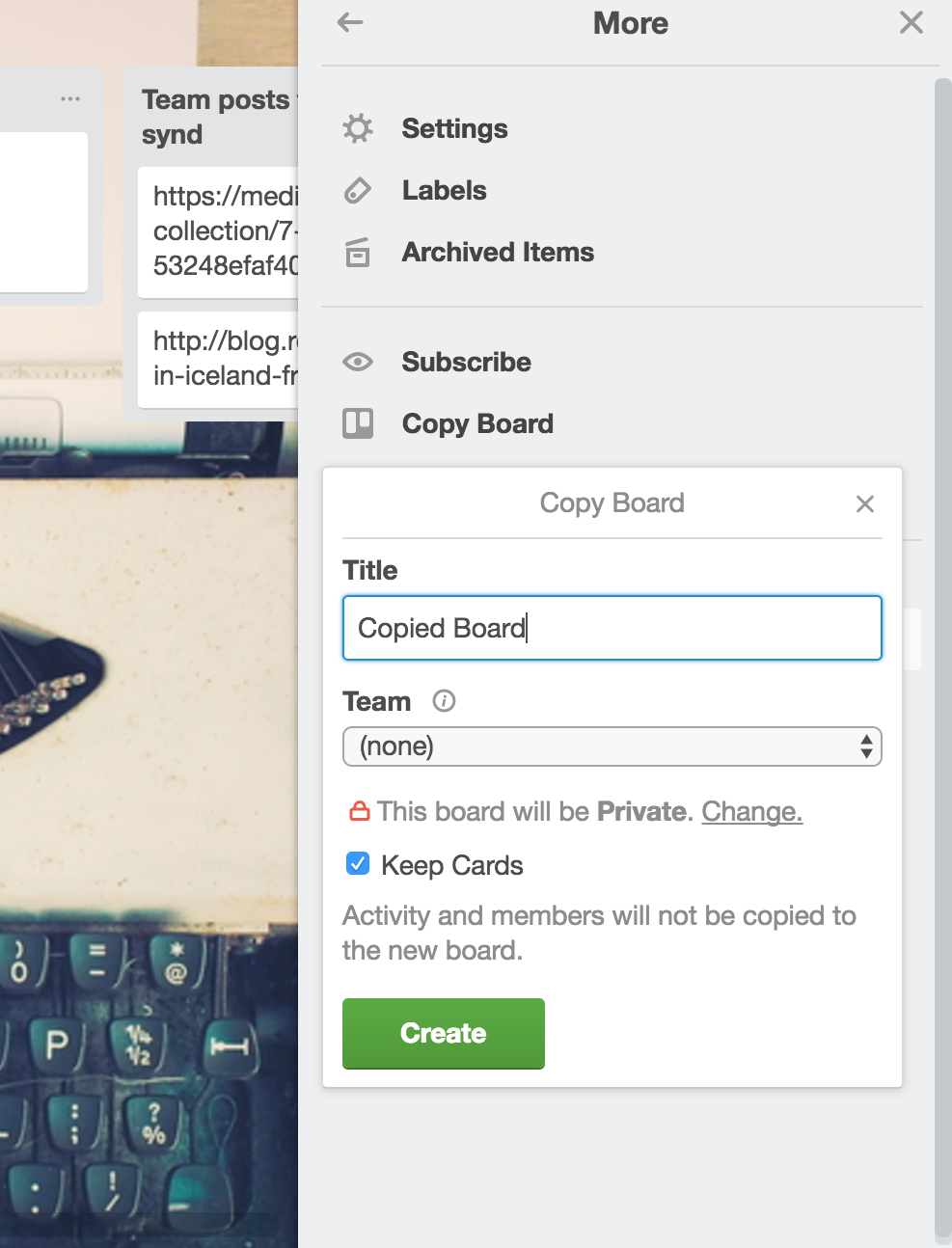
You can also choose to copy the cards from this board. Leave the option unselected if you want to create custom cards of your own.
One thing to keep in mind is that when you copy a Trello board, the comments and card activity don’t get transferred over. If you want to do that, Trello suggests copying each list. Here’s how to do that.
If you want to create your own system, the possibilities are endless!
Here’s a tip to get a little more out of Trello. You can easily move lists and cards wherever you want, and it’s a no-brainer to do so.
To move a list, simply click and hold a list’s heading. You’ll now be able to drag that list to anywhere on the board.

You can do the same thing with cards:
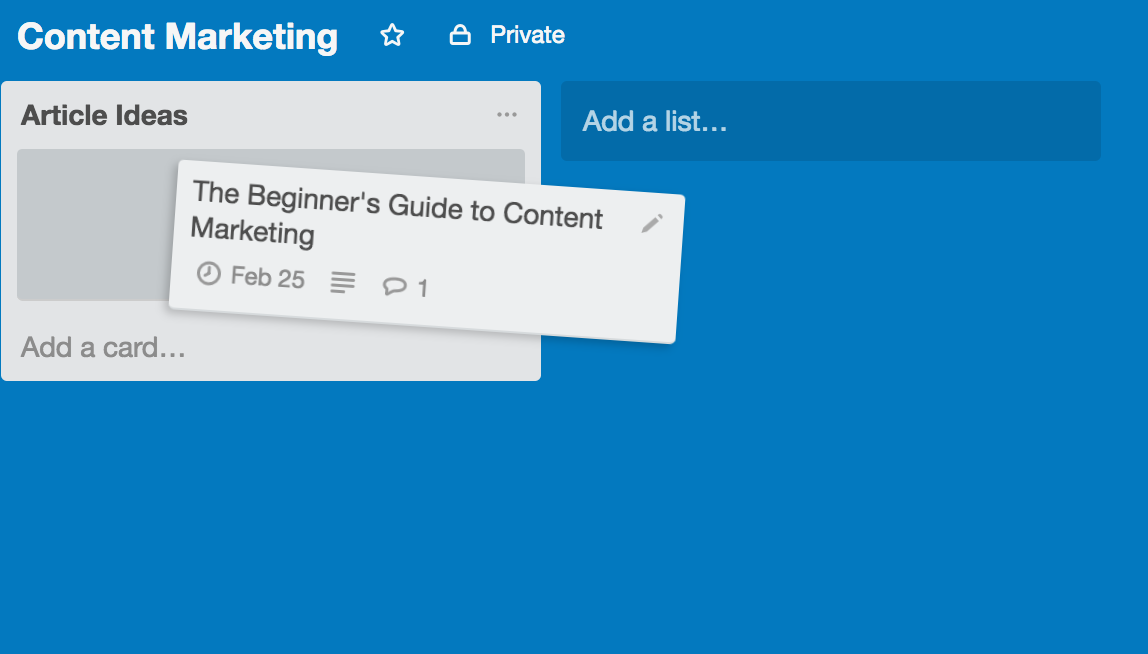
Here’s a cool advanced application: Moving lists and cards to a completely different board.
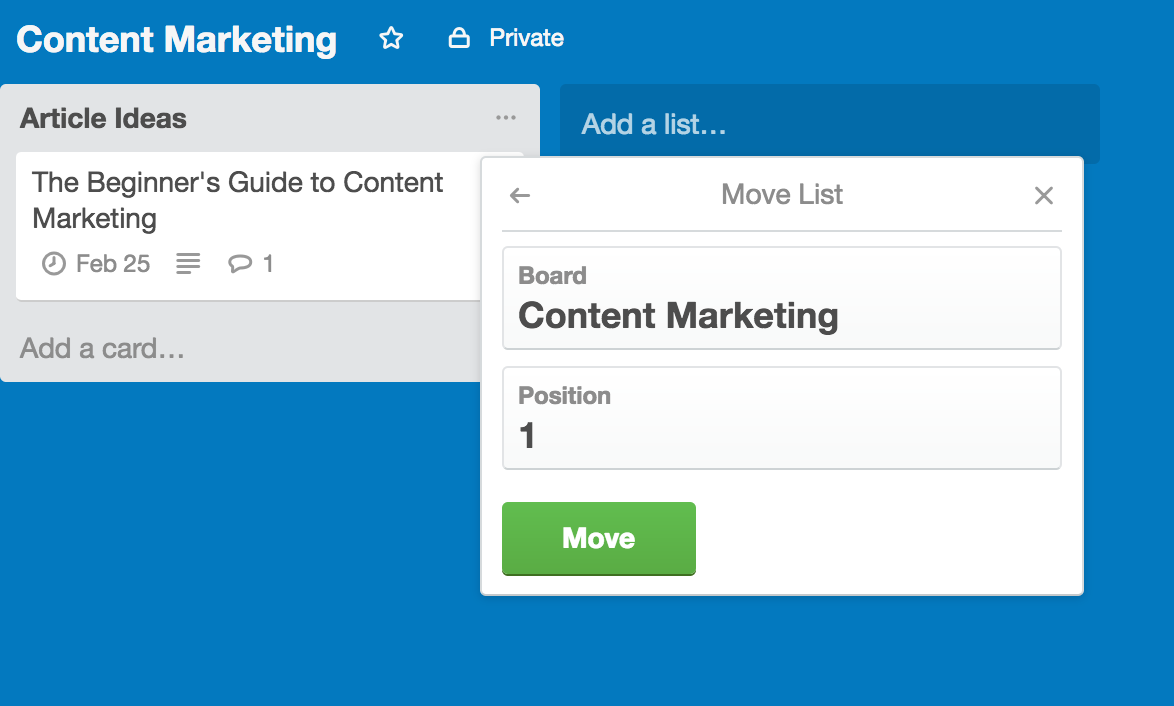
To move a list to a different board, click on the three dots at the top right corner of the list and click “Move List…”
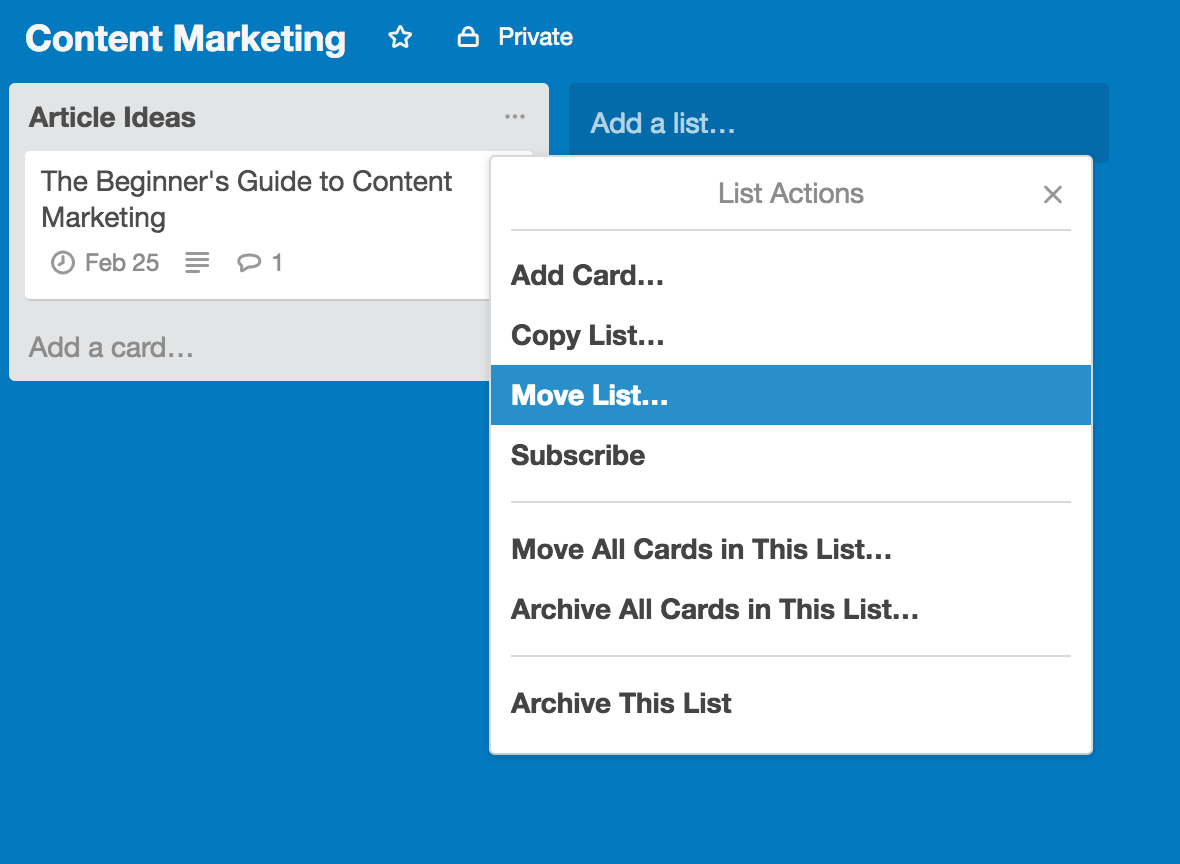
You can now choose the board you want to move and the position you want it to go in.
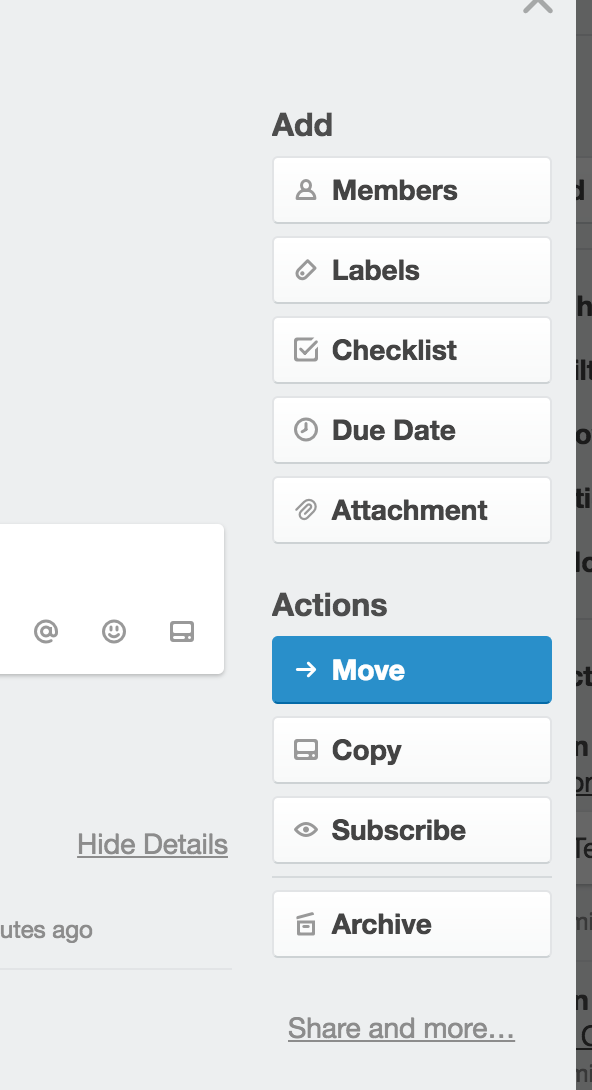
To move a card to a different board, the process is almost identical. Click on a card to edit it and click on “Move.”
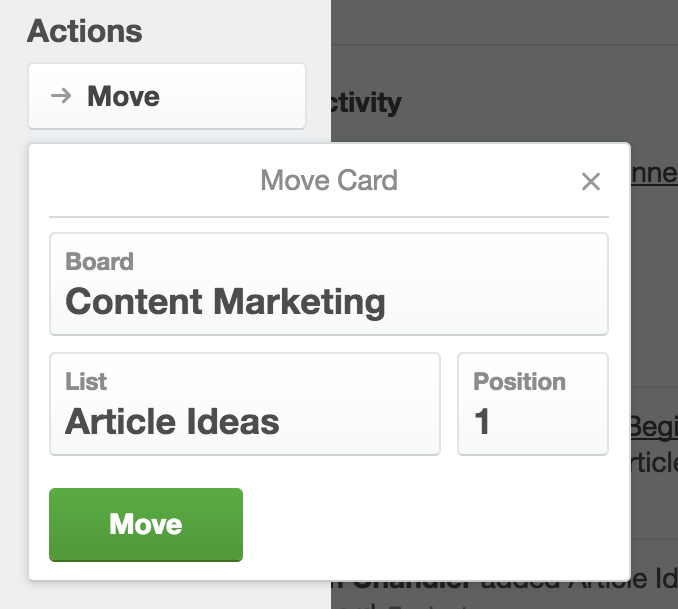
You can choose the board, list, and position in the pane that pops up.
You can create really complex Trello systems using these features. You can get an insane level of detail. It’s all up to you. That’s one of the best things about Trello.
Conclusion
Trello is hard to beat. It’s free, easy, and super flexible with a ton of features.
I’m actually surprised that Trello can do so much and give it away for free. I’ve paid for organizational software that can’t hold a candle to Trello.
If you’re not using it, I suggest giving it a try, especially if you’re looking for a way to organize your content marketing.
Try using it for just a week. If it doesn’t significantly help you manage your content marketing better, then at least you gave it a shot.
But I can say with almost a 100% guarantee that you’ll love it. There’s simply no other platform that can do all it does for free. In fact, it might become addicting after a while.
One last thing––if you spring for Trello Gold, the paid option, you can integrate other programs, like Google Drive and Slack, into Trello. This is an excellent option if you have a remote team that uses a lot of programs to work online.
Whether you opt for free or paid, you’ll get an awesome experience and an invaluable tool. I use it all the time, and I know you will too.
How do you use Trello?