 Sign In









 Ubersuggest
  AnswerThePublic

Key Takeaways
- Site speed directly impacts rankings, conversions, and user experience. Even small delays can significantly increase bounce rates and reduce performance.
- Measuring performance is the first step, using tools and metrics like Core Web Vitals to identify issues and prioritize fixes. Ongoing monitoring is key.
- Optimizing assets is critical—compress images, reduce file sizes, and use efficient formats to improve load times. Large files are a common cause of slow sites.
- Technical improvements like reducing HTTP requests, limiting plugins, minimizing redirects, and using a CDN can significantly boost speed.
Improving your site speed will boost your user experience, conversions, and rankings.
What’s more, site speed optimization is easily one of the most revenue-increasing technical tasks you can undertake.
And it’s not as complex as you might think. There are lots of tested best practices and dozens of powerful tools.
What Is Site Speed?
Site speed measures how quickly users can load and interact with your site.
The boundary between “page speed” and “site speed” isn’t a set one, and there’s a lot of overlap between the two.
Because the speed of any single page on your site usually reflects site-wide practices, optimizing for page speed is, in practice, the same as optimizing for site speed. The key difference is that site speed monitoring involves tracking a representative sample of pages to track sitewide performance.
You might be wondering if it’s really worth optimizing speed if your site performs reasonably well already. The answer is a resounding yes.
Research by my team found a direct correlation between lower page load times and both organic rankings and conversion rates.
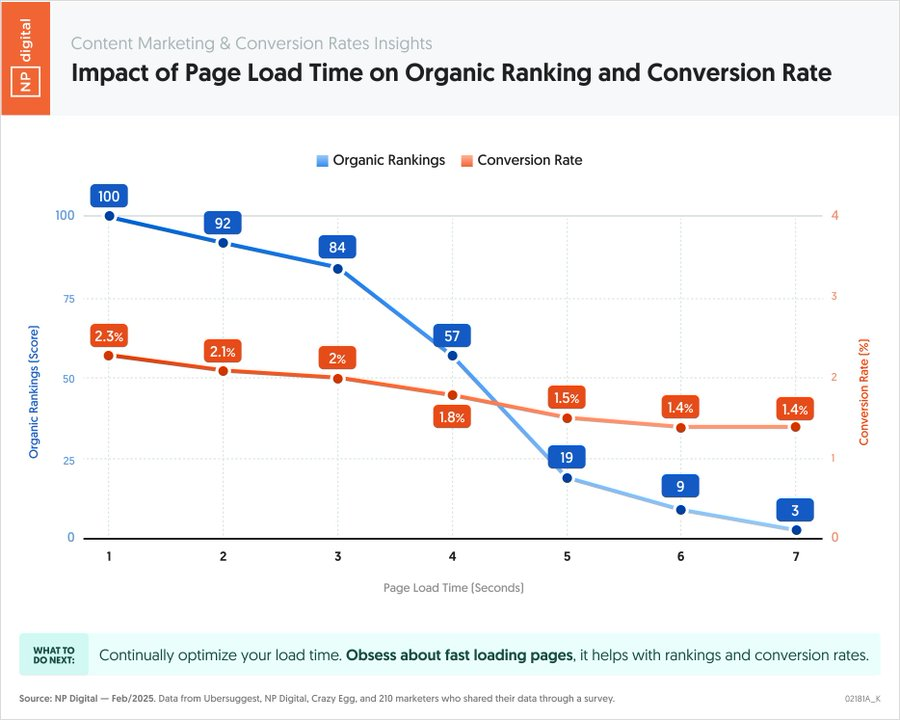
This is backed up by research from elsewhere, too. A study by Portent found that sites with a one-second load time convert three times higher than those with a five-second load time. Research by NitroPack also shows that an increase in load time from two seconds to three led to a 50% increase in visitor bounces.
1. Understand and Use PageSpeed Insights
PageSpeed Insights is Google’s free tool for measuring site performance. “Performance” evaluates a page’s load speed and the responsiveness of the page once it’s loaded.
Google combines three primary metrics, called Core Web Vitals, to evaluate performance:
- Largest Contentful Paint (LCP) measures how long a page takes to load fully. Google recommends 2.5 seconds as a minimum.
- Interaction To Next Paint (INP) evaluates how quickly a page responds to user interactions, such as opening a menu or a FAQ dropdown. Less than 200 milliseconds is ideal.
- Cumulative Layout Shift (CLS) looks at the stability of a page over its lifecycle (meaning that elements don’t move or jump about). It’s not a speed metric per se, but it can have a knock-on effect on page load times.
Here’s the Core Web Vitals Assessment for NeilPatel.com:
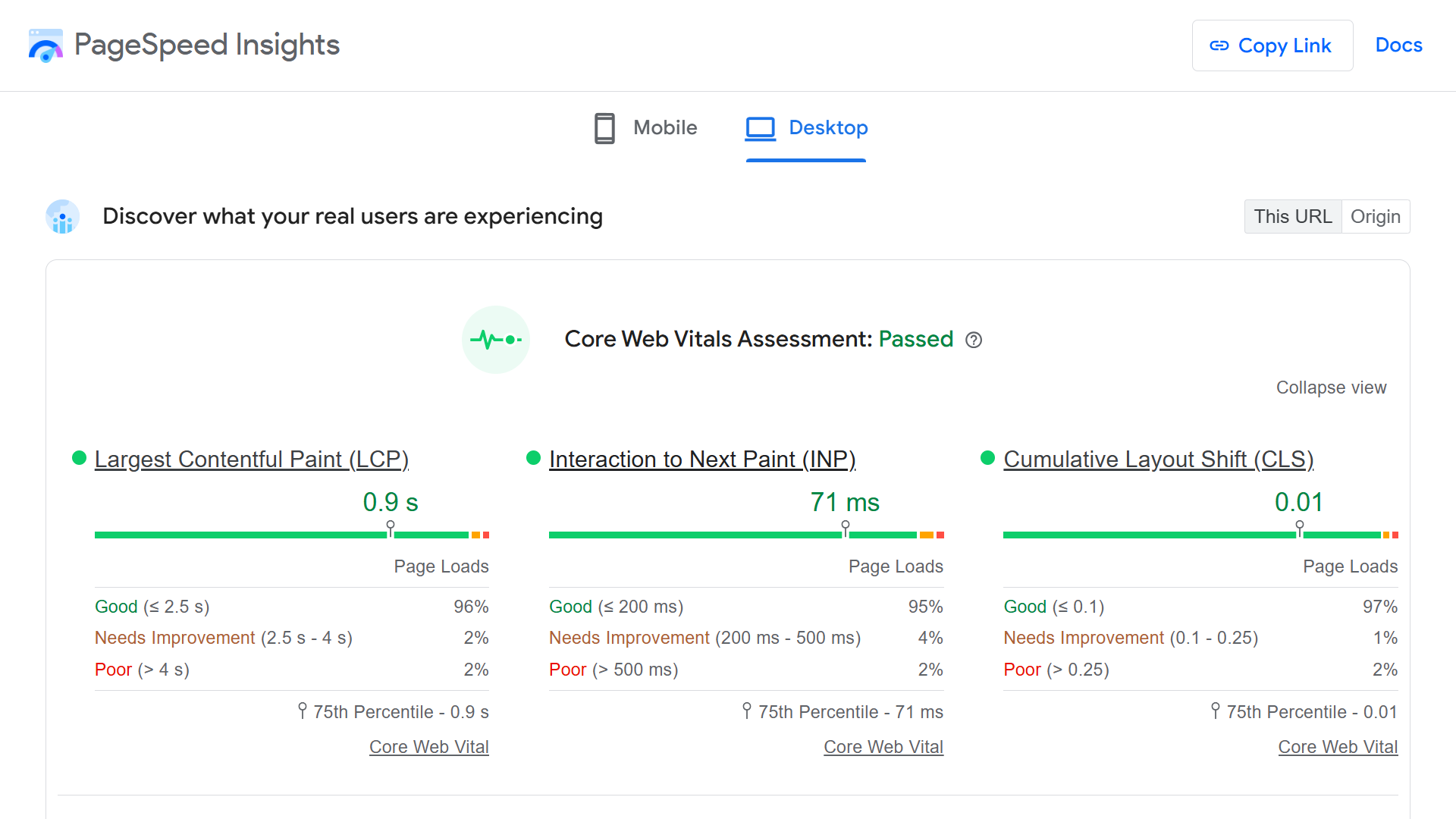
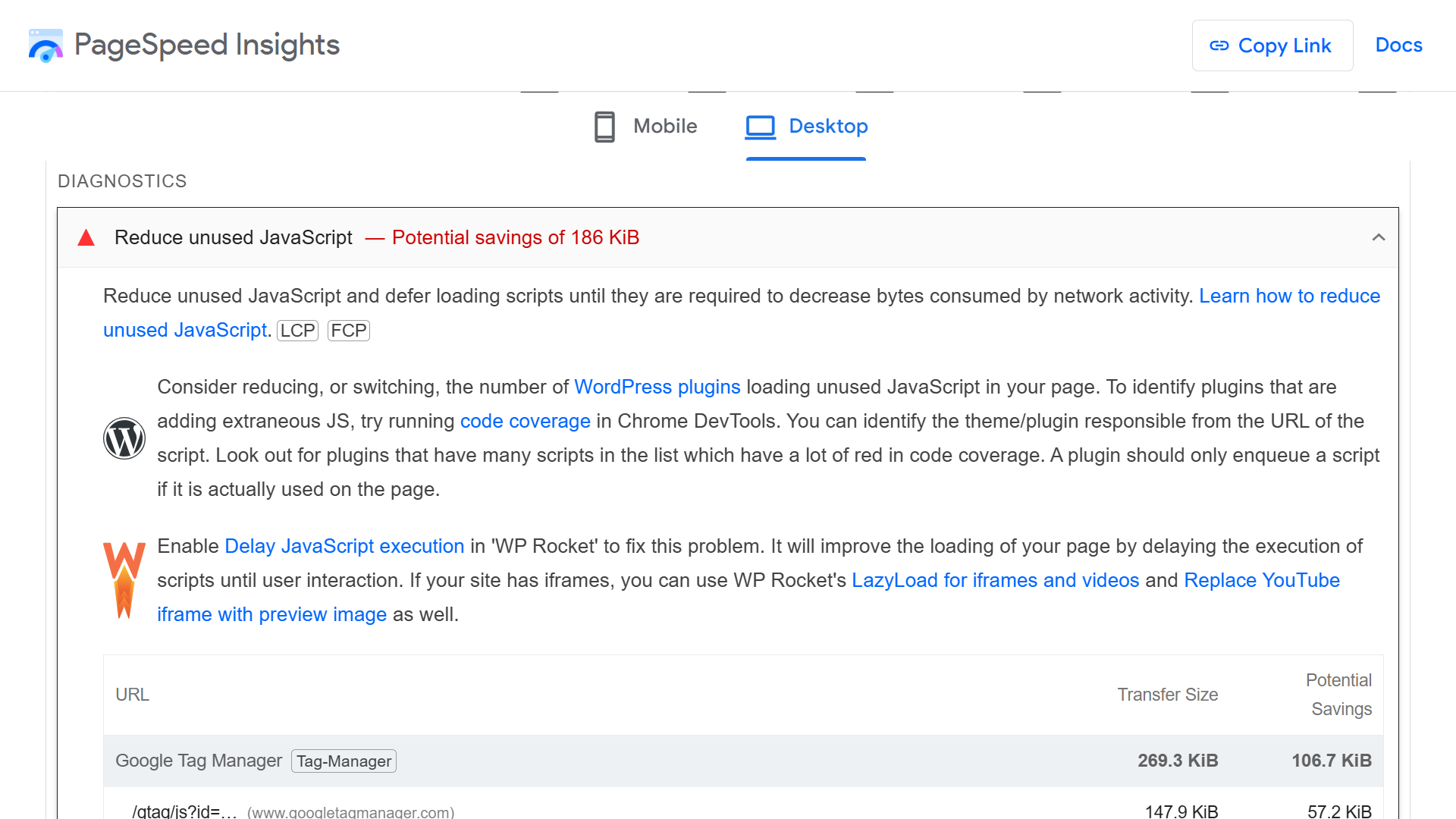
The PageSpeed Insights tool provides an excellent starting point for improving your site performance and speed.
Enter a page URL, and you’ll see suggestions for optimizing performance in the Diagnostics section.
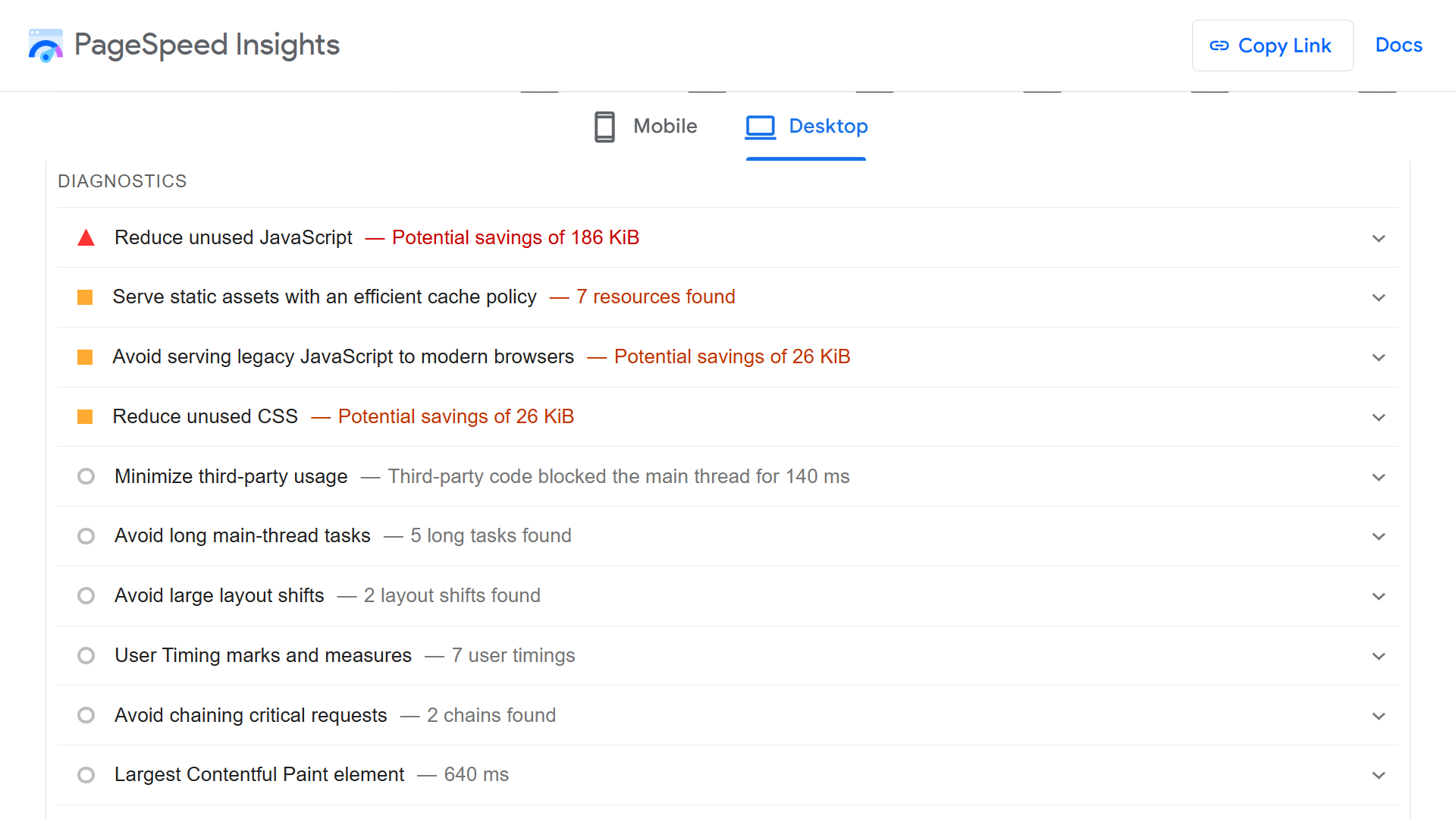
Even better, each of these diagnostics comes with a priority rating and specific instructions for remedying issues.
2. Supplement PageSpeed Insights With Other Tools
PageSpeed Insights is an excellent solution. But supplementing it with additional tools provides an even more exhaustive picture of optimization opportunities.
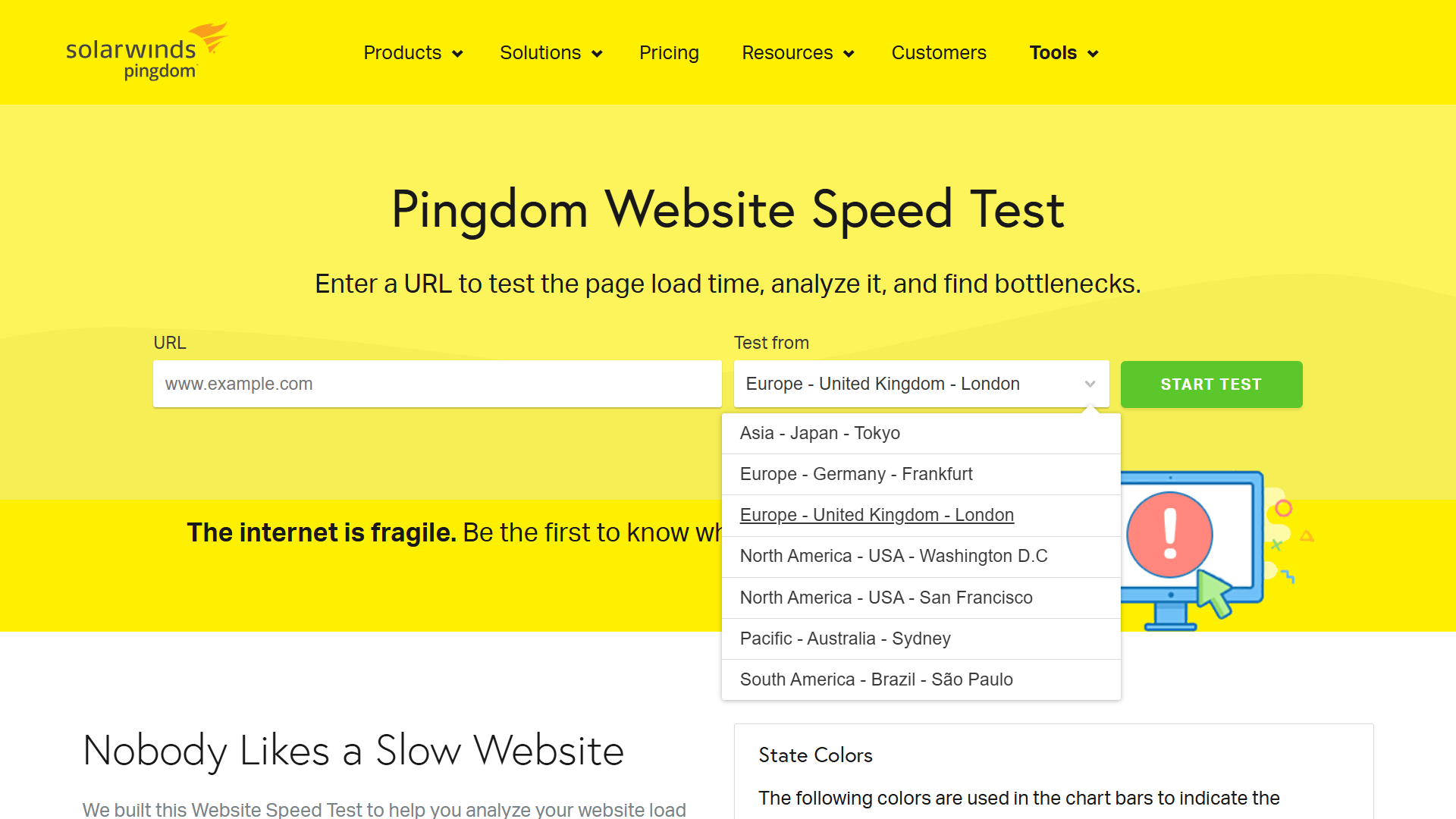
For example, Pingdom allows you to test page speed from different locations and covers additional technical elements like file request details.
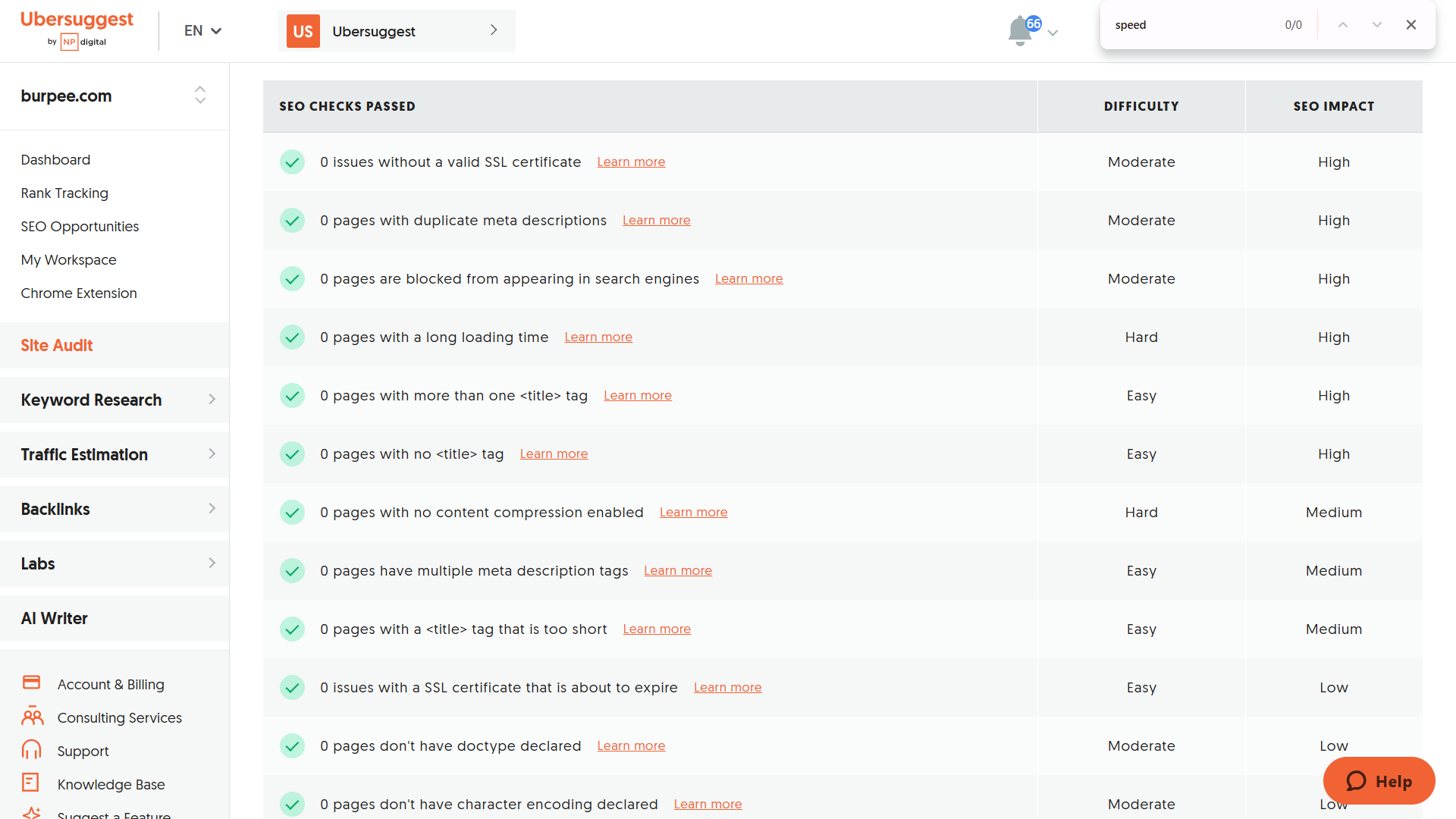
A platform like Ubersuggest provides ongoing monitoring with regular site-wide audit features, such as its “long loading time” checker.
3. Compress Images
You’ve likely encountered slow-rendering images many times, especially when using a weak internet connection.
Large, detailed images take time to load and contribute to a less-than-optimal site speed in a big way.
Follow these best practices when uploading images to your site:
- Compress images with a tool like TinyPNG or ImageOptim.
- Don’t make images larger than they need to be.
- Use next-gen formats like WebP and AVIF.
- Configure the <picture> element for different screen sizes.
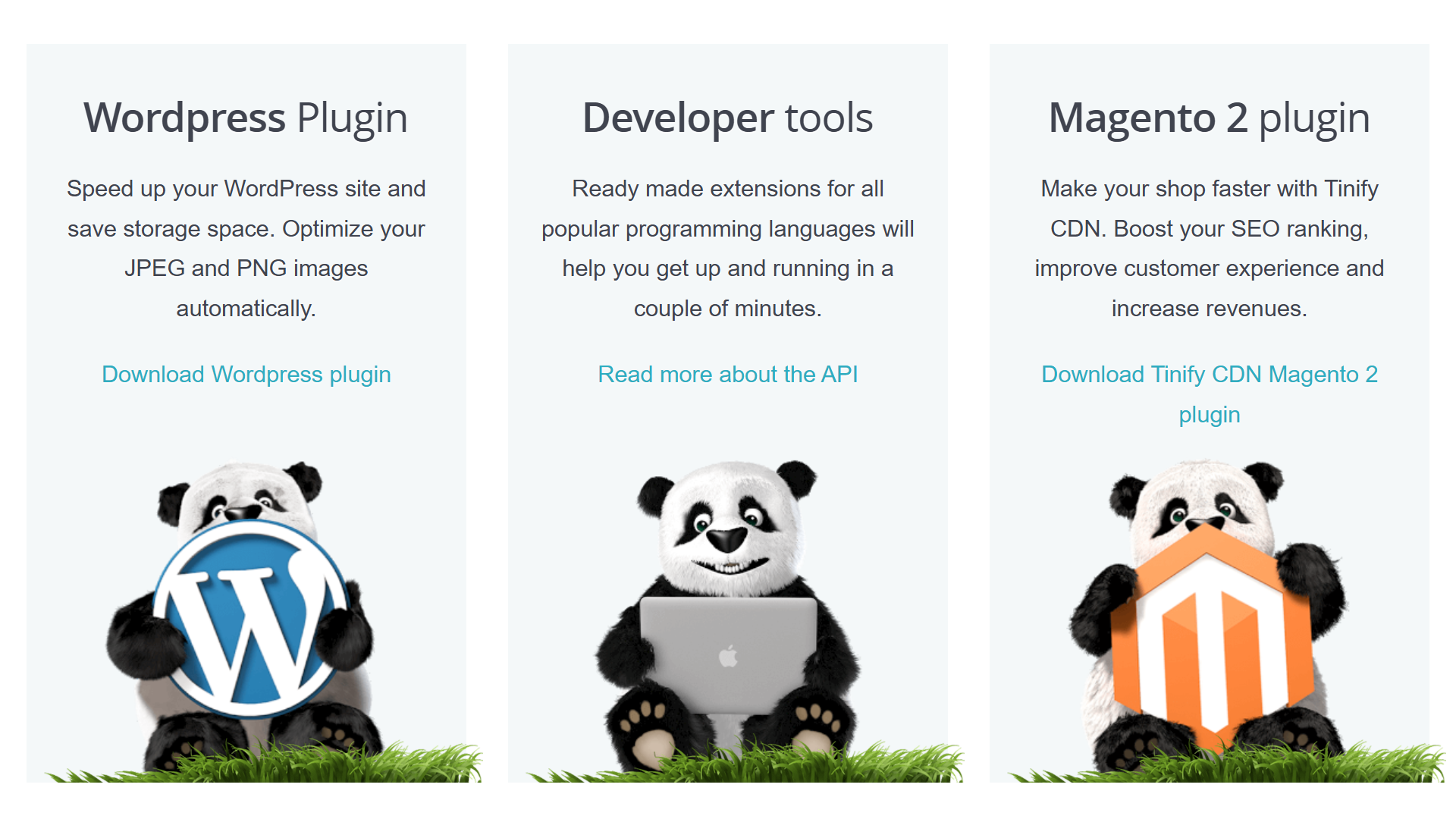
If your site already hosts lots of images that aren’t optimized, don’t worry. Tools such as TinyPNG offer plugins that will automatically audit and update your whole site.
4. Compress Text Files
In addition to images, compressing CSS, JavaScript, and HTML text files also reduces page load times. Compression reduces their transfer size without any change in code content or quality. The browser then decompresses the files once it receives them.
Gzip and Brotli are the most popular file compression tools. Brotli, which is supported by all major browsers, tends to perform better in comparisons. You should be able to implement transfer encoding on your hosting server.
Remember not to use these tools to compress images. They’re designed for text files. Image compression is better done with a dedicated tool that retains quality.
5. Minify CSS, JavaScript, and HTML
Minification turns CSS, JavaScript, and HTML code into a type of shorthand for browsers. It makes files smaller, thereby reducing their payload size and increasing transfer speed.
Minification makes adjustments to code by, among other tweaks, removing spaces, cutting out comments, and using shorter names for variables.
Minification turns this:
body {
font-family: Arial, sans-serif;
line-height: 1.6;
background-color: #f9f9f9;
color: #333;
padding: 20px;
}
/*Neil Patel is a great coder*/
Into this:
body{font-family:Arial,sans-serif;line-height:1.6;background-color:#f9f9f9;color:#333;padding:20px}
Nearly all content management systems have built-in minification features or plugins, and implementing site-wide minification is usually a simple matter of enabling them.
6. Reduce Nonessential and Render-Blocking JavaScript
Render-blocking resources force a browser to download and parse specific files before it can continue loading. This increases the time it takes to reach the Largest Contentful Paint (LCP).
This can happen with any type of code, but JavaScript is a particularly bad offender because it has a relatively long execution time.
You can see the sources of render-blocking and nonessential JavaScript in Google’s PageSpeed Insights tool:
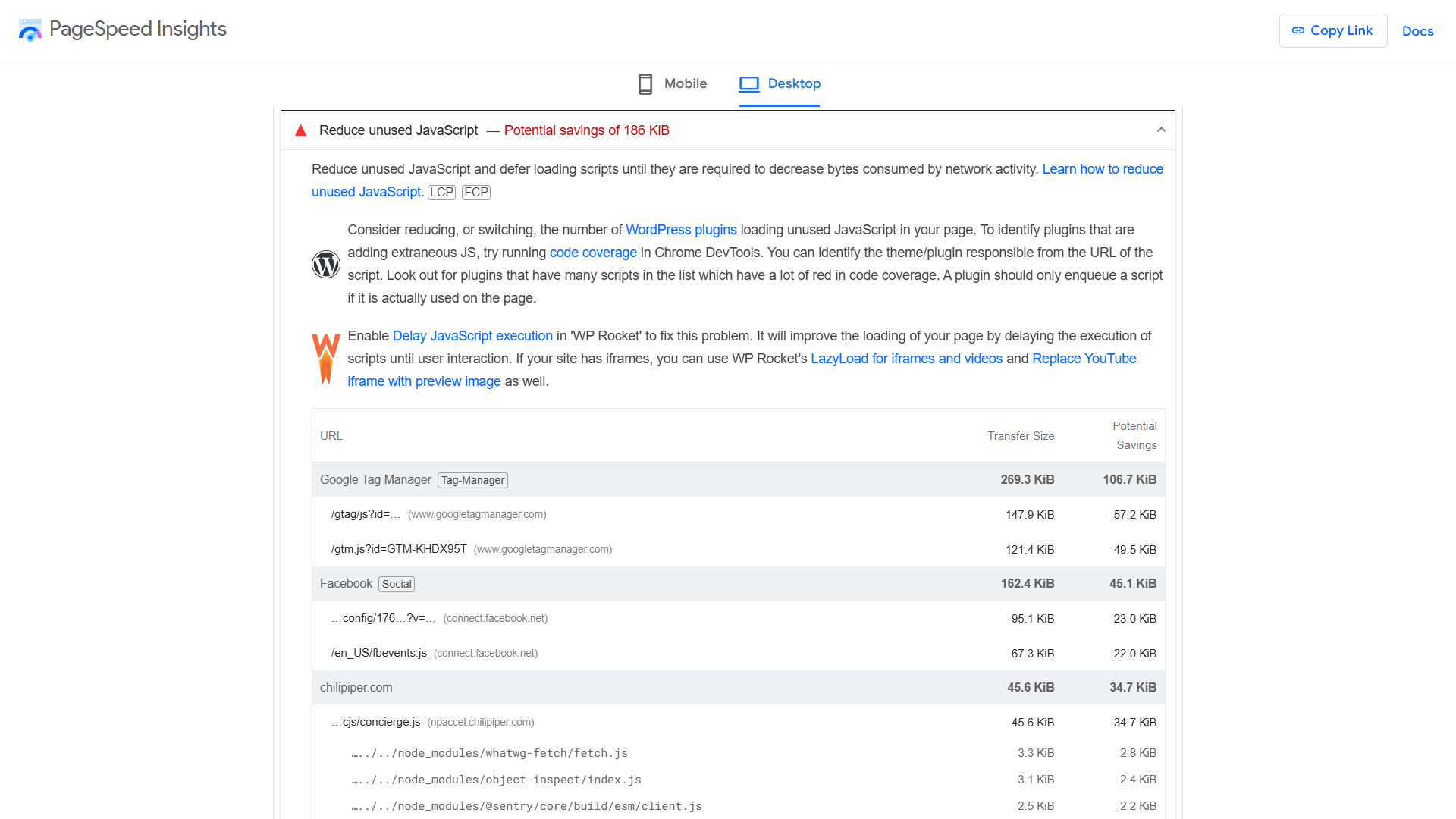
The Coverage tab in Chrome DevTools also provides an overview of all unused code (including CSS and HTML) on a page.
7. Lazy-Load Images Below the Fold
When lazy loading is implemented on a site, images and videos below the fold don’t render until a user scrolls down. This can significantly reduce a page’s initial payload.
Ecommerce sites often use lazy loading on category and similar pages, dynamically rendering dozens of images as users scroll.

Some content management systems have trouble with lazy loading, and it can cause issues with fast scrollers. However, it boosts performance in most cases.
8. Use a Reputable CDN
Content delivery networks (CDNs) store cached versions (or copies) of your site on servers across the world.
For example, if your site’s servers are in Europe, somebody loading a page in North America doesn’t need to send a direct request over thousands of miles. Instead, they can access a copy of your site closer to their location.
Reputable CDNs such as Cloudflare and Amazon CloudFront also often take care of other site speed tasks, like minification and file compression, so research providers carefully before making a decision.

9. Reduce HTTPS Requests
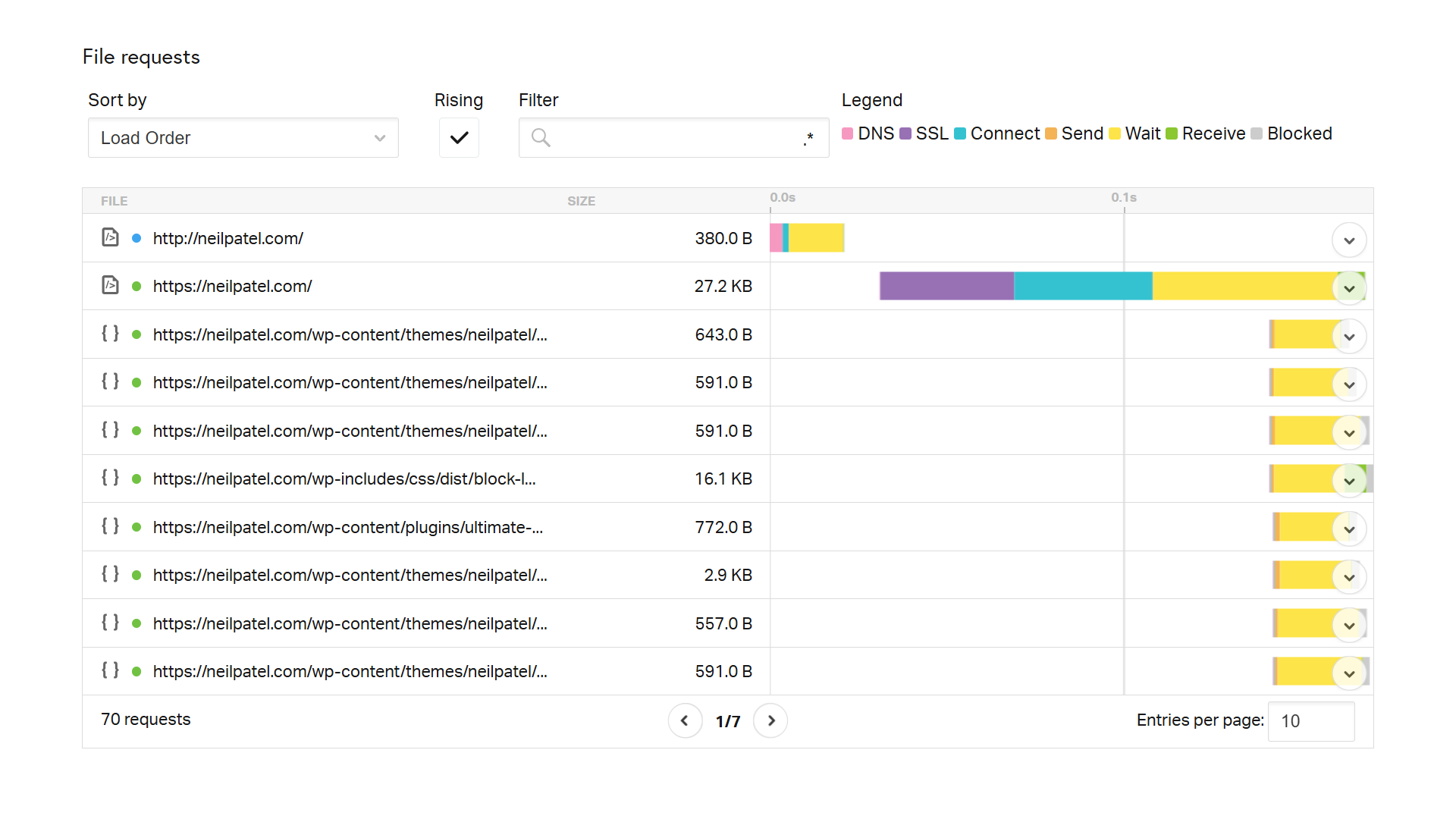
A browser gathers the files it needs to render your site by sending HTTPS requests. Each request can take anywhere from 30 to 200 milliseconds, and it’s not uncommon for a browser to send hundreds of requests to load one page.
A tool like Pingdom shows you all of the file requests a page requires during its load time. Excessive requests for one or a sample of pages will likely indicate site-wide issues.
10. Use SVGs for Graphs and Diagrams
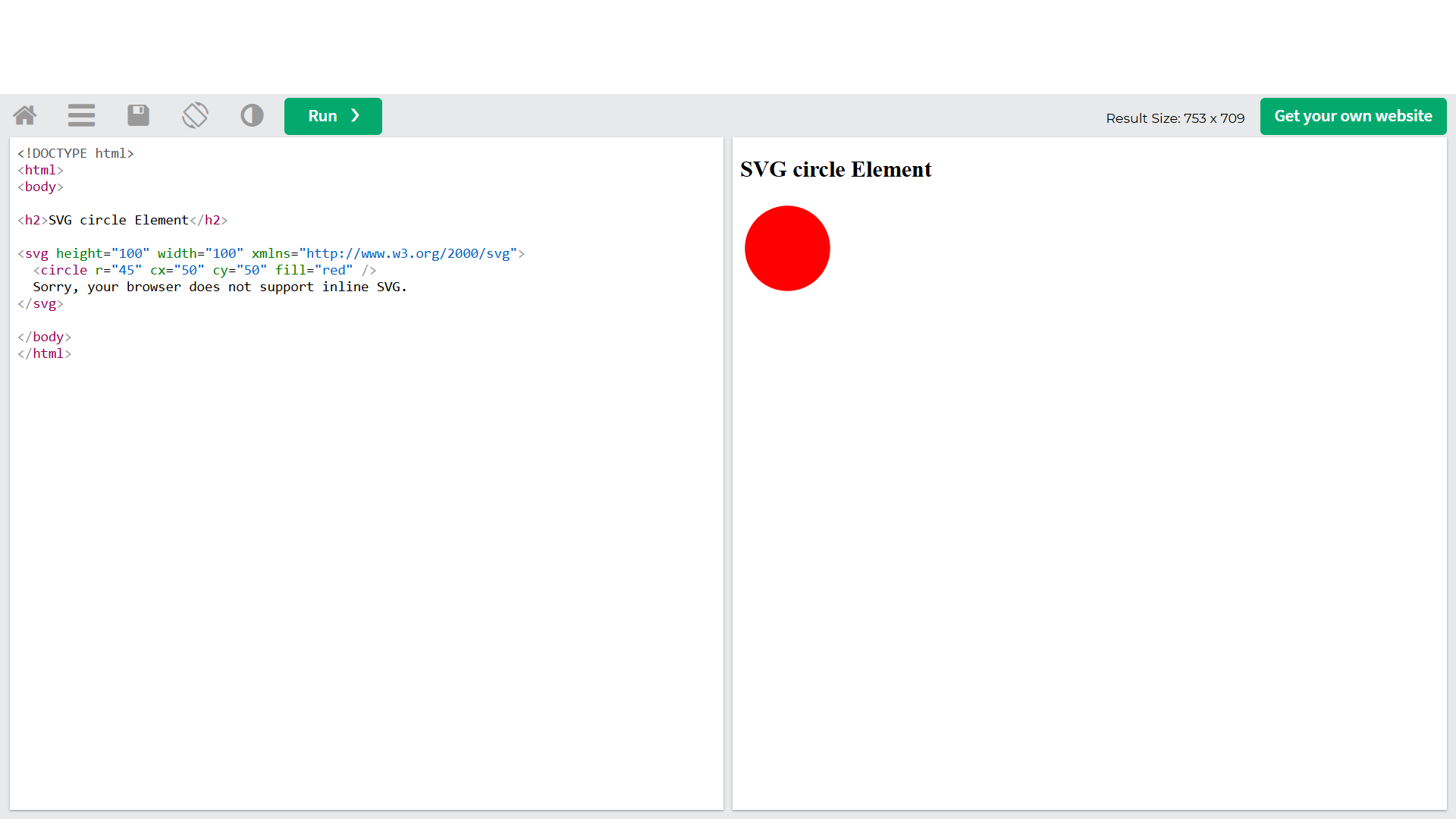
While next-gen image formats like WebP are ideal for complex images, SVGs (Scalable Vector Graphics) work well for simple graphics. Text-based SVG files are small, fast-loading, and scale easily, making them an excellent option for graphs and diagrams without any risk of pixelation.
Here’s an example of an SVG element:
11. Run Separate Tests for Mobile
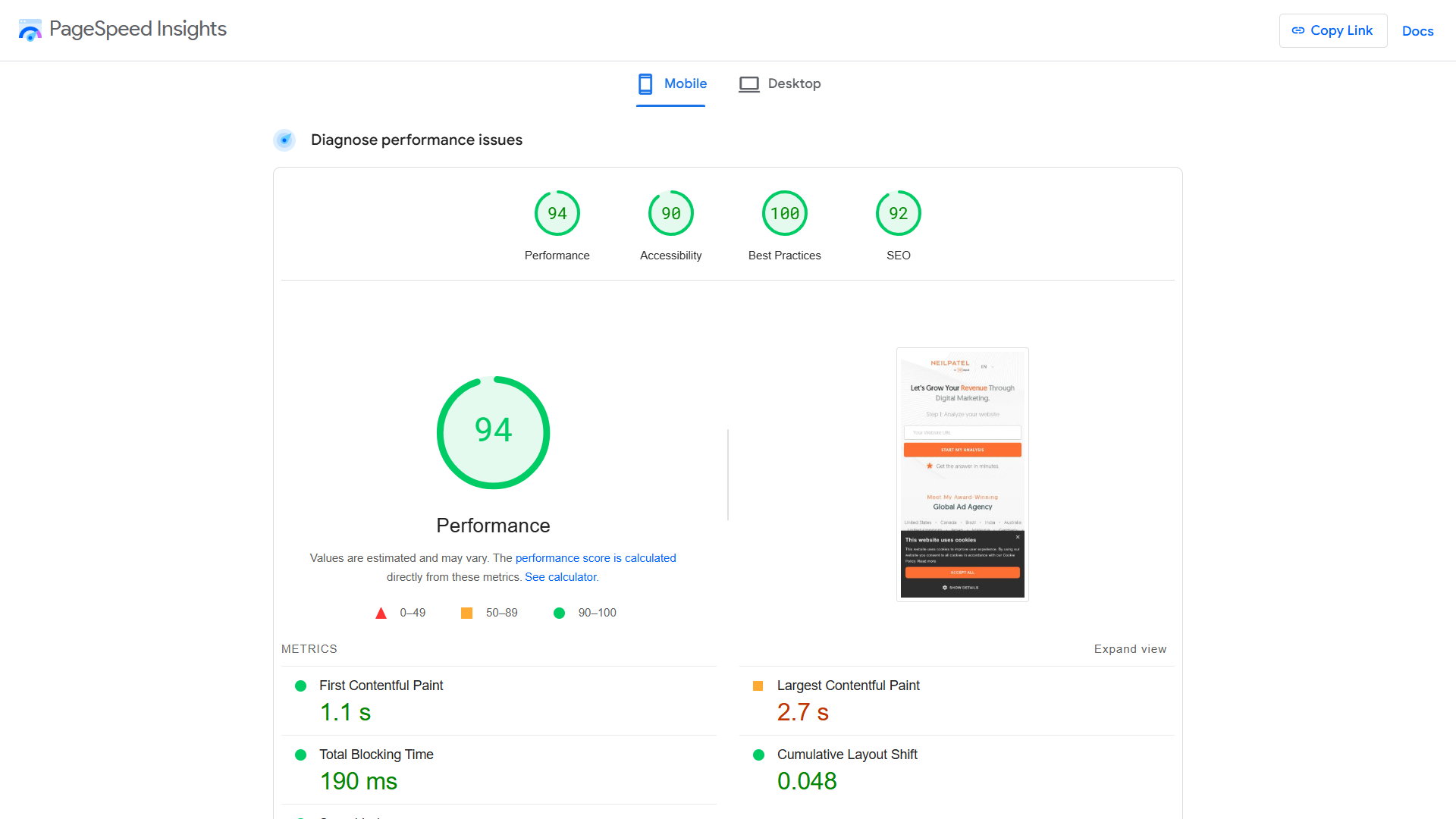
Site speed best practices apply in the same way to mobile and desktop sites. However, mobile-specific issues do sometimes arise. That’s why PageSpeed Insights has dedicated tabs for mobile and desktop.
It could be, for example, that JavaScript and HTML elements are unsuited to mobile browsers, or heavy animations or videos lag on 5G connections.
When running your sample of web pages through PageSpeed Insights, always use both the mobile and desktop views.
12. Remove Redirects Where Possible
The more redirects you have, the longer it takes the browser to request and render the correct page. This can add multiple seconds to your load time—an eternity in the digital world.
Identify and fix unnecessary redirect chains wherever you can. Tools such as Ahrefs and Screaming Frog quickly identify 301 redirect chains across your site, which you can review and rectify where appropriate.

13. Drop Unnecessary Plugins
Plugins are code-heavy and ramp up page load time across your site. They also often add a lot of render-blocking code.
Regularly review plugins to check if they’re needed. Specifically, look for duplicate features and opportunities for slimmed-down alternatives.
Of course, there are plugins made to help with site speed. Plugins that automatically resize images, minify code, and defer JavaScript loading can help with page speed. These plugins typically do more good than bad, but always ask if the bells and whistles are worth the trade-off with page speed.
14. Utilize Browser Caching
When browser caching is enabled, your server tells browsers to save a copy of a loaded page. When a user returns, the page renders much faster.
You can enable browser caching by adding some code to your .htaccess file or by using a plugin. WP Super Cache is one of the most popular caching plugins for WordPress.

15. Test Across Different Browsers
Your site might have issues that slow or prevent rendering on certain browsers. To remedy this, run a check of several of your top pages through a tool like BrowserStack SpeedLab.
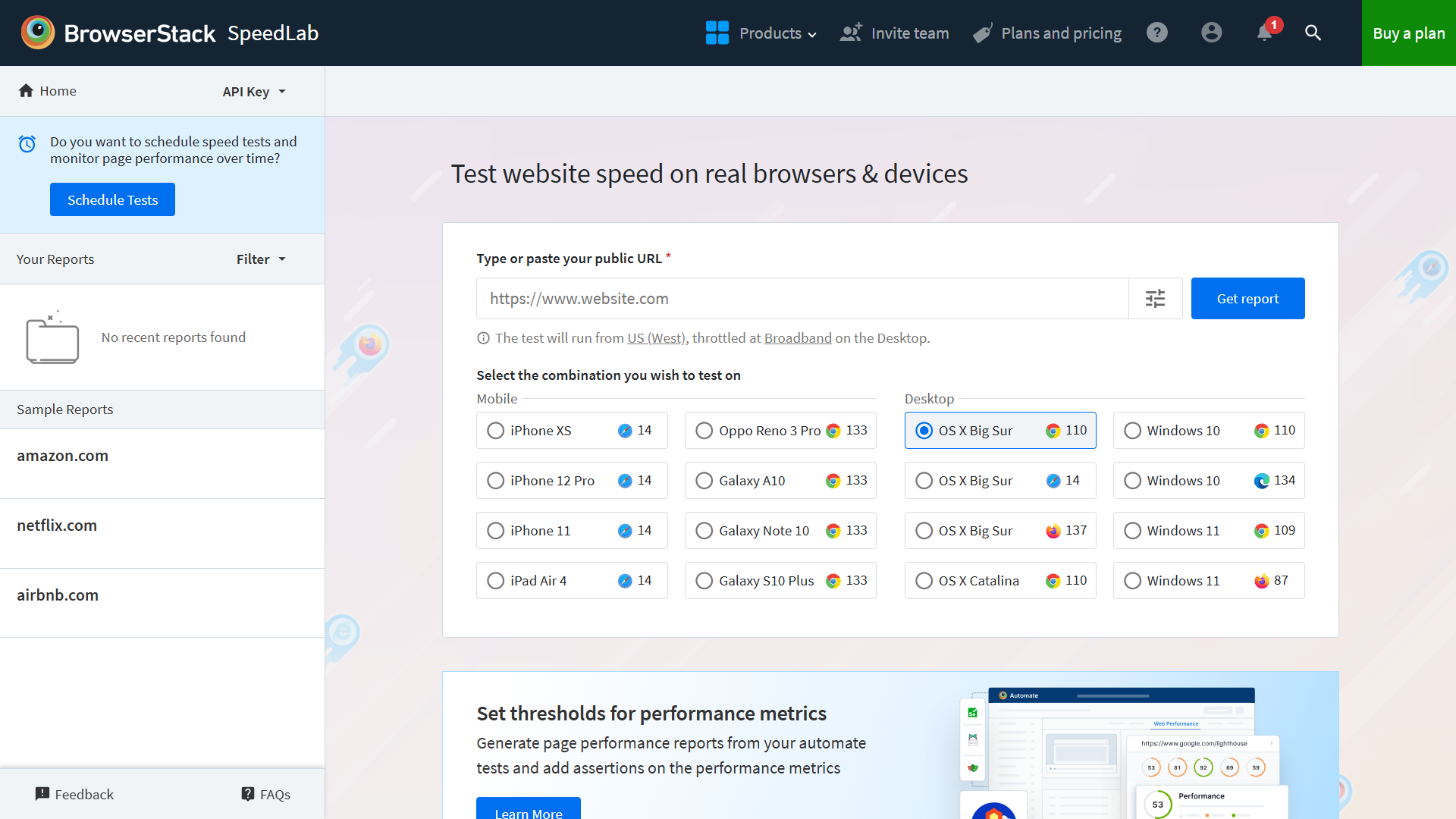
If you’re scoring well on Google PageSpeed Insights, it’s unlikely that you’ll have any major issues. But it’s a useful monitoring task nonetheless.
16. Choose Your Web Host Carefully
You get what you pay for with web hosting. And you can’t change the speed of your web host by making changes to your site. So it’s very important you choose wisely.
There are four kinds of web hosting services you can choose from:
- Shared hosting: A single server hosts multiple small sites. The price for shared hosting is low, but a surge in traffic to any other hosted sites can slow down yours. It’s better to avoid shared hosting.
- VPS hosting: A virtual private server, or VPS, hosts many sites, but each site has a virtual “spot” dedicated only to them. Because it’s virtual, it gives you more resources, potentially reducing the risk of site speed issues related to traffic.
- Dedicated server hosting: One site is hosted on a single server. Although more expensive, it helps to lower or eliminate the risk of losing site speed due to other sites’ traffic surges.
- Cloud hosting: Websites are hosted on a network of virtual and physical servers that offer more resources and more flexibility. If you suddenly get a surge in traffic, a virtual host will scale up to handle it.
17. Monitor Site Speed Continuously
Once you’ve run your initial audit, implemented changes, and automated processes like minification and compression, the hard work is out of the way. But don’t relax just yet.
Site speed optimization is an ongoing process. You should regularly check for new issues and ensure you’re adhering to best practices.
Here’s how to monitor your site speed:
- Consistently run new pages (or a sample of new pages) through Google PageSpeed Insights.
- Automate regular site-wide audits with a tool like Ubersuggest.
- Subscribe to a quality assurance tool like Pingdom that alerts you to new issues.
FAQs
How do you increase site speed?
Start with a site audit using Google’s PageSpeed Insights. From there, focus on the basics:
- Compress images using WebP or AVIF formats
- Minify CSS, JavaScript, and HTML
- Use lazy loading for images and videos
- Eliminate render-blocking resources
- Use a fast host and a reliable CDN
- Enable browser caching
- Remove unnecessary plugins and redirects
You don’t need to do everything at once, but even a few of these changes can significantly boost load times.
How do you improve mobile site speed?
Improving mobile speed starts with running mobile diagnostics in PageSpeed Insights. Then:
- Make sure your site is fully responsive
- Compress and lazy-load images
- Reduce heavy scripts that don’t play well on mobile
- Optimize font sizes and tap targets
- Test performance on real mobile devices
Mobile users bounce fast, so every second matters here.
How do you measure site speed?
Use Google PageSpeed Insights to test individual pages and view Core Web Vitals. For broader monitoring, tools like Pingdom, GTmetrix, and Ubersuggest give a site-wide picture.
Look for these key metrics:
- Largest Contentful Paint (LCP): how fast your main content loads
- Interaction to Next Paint (INP): how responsive your page is
- Cumulative Layout Shift (CLS): how stable the layout is during load
Measure often, especially after big updates or design changes.
Conclusion
From minifying code to implementing ongoing monitoring, there are a lot of technical tasks to account for when optimizing site speed.
However, it is more than worth it over the long term.
The key is to make use of tools like PageSpeed Insights to run a comprehensive audit. Then you can set up automated processes like image optimization and minification. Often, it takes no more than a week or two to implement site-wide changes.
Moving forward, it’s all about running regular checks to make sure systems are running correctly. And then you can sit back and watch your conversions and rankings soar.
Are You Using Google Ads? Try Our FREE Ads Grader!
Stop wasting money and unlock the hidden potential of your advertising.
- Discover the power of intentional advertising.
- Reach your ideal target audience.
- Maximize ad spend efficiency.